
Is the member an active account?
The most common reason that a member is not showing up in a report is that they are an inactive account, or "Aggregate Only" account. This means that they have all Account Settings turned off except for "Analytics - Aggregate". An account is usually put into this state if the member no longer uses the platform, but you want to retain their data for aggregate reporting.
If a member has the Analytics - Individual option set to Not Available (as is the case when they are set to Aggregate Only), this means that they are hidden from queries and reports that associate records with Demographics (Name, ID, Email, etc.).
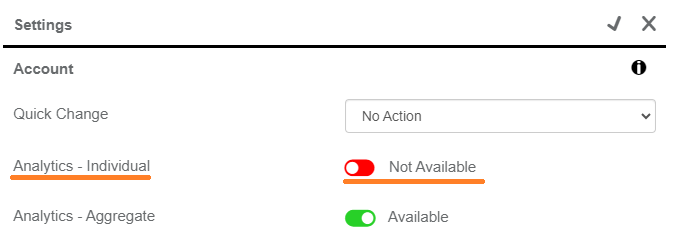
Note: You can turn on the Analytics - Individual setting for an inactive account, but this sets the Billable status to Yes, meaning this member will be counted towards your database size, even if they are not actively using the platform.
Double-check the report/query's Population filters.
There are many population filters available when building a query or running a report, so it is entirely possible that there is a filter that unintentionally hiding data from your report.
Some common Population filter discrepancies we see are:
- Members fit in some, but not all, of the filters. The Population filters are configured on the first page when you are building a query or report. You can use any number of the filters on the page, but keep in mind that a member needs to meet all these requirements to be included in the results.
- "And in Group(s)" is used instead of "And NOT in Group(s)," or vice versa. There are two distinct Group filtering options. One of them limits your results to a group, whereas the other excludes members in a group from the results.
- The member is labeled as a test account and you didn't select the Test Account setting. Under the "And with Account Setting(s)" section of the page you can filter by different Account Settings. If you don't select any options from here, the results will exclude test accounts by default. You have to select the Test Account option for any test accounts to appear in the results.
- You can check whether or not a member's account is a test account in Member Management on the Status tab of the Profile page.
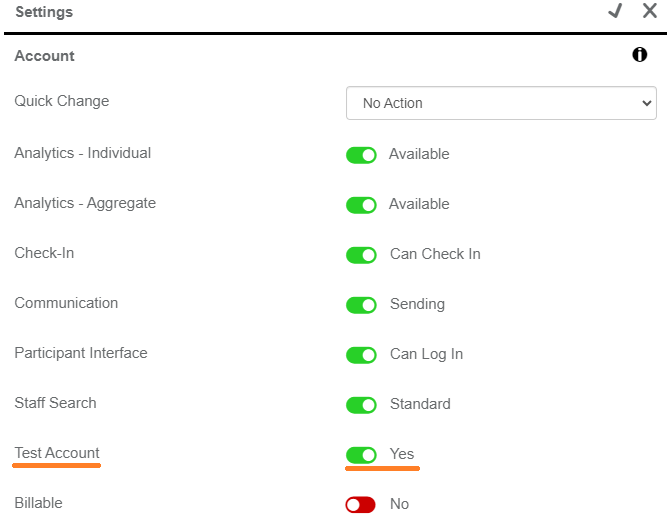
- You can check whether or not a member's account is a test account in Member Management on the Status tab of the Profile page.
If the report relies on a date range, double-check the member's record date.
Many queries and reports use a date range as a required filter. If the member's record date occurs before or after the configured date range, that record is excluded from the results.
For example, you are running a query that displays Blood Pressure entries between 2023-01-01 and 2023-03-31. If a member has a Blood Pressure record from before 2023-01-01, or from 2023-04-01 or later, that record is not included in your query.
Double-check the report/query's Field Filters.
If you used field filters when building a query, the member's record may not have met one or more of the requirements to appear in the results.
Here are some possible filter-related issues:
- The filter's Operator is incorrect. Depending on the field you are filtering, there are a number of Operators available, and you may have configured it in a way that excludes expected records.
- For example, if you run a Steps query and add "Steps > 5000" as a filter, this means that only records with 5001 steps or more are included, so a record with exactly 5000 steps is not included in the results.
- The "How To Join" option is incorrect. When you add two or more field filters, the "How To Join Filters" setting appears above your filters. Using AND means that a record must meet all the field filter requirements, whereas OR means that the record needs to meet at least one of the filters to appear in the results.
- The "Last Updated Range" is being used unintentionally. "Set Last Updated Range" is an optional setting that allows you to filter results by the last time they were edited, rather than just by the date of the record. If you use this setting in tandem with the Date Range setting, a record must have a record date inside of the Date Range while having a Last Updated date inside of the Last Updated On range.
- For example, if you run a Fitness Tests query with a Date Range of 2023-01-01 to 2023-04-30, and you also use a Last Updated On range of 2023-04-01 to 2023-04-30, this means that a record needs a Date between January and April, but it will only appear in the results if it was created or updated during the month of April.