
When you are editing an existing time slot, you will notice there are two buttons: Save, and Save All Slots.
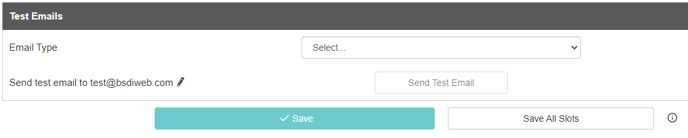
You may be confused if you click Save All Slots and changes are not applied to every available time slot. There are prerequisites a time slot needs to meet before it can be updated by the Save All Slots action.
Does the time slot occur before the one you are editing?
The Save All Slots action only applies to time slots that occur after the time slot you are editing. This means that if you select a time slot besides the first in the series, the slots that occur before it will not be updated.
Example
An event has time slots every Tuesday at 1:15pm from August 19 to October 28.
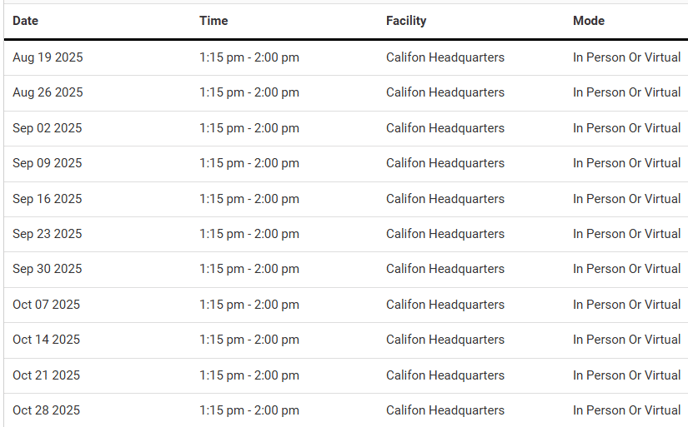
If you select the September 23 event and change the time, this will be applied to all time slots from September 23 through October 28. The slots from August 19 to September 16 will not be affected.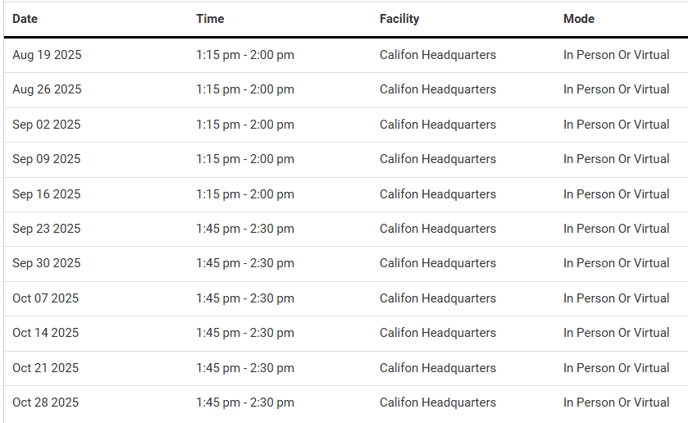
Do all of the necessary attributes match the time slot you are editing?
Time slots can be updated using Save All Slots so long as all of the following attributes match the time slot that is being edited:
- Time
- Duration
- Day (of the week)
- Capacity
- Facilities
- Cost
- Attendance Details
- Virtual Meeting Information