
When connecting your Motivation Alliance account to Garmin from the Connections page, you may encounter an error screen like this:
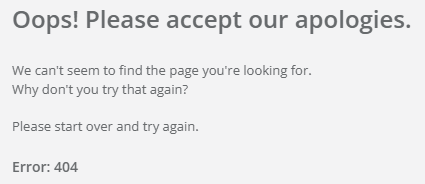
This is related to a known issue with Garmin Connect where the authentication can fail if you start connecting your Garmin account in an application or browser other than your device's default browser.
Below are a few scenarios that will and will not work when connecting to Garmin Connect:
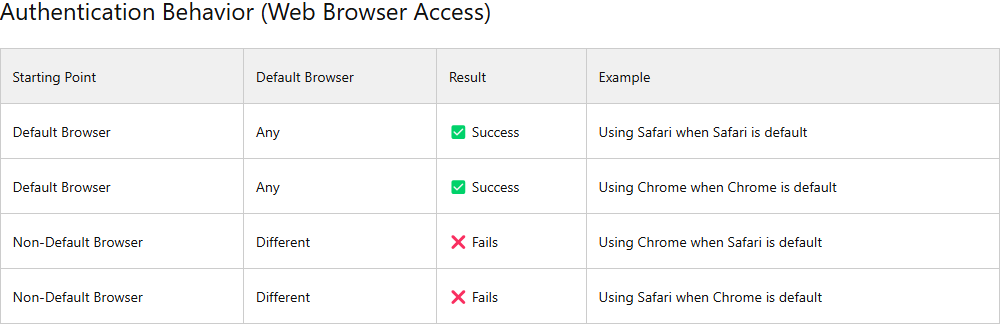
Here are a few possible solutions to work around this issue:
Connect to Garmin Connect outside of the mobile app.
If you are using a mobile device with the Motivation Alliance app downloaded (iOS or Android), attempting to connect to Garmin from the Motivation Alliance app will result in the error message displayed earlier in this article.
You can try accessing your Motivation Alliance URL in your device's default browser. Unless you have updated the default browser in your device's configuration, Safari is the default for iPhone, and Chrome is the default for Android.
If you start the Garmin authentication workflow in the default browser, you should be able to successfully connect your account to Motivation Alliance.
Connect to Garmin Connect on a desktop device.
If the above solution did not work, you can try logging into Motivation Alliance on a desktop computer in the default browser, then connecting to Garmin Connect from there. Connecting on a desktop device works for both the desktop and mobile iterations of Motivation Alliance.