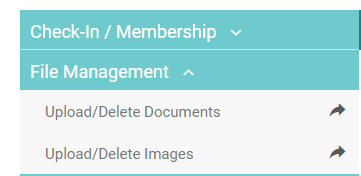
There are two options on the Content page under the File Management menu: Upload/Delete Documents and Upload/Delete Images.
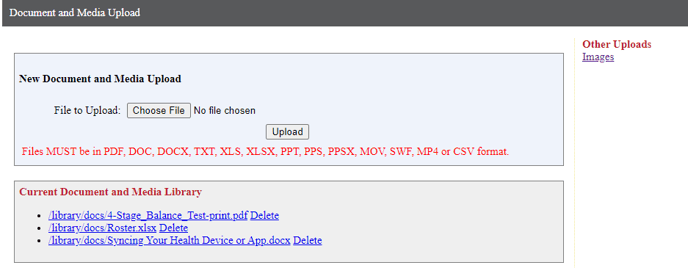
The Documents page allows you to upload documents from several different formats including PDF, DOC, and XLSX files.
The Images page allows you to upload image files, including standard JPG or PNG files, and even GIF files.
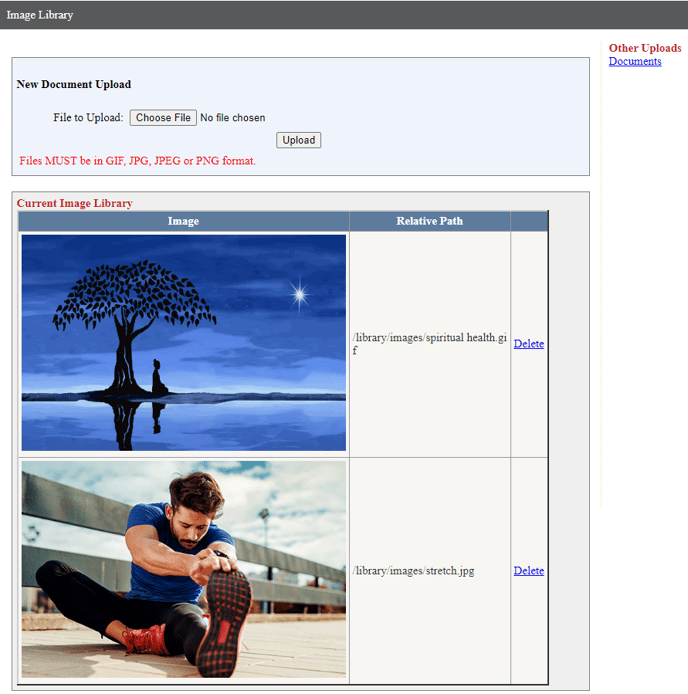
How To Use Custom Library Images/Documents
Some pages across the staff interface have an Editable Content HTML section that is used to create custom content. This looks like a standard text editor, but there are additional tools available to further customize the text and add images to your content.
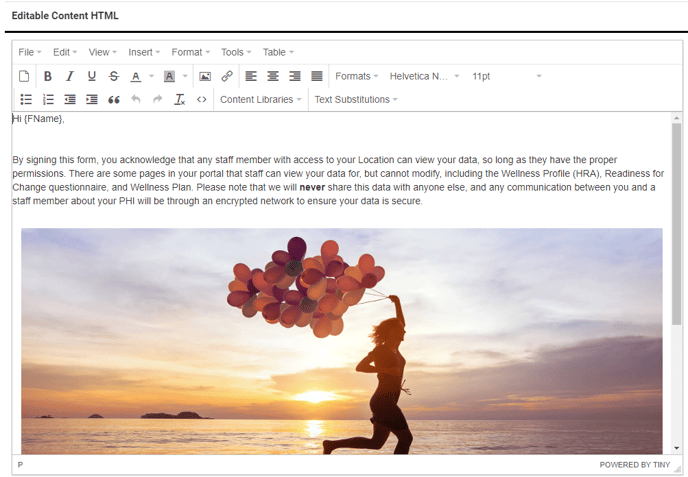
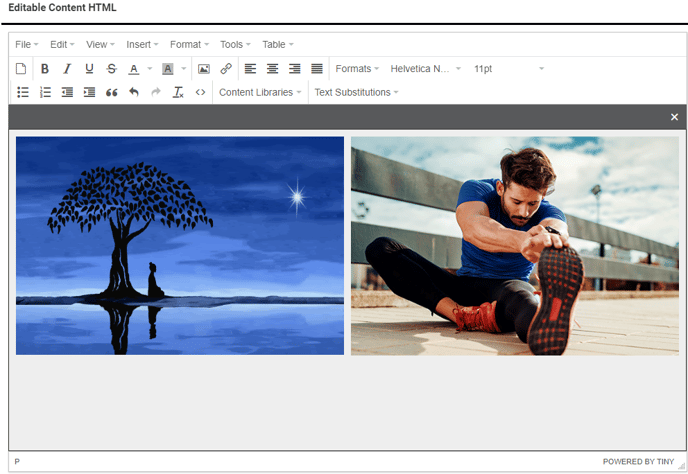
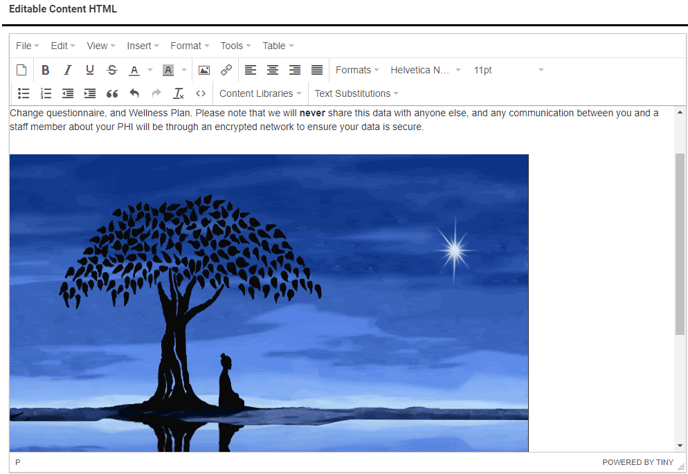
If you expand the Content Libraries menu in the options, the Your Uploaded Images and Your Uploaded Documents options let you select from the images and documents uploaded under File Management. 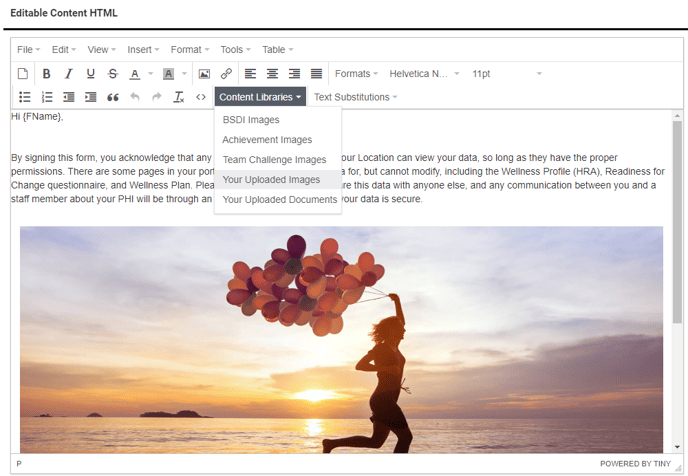
When you select an image, it is added to the content editor where your cursor was placed.
When viewing the documents library you have the option to View the file before adding it to the content. This will download the file and/or display it in the default software for that file type.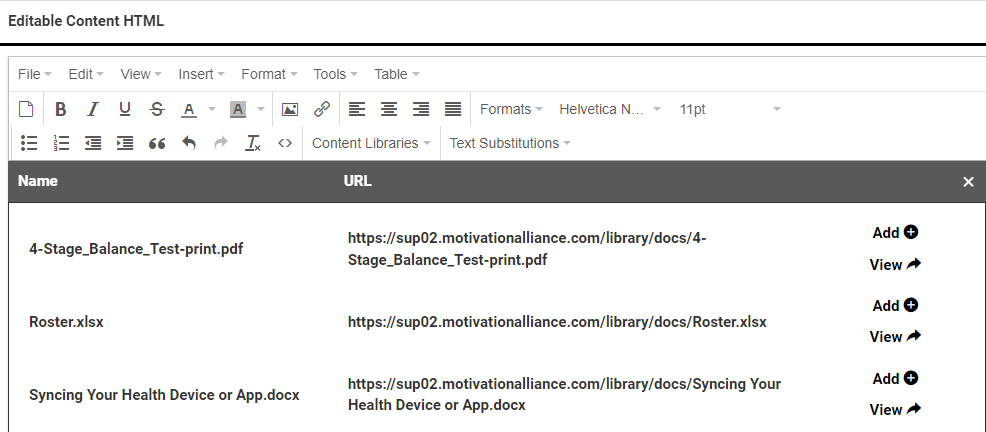
When you select Add for a document, a link is added to the content editor where your cursor was placed.
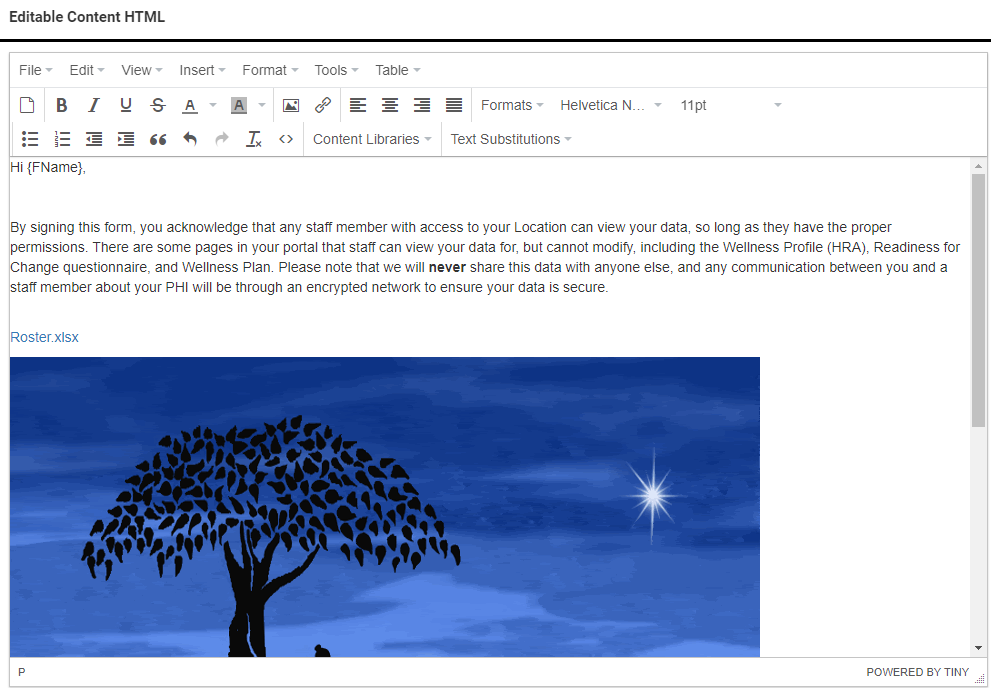
When this content is displayed to a participant, clicking the document link will download the document.
Here are some pages across the staff interface where you can use the custom image and document libraries.
Content Management
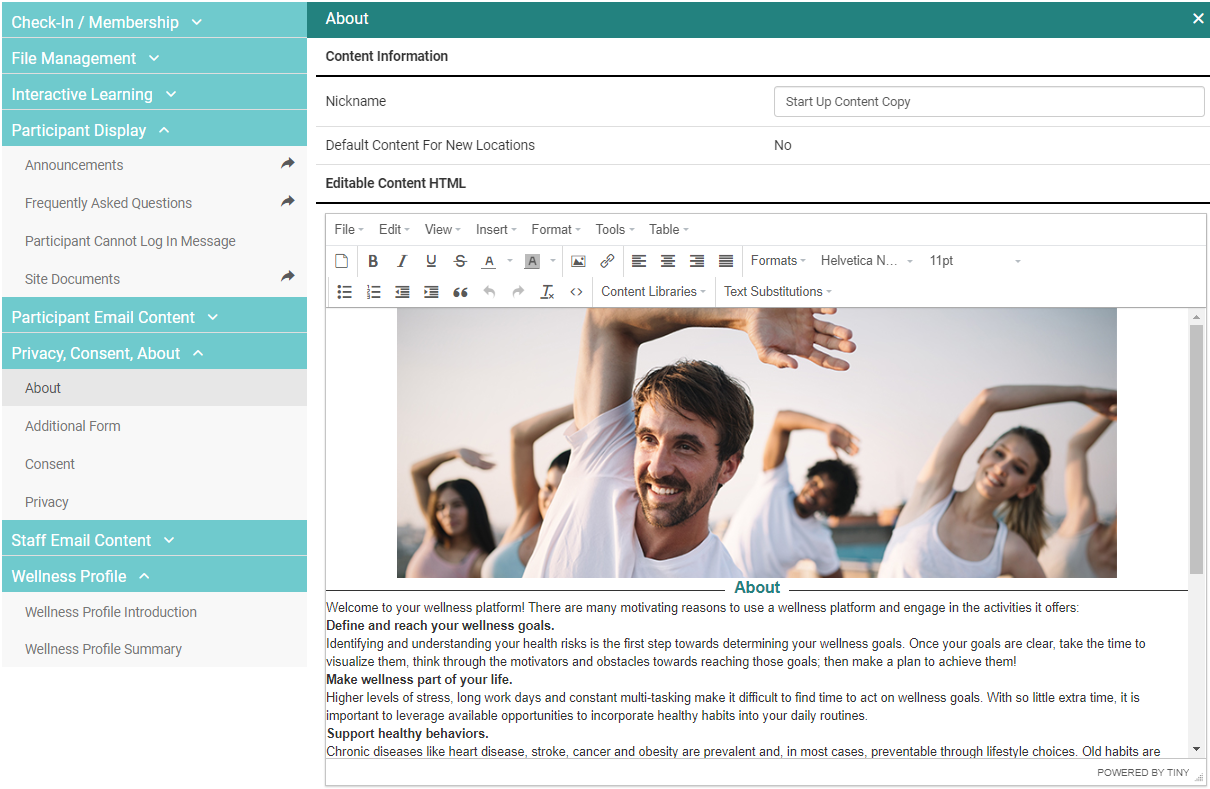
Several different site content sections can be customized, ranging from automated emails to content displayed on different participant interface screens.
Group Registrations
The Content section of the group registration has the Your Upload Images and Your Uploaded Documents options.
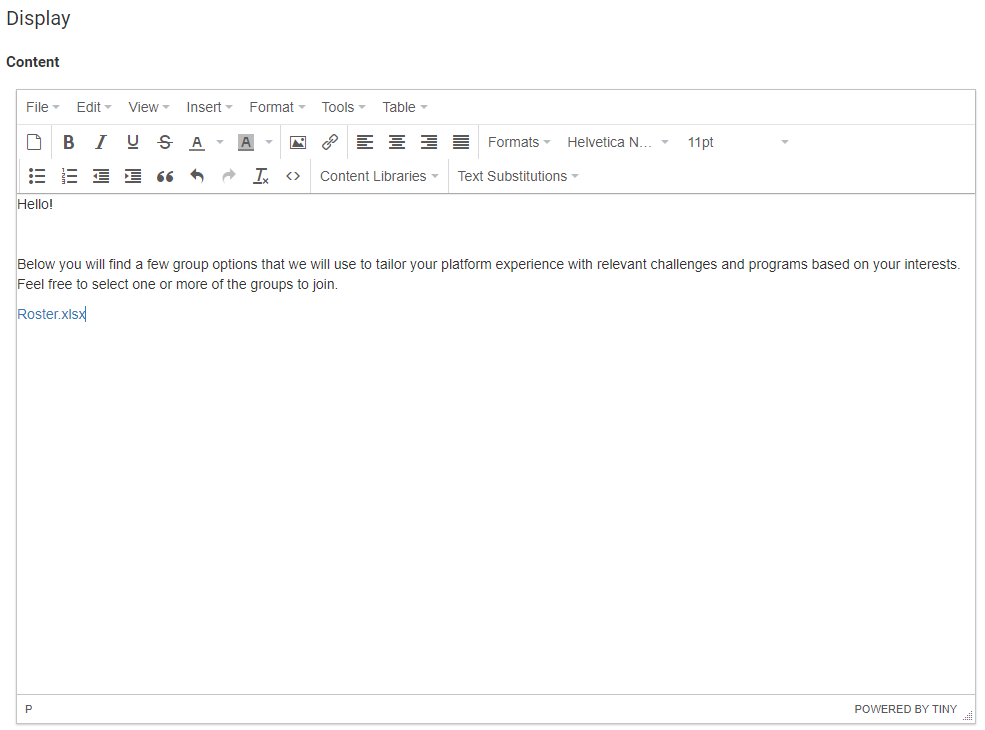
Additionally, these options are available if you enable the Send Confirmation Email setting.
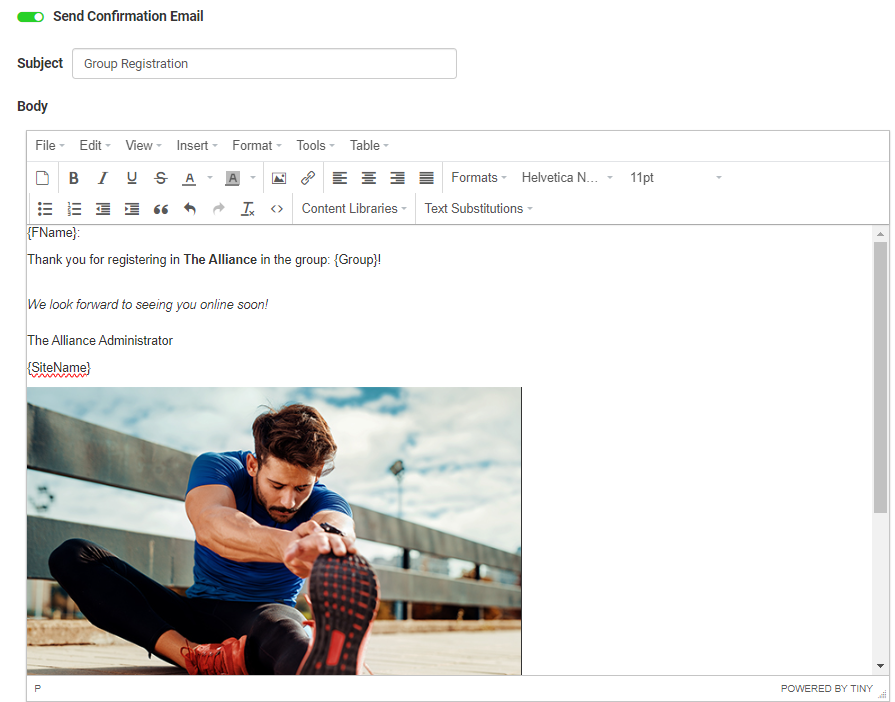
Communication- Bulk Emails
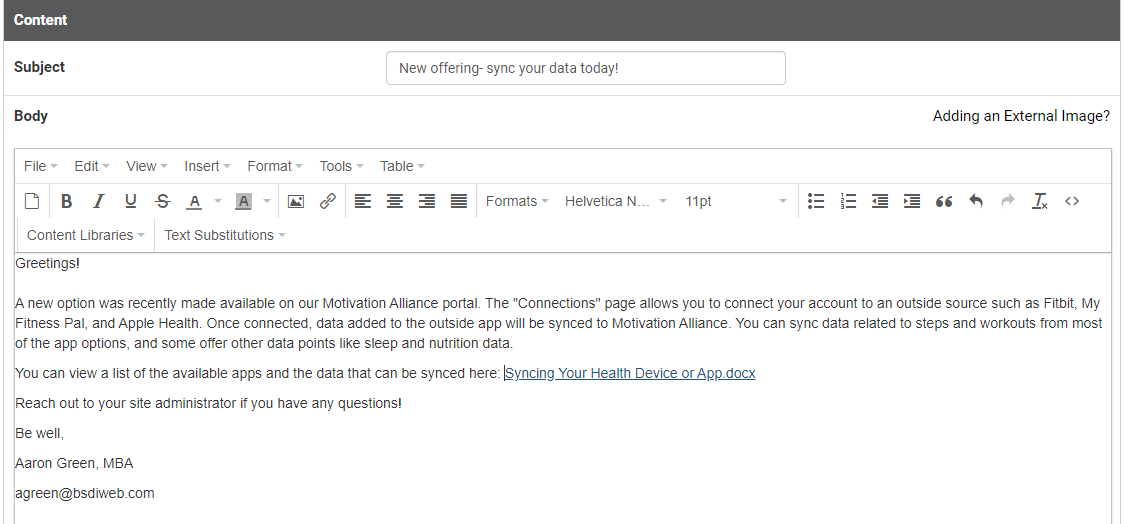
The Body section of a bulk email composed on the Communication page allows you to insert your uploaded images and documents.
Site Documents
You can add a document from the Your Uploaded Documents library as a Site Document from the Content page.
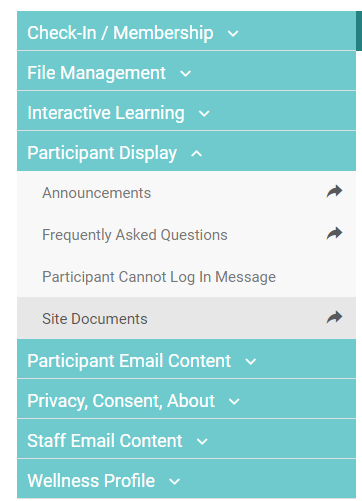
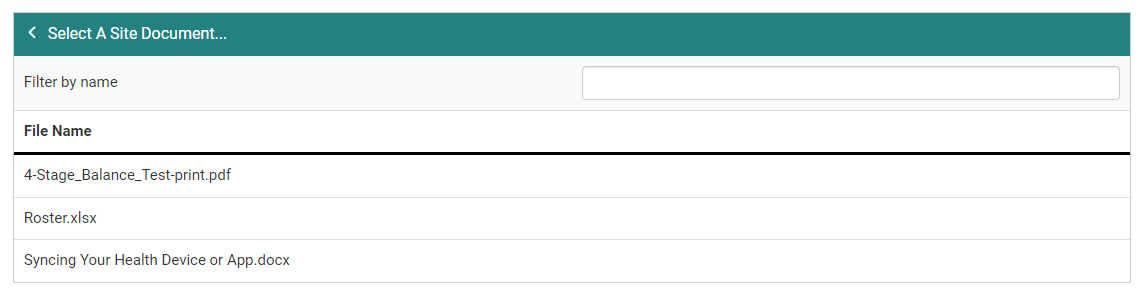
From the Site Documents page, you start by selecting a document.
The next step is to add a viewer-friendly title for the document and a description.
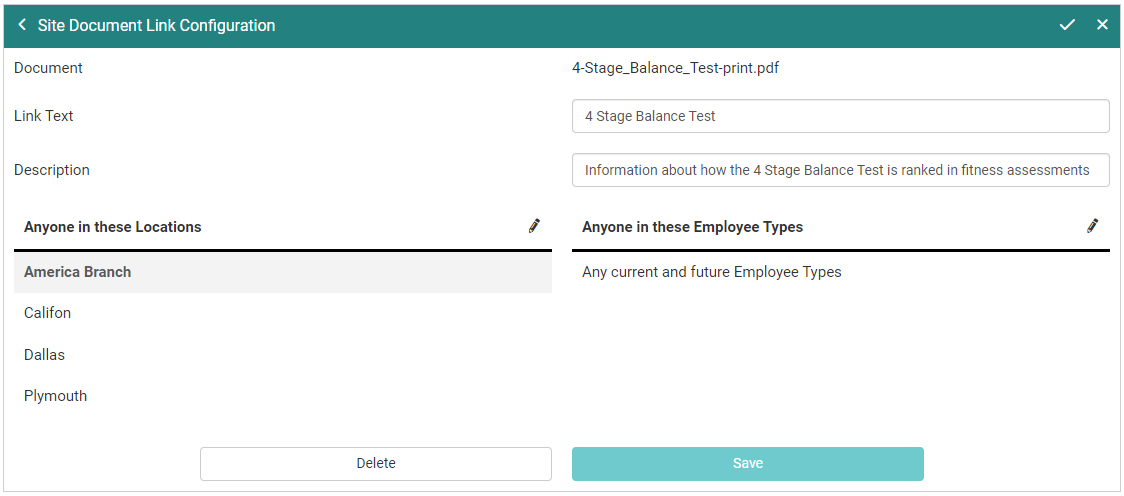
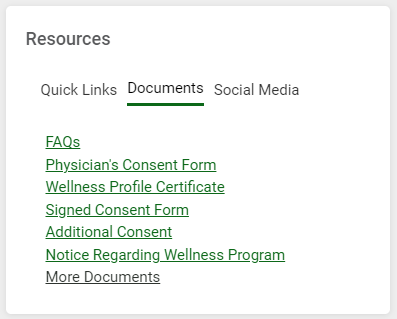
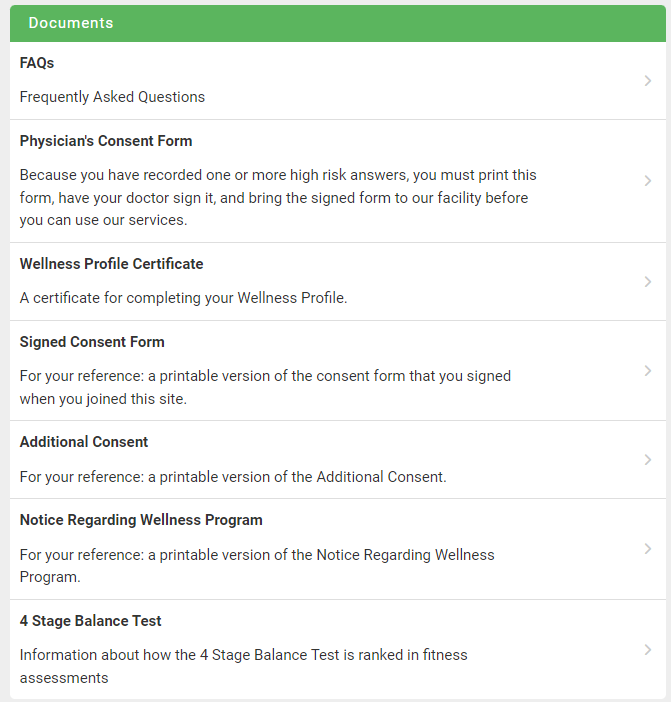
Once saved, the document is available to participants when they select More Documents from the Documents tab under Resources.