
When creating a Quick Link, there are two areas the link can be displayed in: The Resources Area and the Main Area.
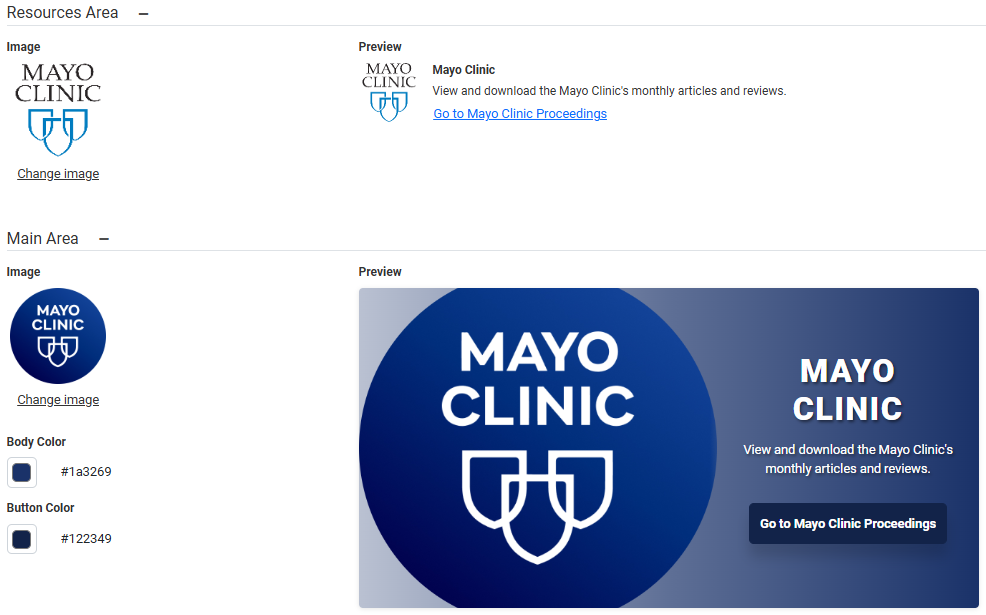
Depending on the area you are displaying the link in, there are a few options for customizing how the link appears.
Resources Area
Links added for the Resources Area will appear on the right side of the participant Home page in the Resources section.
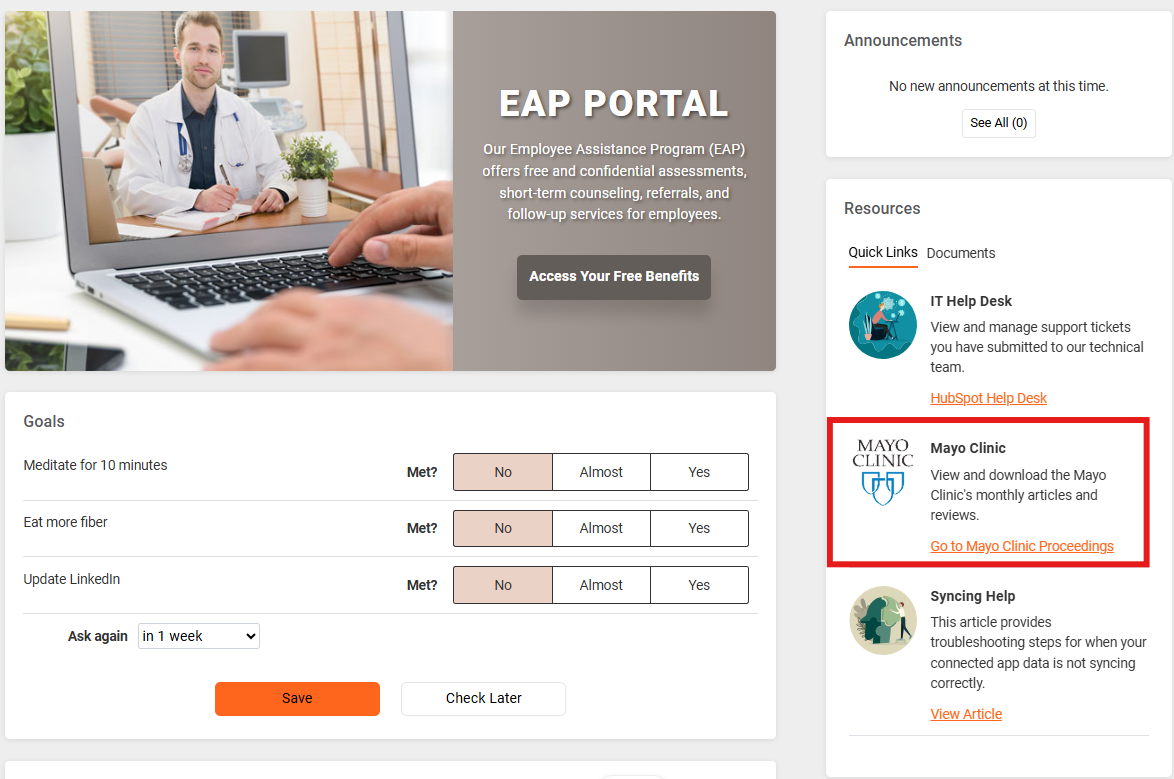
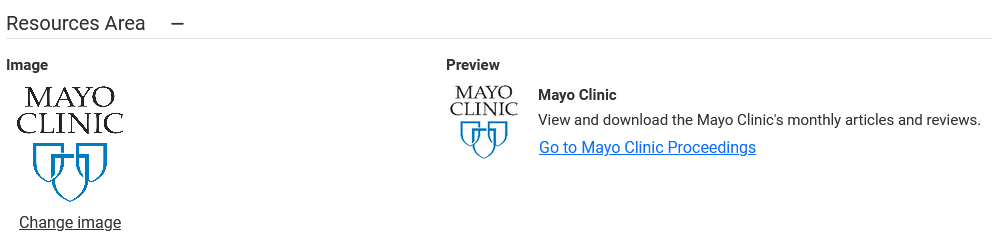
The only option you need to add for a Resources Area link is an image.
If you choose to upload your own image, you can zoom in and out of the image to resize it, as well as switch between square and circle cropping.
Example 1: Circle Cropping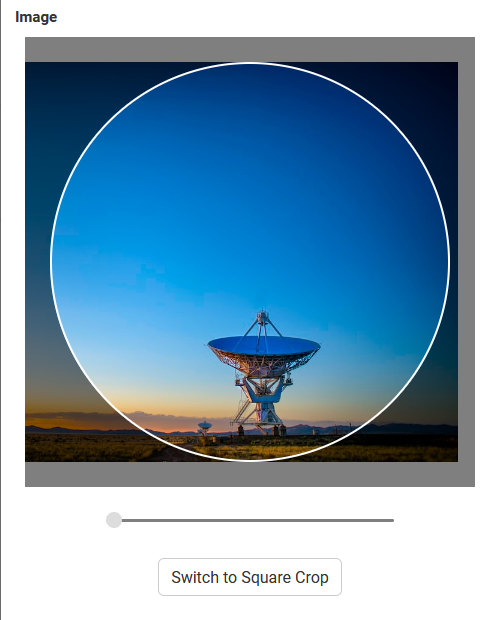
Example 2: Square Cropping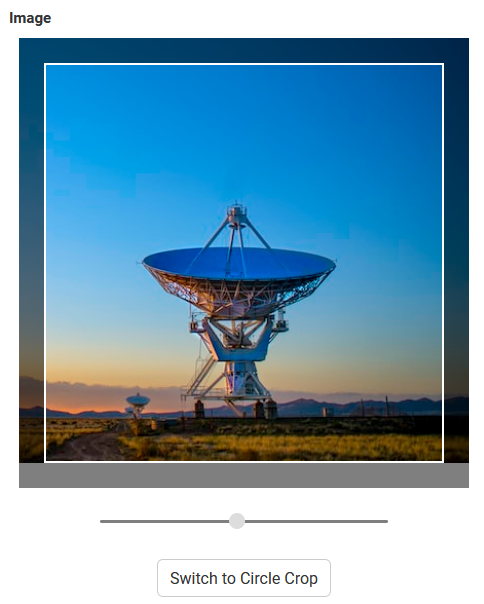
Main Area
Links added to the Main Area display in the center area of the participant Home page.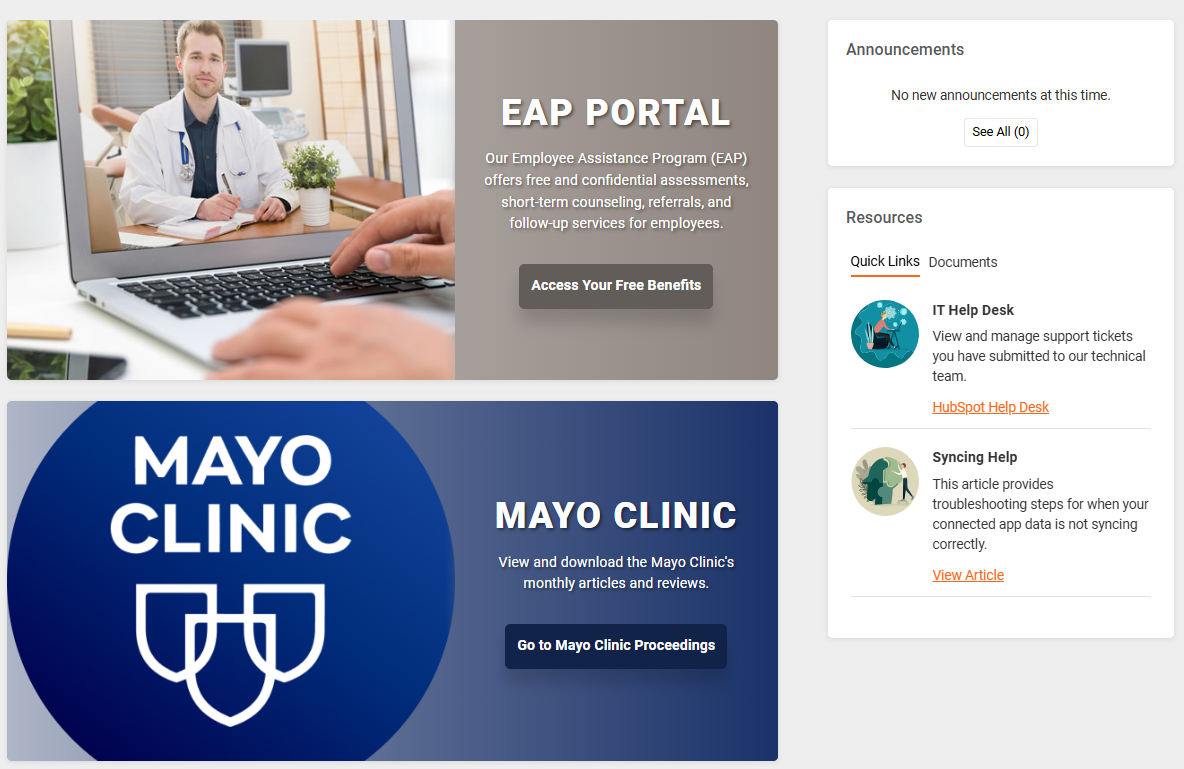 In addition to selecting an image for this link, you can also set the colors used for the link background and the button.
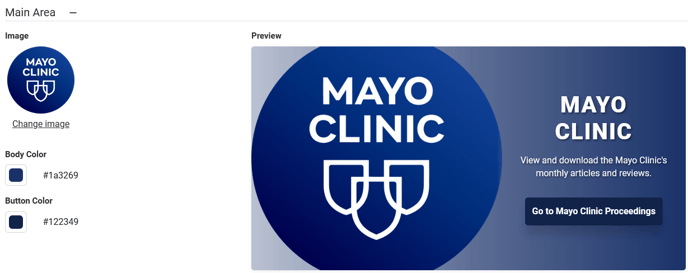
Note: When you upload an image, these colors are automatically generated to match the image you selected, but these can be updated.
You can click the color button to set a different color for both options. This will pop up a color picker where you can choose the base color from the rainbow scroll, then refine the exact color by clicking inside the above rectangle. 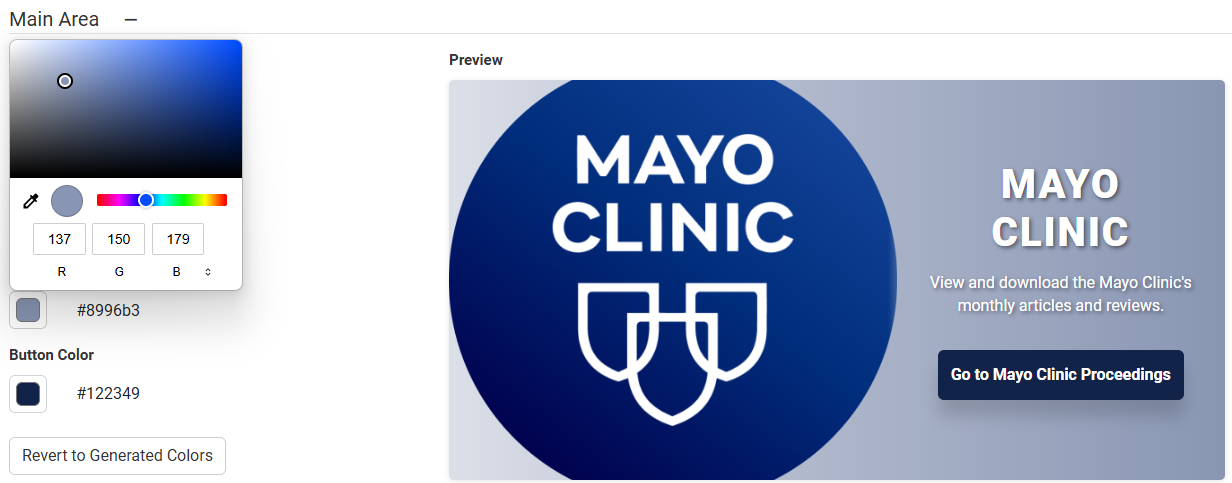
You can select Revert to Generated Colors to return to the colors automatically picked when the image was uploaded.