
If you regularly update Account Settings for individual accounts, you may not know that there is an easier way to apply the same Account Settings updates for more than one account at a time.
Advanced Participant Account Settings Management is an interface located on the Configurations page that allows you to apply the same Account Settings changes to multiple accounts in one action.
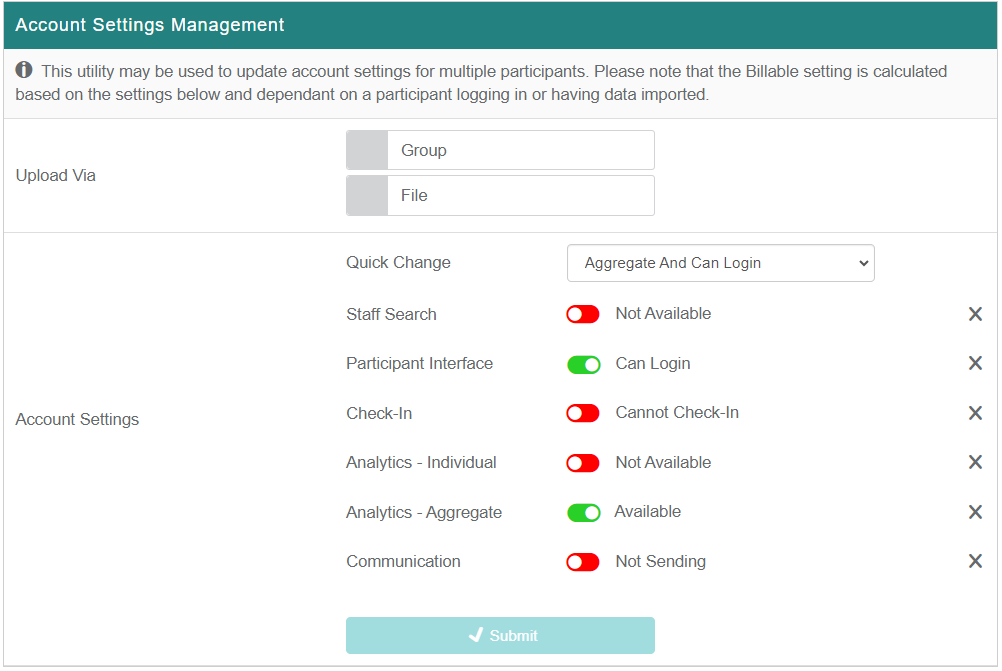
You can select the population to be updated in two ways: Group or File.
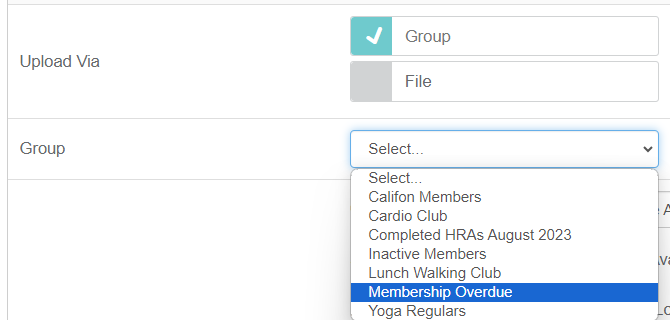
If you select Group, a Group menu appears with all existing active groups you have access to. When you select a group, every member in that group, whether active or inactive, will be affected by the changes.
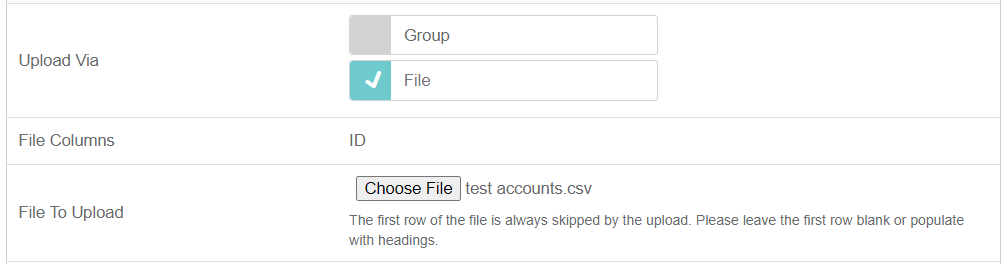
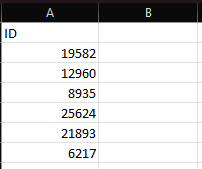
If you select File, a Choose File button appears. There is also a row that specifies the file only needs one row with IDs.
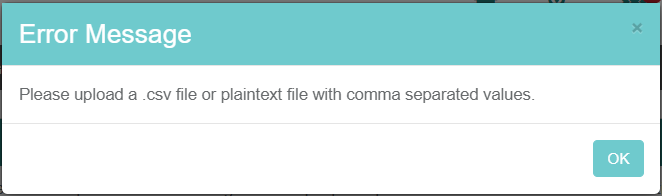
The file upload only works with .csv (spreadsheet file) or plaintext files with comma separated values. If you try to upload an invalid file, you will get a warning message.
Here is an example of a valid file:
Once you have the population selected, you select the account settings to apply to the population. Similar to updating Account Settings for a single account, you can use the Quick Change menu to apply preset changes, or customize the settings based on your needs.
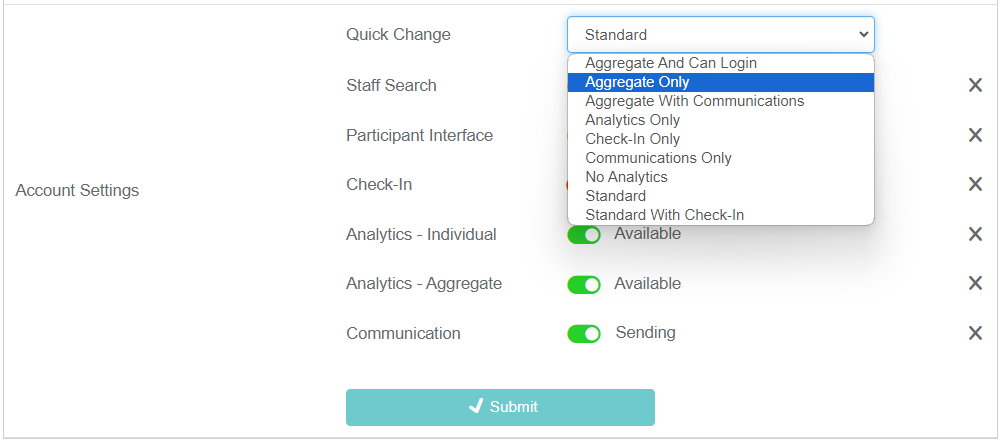
This page is unique when compared to the Account Settings options in Member Management because you are able to select account settings to be ignored in the update. For example, if you want to update multiple accounts' Check-In settings, but don't want to touch any other account settings, you can click the X icon next to all of the other settings and leave just the Check-In setting.
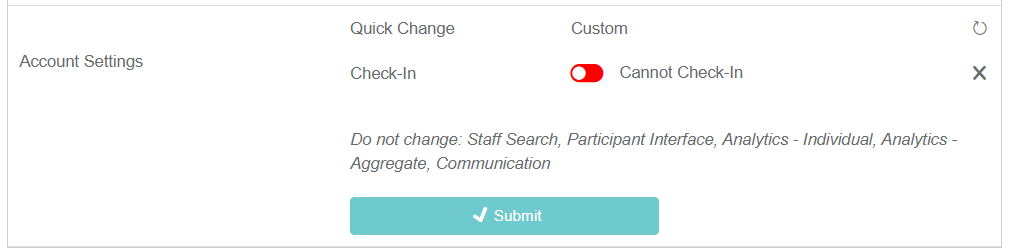
This is useful if the population you are using consists of a variety of account setting combinations, and you are only trying to update specific settings while maintaining all other settings.
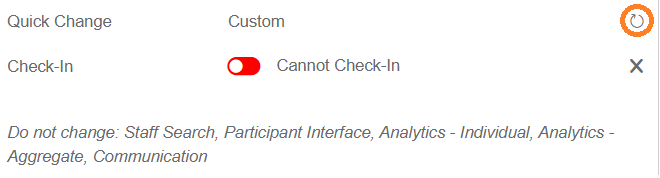
If you accidentally removed a setting that you want to update, click the curved arrow icon to restore the removed settings.
Once you have the account settings configured, you can click Submit to begin the update.
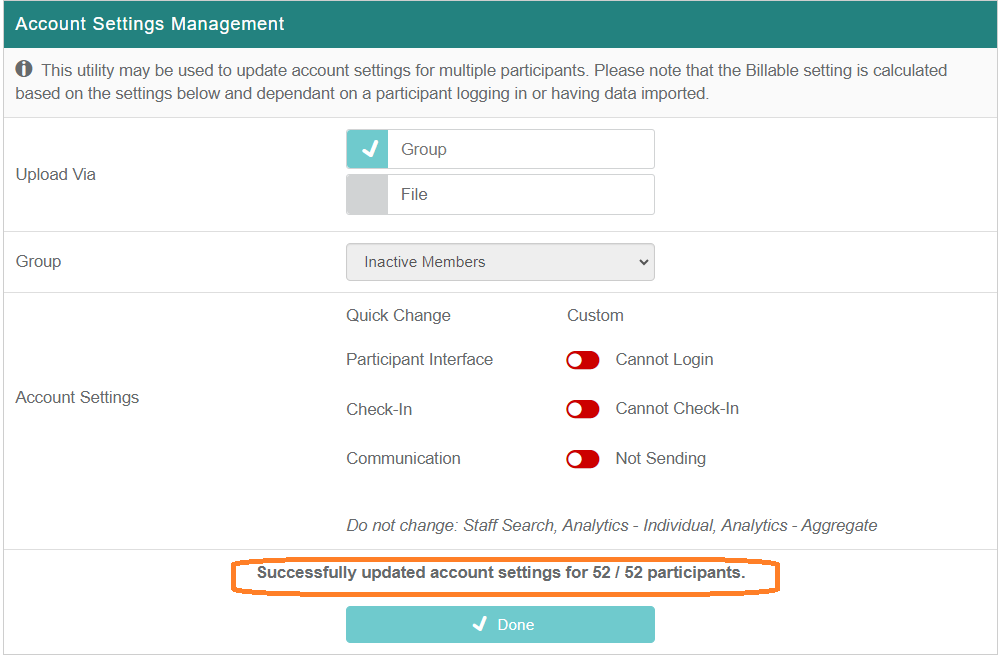
Once the updates are complete, you will see a section at the bottom of the page that reflects the status.
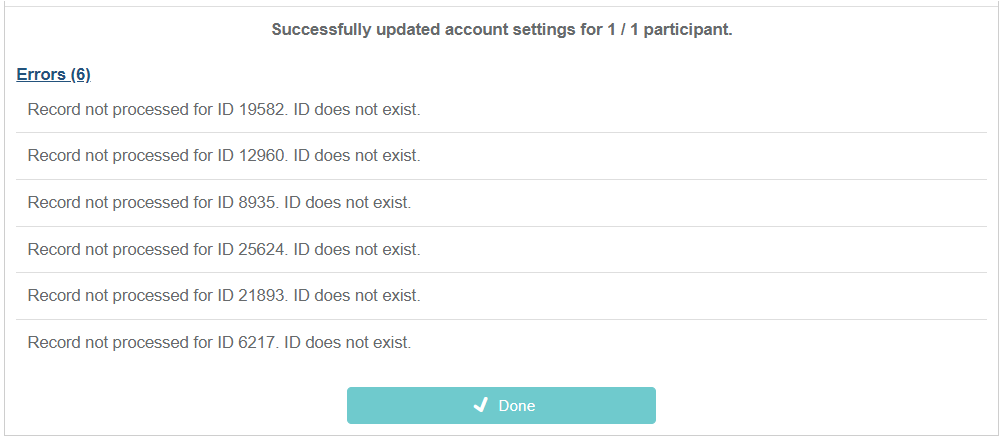
If there were any errors with the accounts provided, those will be listed under the status message.
If you do not have Advanced Participant Account Settings Management turned on for your site and would like to have it added, reach out to your account manager for more information!