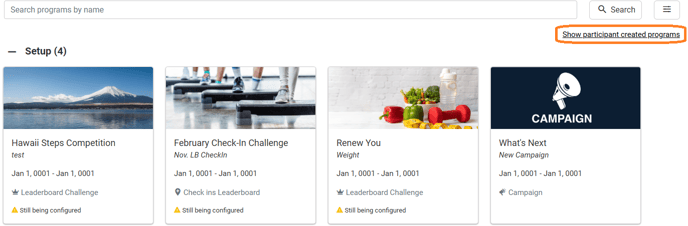
On the Programs home page in the staff interface, you will notice the "Show participant created programs" link on the right side of the page.
Participants can create competitions for up to 50 users in their population. These competitions are invite-only and user who did not receive an invite will not see it.
If you click this link, you will be shown all of the programs that participants have created.
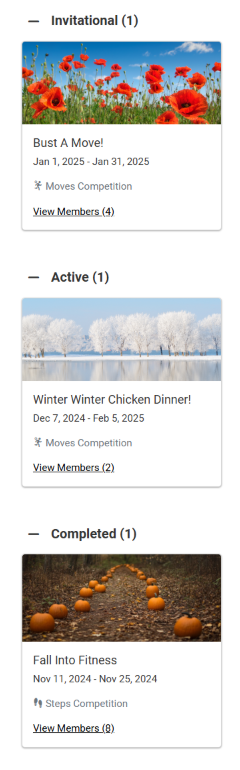
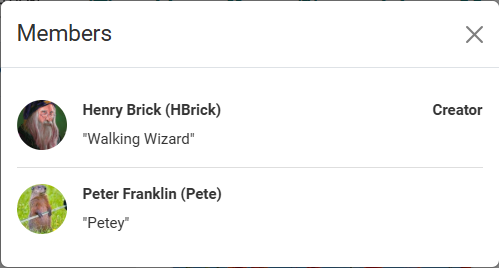
You can view the registered members by clicking View Members for a competition. Beyond that, no additional information about the competitions is displayed to staff members.
Participant Competition Creation
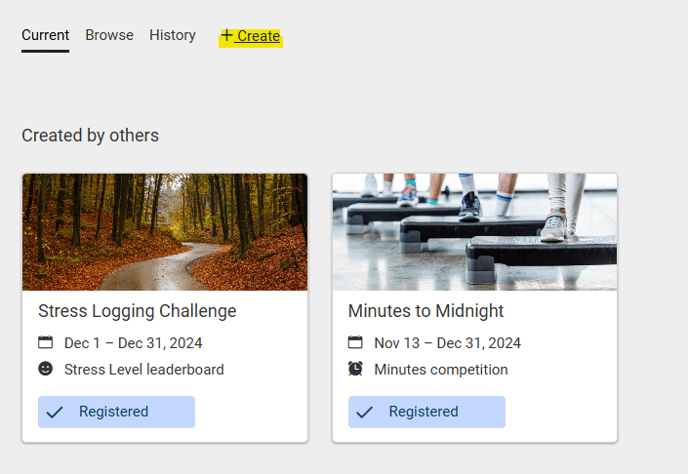
From the Programs page in the More menu, participants can view current programs and browse ones they can register for. There is also a Create button that allows them to begin creating a competition.
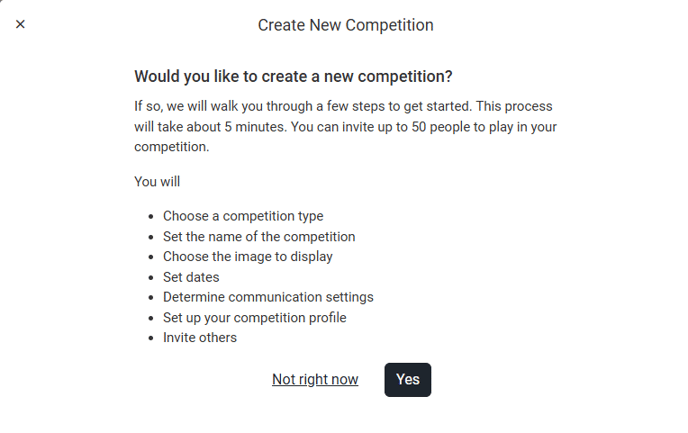
This summary message will be displayed when Create is selected:
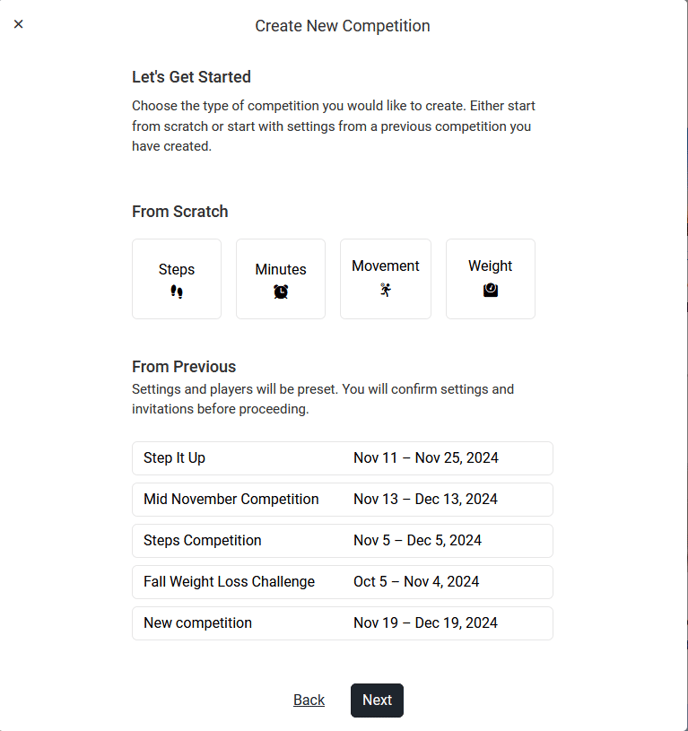
If the participant clicks Yes, they will start creating a competition. The first page has the user select which activity to track in the competition.
If the participant has previously created a competition, they can select it under From Previous to use the same settings and users for the new challenge. This will bypass the rest of the competition setup as all of the previous competition's settings are applied.
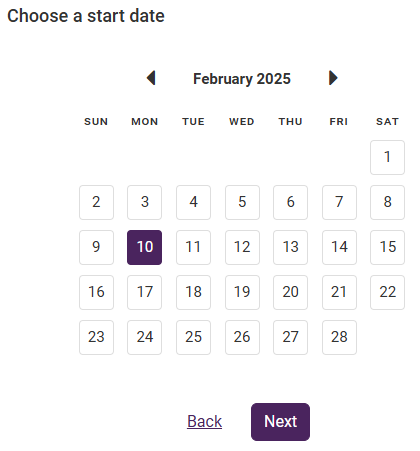
If the participant is creating from scratch, after selecting the activity type and clicking Next they will be prompted to choose the start date for the competition. The registration period begins once the competition is created and ends the day the competition starts.
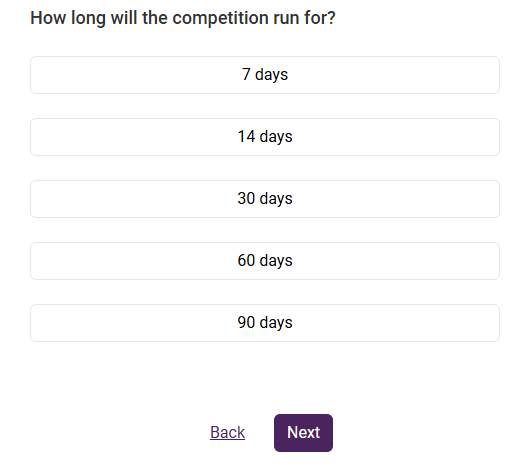
The next page lets the participant choose how long the competition will run for. There are 5 preset date options, and the participant can only choose from these options.
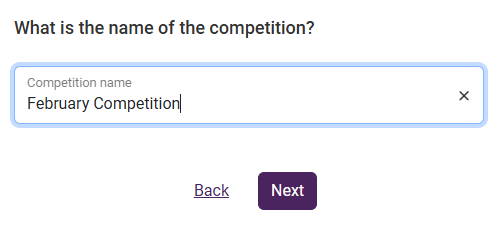
The next page has the participant name their challenge.
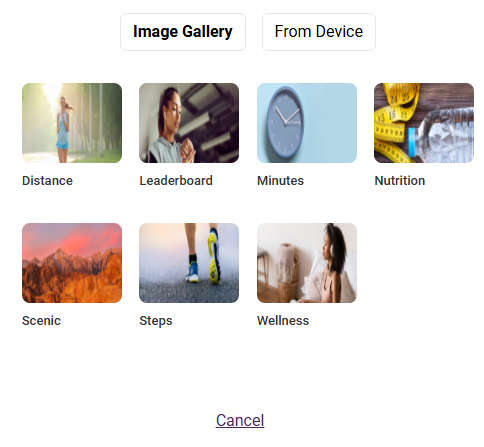
The next page has the participant choose an image from the gallery, or upload their own image.
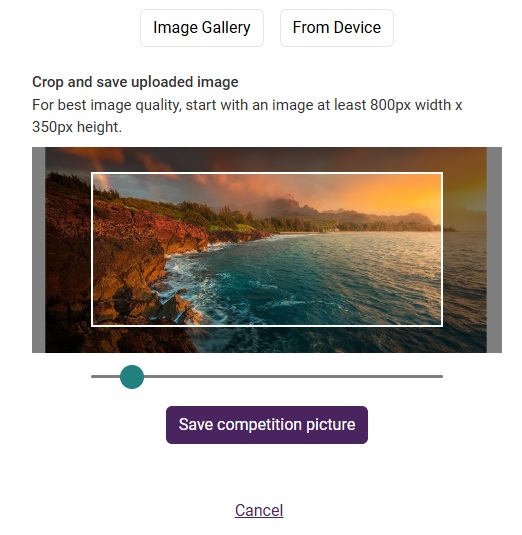
If the participant uploads their own image, there is a resizing tool that allows them to fit the image into the challenge banner size.
The next page has the participant select which reminders (if any) should be sent to members during the competition duration.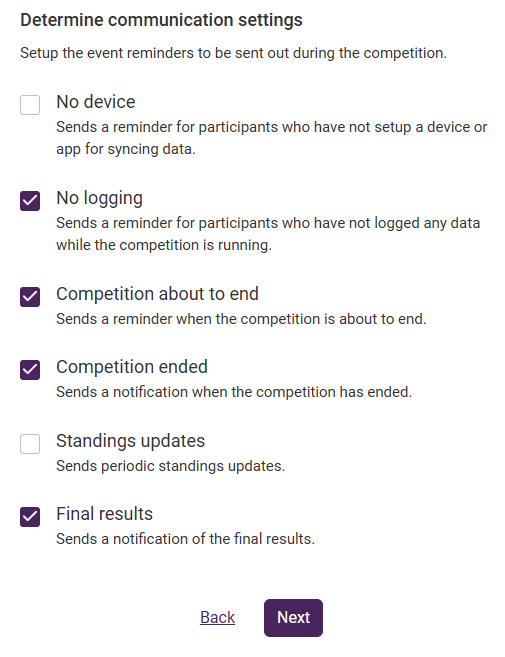
The next page is a review of the competition settings. If the participant wants to update any of the settings, they can click the hyperlinked text to be taken to that respective page of the setup process.
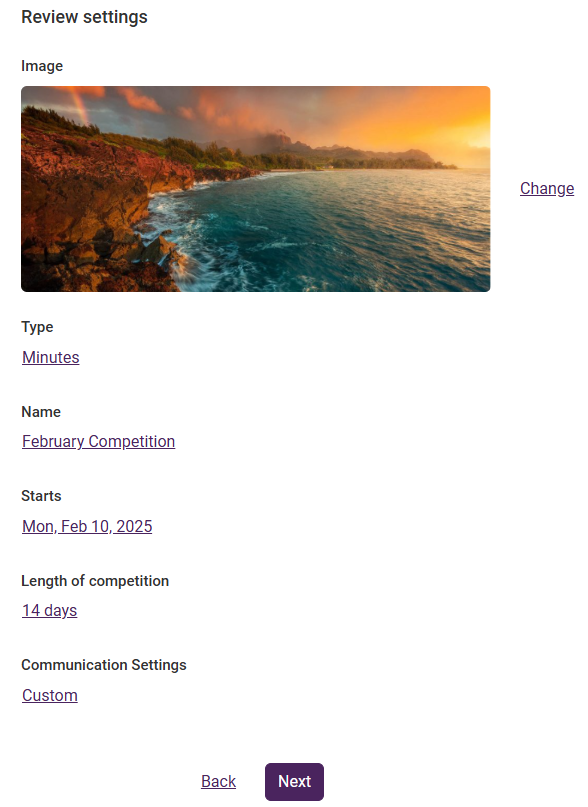
Once the participant clicks Next, they will set their challenge profile. Once their profile is configured, they can invite up to 50 members in their population to partake in the competition.
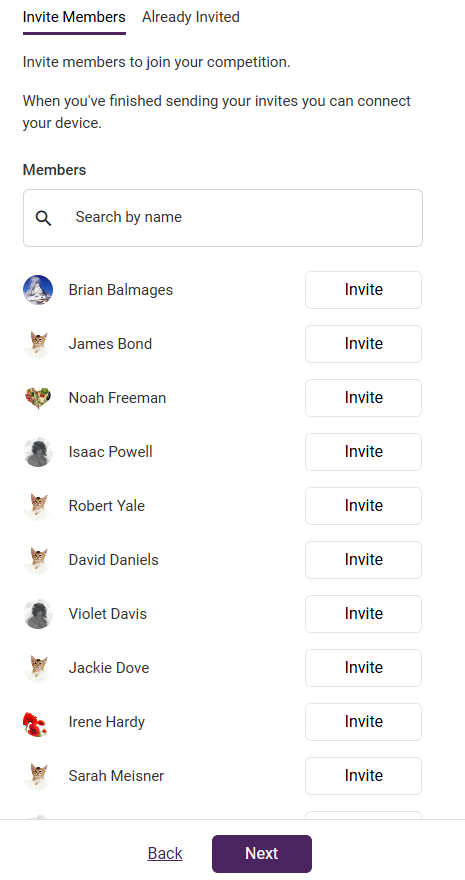
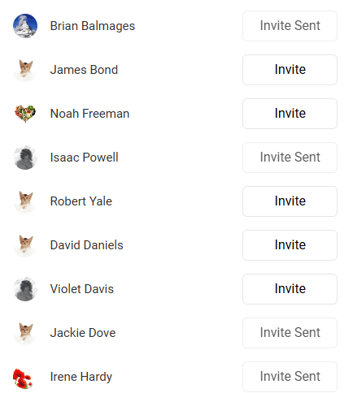
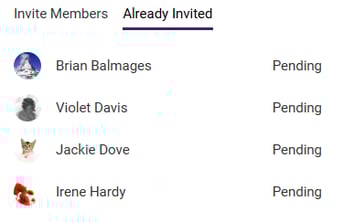
Once a user has been sent an invite, this will be reflected on the Invite Members tab, and they will appear in the Already Invited tab.
The next page shows the participant their connected devices, and offers a hyperlink to the Connections page.
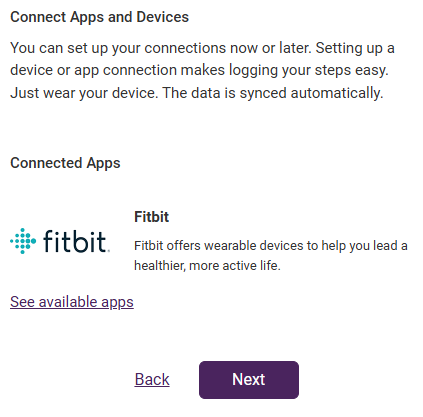
The final screen summarizes the participant's competition, as well as their competition profile and connected apps.