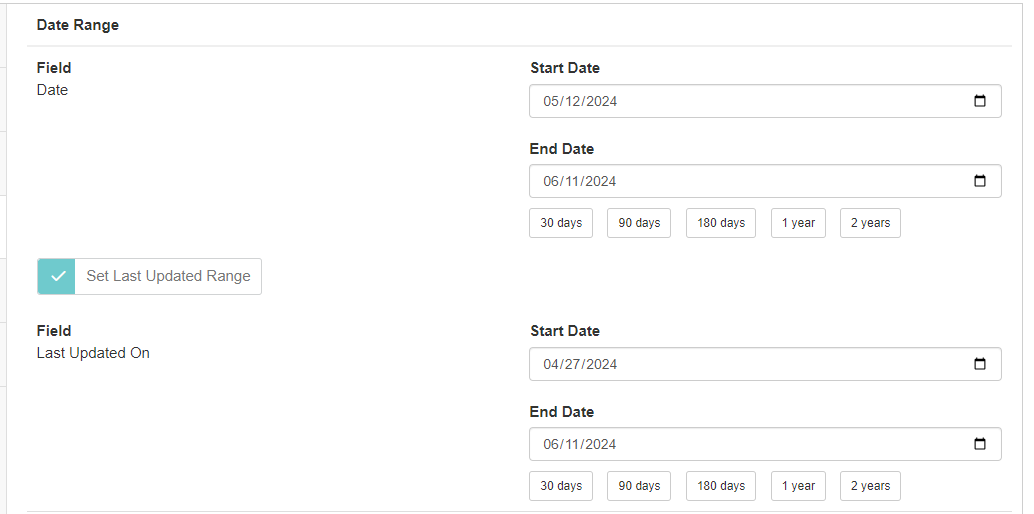
When you build a query in Analytics, there is an option to save the query's settings as a template so you can run it again in the future.
Once you toggle Save As New Template on you will see additional options. One is a toggle called Use Relative Dates For Date Ranges.
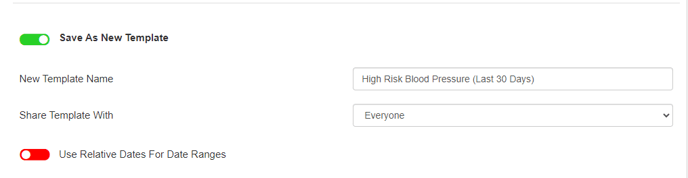
If you leave this setting turned off, your query will always default to the same date range. These dates can be manually updated when running the template in the future, but the new dates will not overwrite the existing template dates if you run it again on a later date.
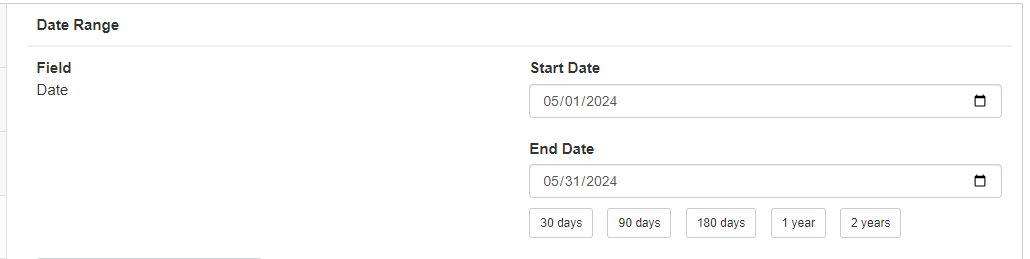
For example, if you run the query with a date range of 5/1/2024 through 5/31/2024, every time you select this template in the future the date range will be set set to 5/1/2024 through 5/31/2024 unless you update it before running the template.
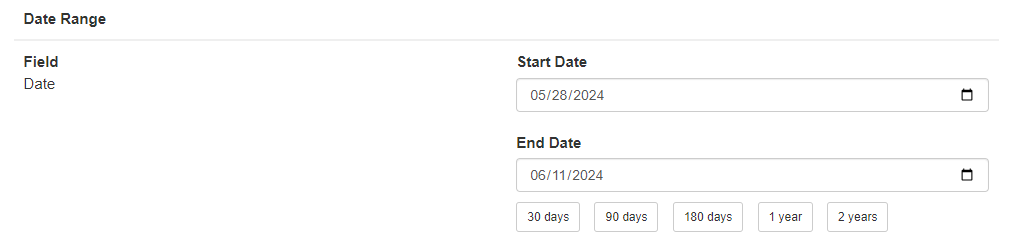
If you turn the Relative Dates setting on, each time you run the template in the future the End Date will be set to the current date, and the Start Date will be set the same number of days back as the template was saved with.
For example, if you run a query with a date range set to 5/1/2024 through 5/14/2024, that is a timespan of 14 days. If you save this query as a template with Relative Dates then run the template on 6/11/2024, the Start Date will be set to 5/28/2024, and the End Date will be set to 6/11/2024.
If your template uses a Last Updated date range, the Date Range setting also applies to these dates. The Last Updated date range does not have to be the same number of days as the main query dates.
For example, you can save a template with a range of 30 days (4/1/2024 through 4/30/2024) for the main query dates and a range of 45 days (3/16/2024 through 4/30/2024) for the Last Updated dates, and both of these date ranges will be adjusted to match the current date if you use Relative Dates.