Much of the data you can pull in Analytics is presented per individual account. If you are looking for a report that reflects data for a population rather than per user, you can use Summary Options to achieve this.
A summary option is a setting that is applied to a field in Analytics that gives you the ability to compile multiple values into one record. By default, Include Summary Options is turned off when you are building a query.
The Include Summary Options setting is fairly robust. Depending on the sources you use in a query, summary options can be used to condense multiple records for a member into one record, or to condense all records for a population into one record.
On the Fields page, if you turn on Include Summary Options a Summary Type column appears.
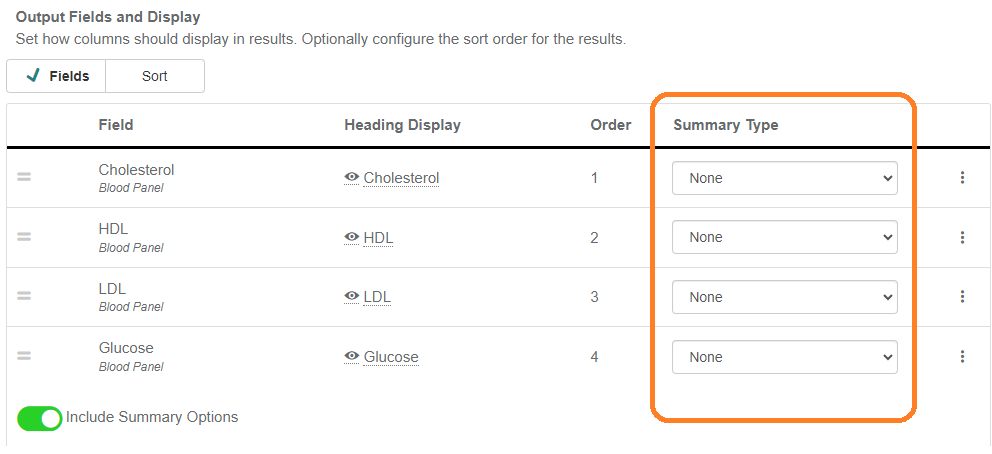
There are a few options available for the Summary Type menu if the field returns numerical data. For fields like First Name in Demographics that only return text, the only Summary Type available is None because there is no way to quantify this data.
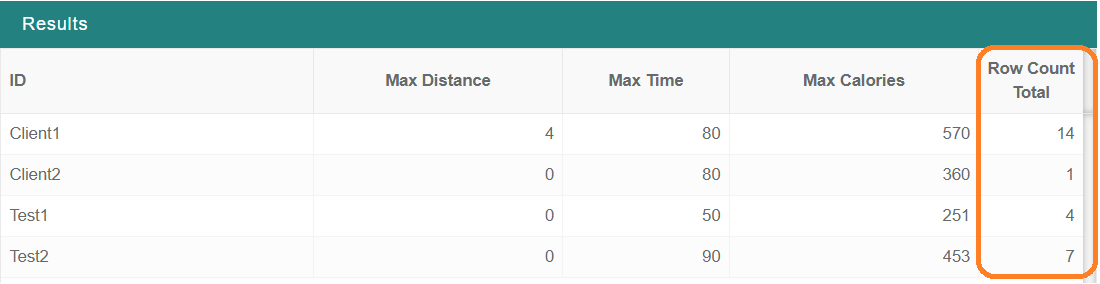
When Summary Options are used, you will see a Row Count Total column in the results. This is used to show how many records are accounted for in each row. In the below example, the Row Count Total reflects how many workouts were combined to get the data per participant.
Here is how each Summary Type affects a field's data:
None- No summary actions are applied to the field.
Example: The below query uses None for all of the fields, so the records are displayed the same way they would be displayed with Include Summary Options turned off.
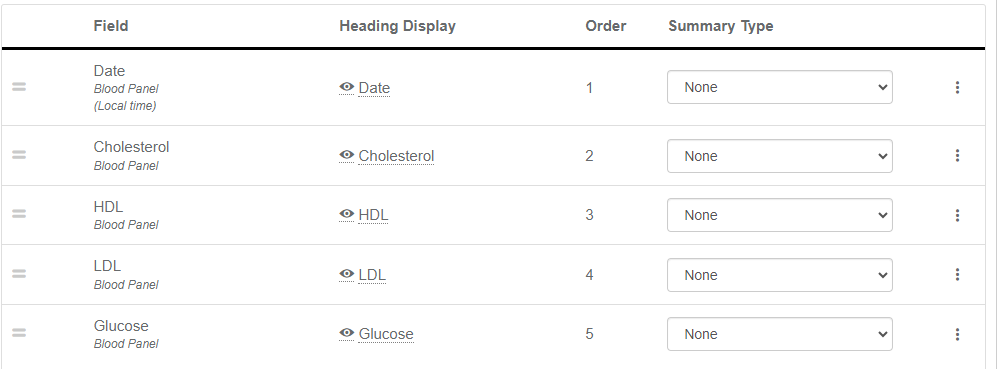
Even if all of the fields are set to None, you will still see the Row Count Total field in the results since Summary Options are in use.
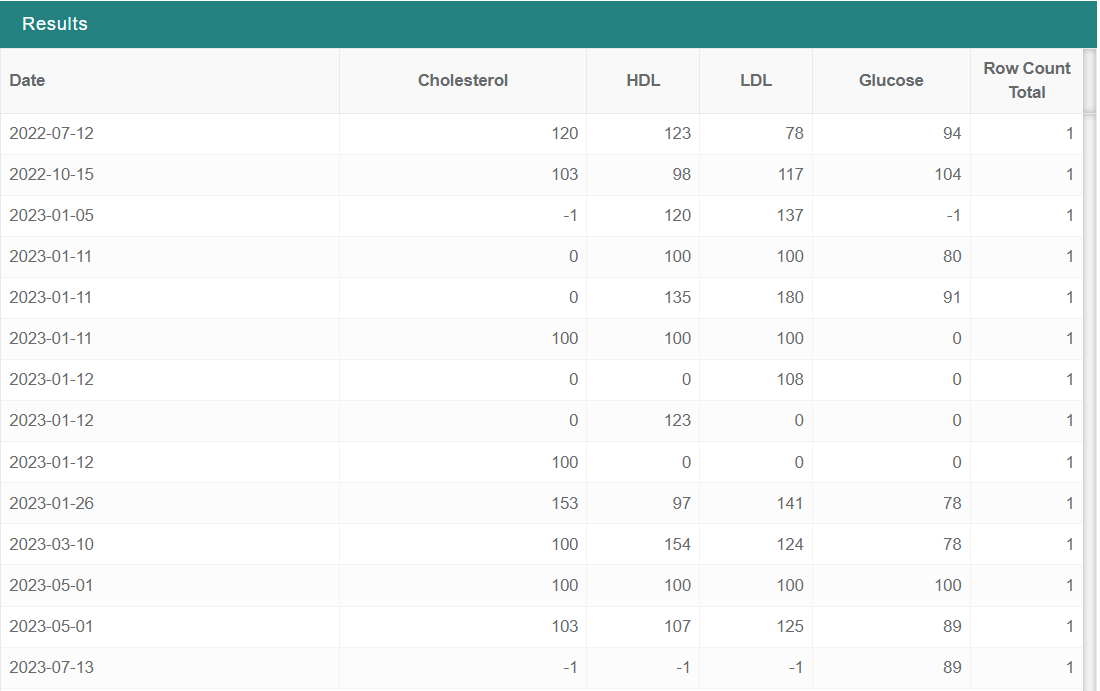
Average- Returns the average of the values for records with a common field(s).
Example: The below query returns all the Steps records for users over the last week. Without using Summary Options, there are multiple records for each user.
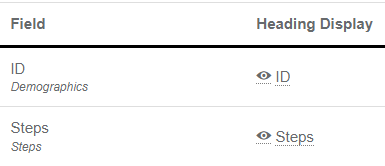
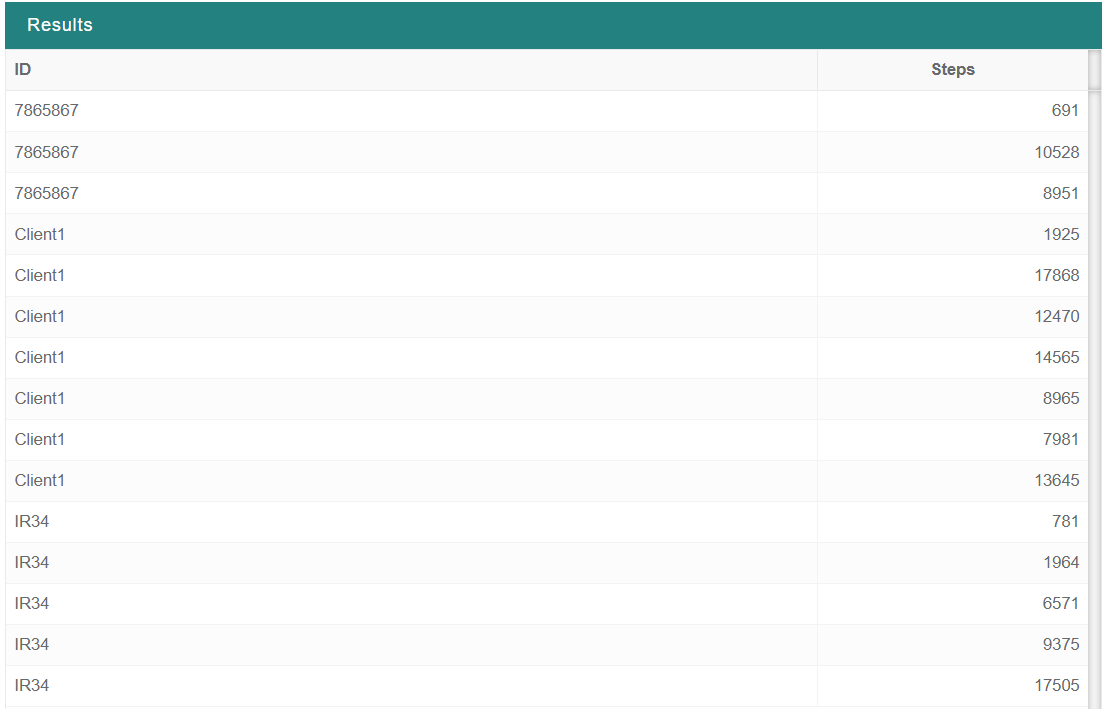
When you turn Include Summary Options on and set the Steps summary type to Average, all of the records are condensed into one record per user with the average of all Steps records for each user for the last week.


Maximum- Returns the highest value for the selected field for records with a common field(s).
Example: The below query returns all the Water records for users over the last week. Without using Summary Options, there are multiple records for each user.
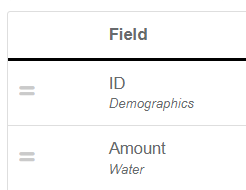
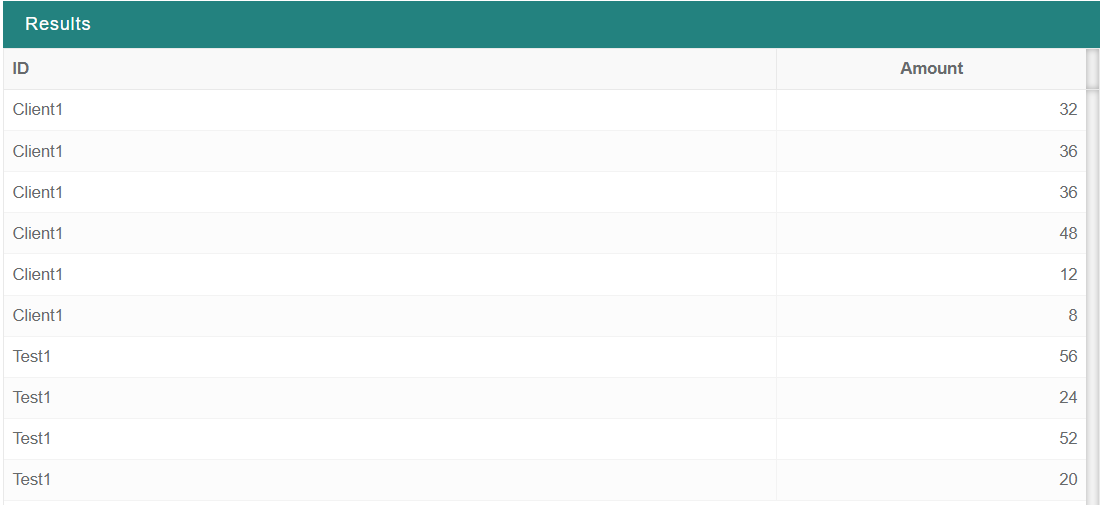
When you turn Include Summary Options on and set the Amount summary type to Maximum, the highest Amount value over the last week is returned for each user.
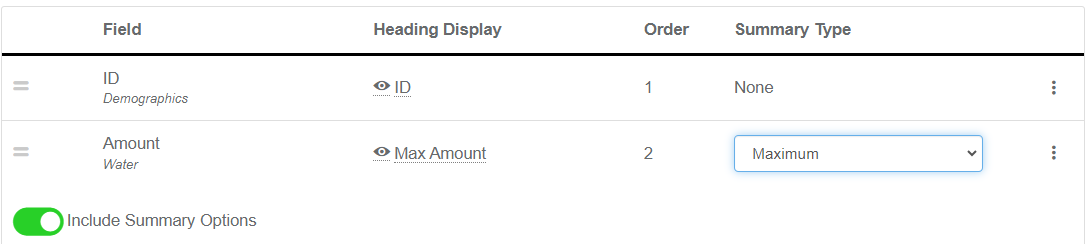

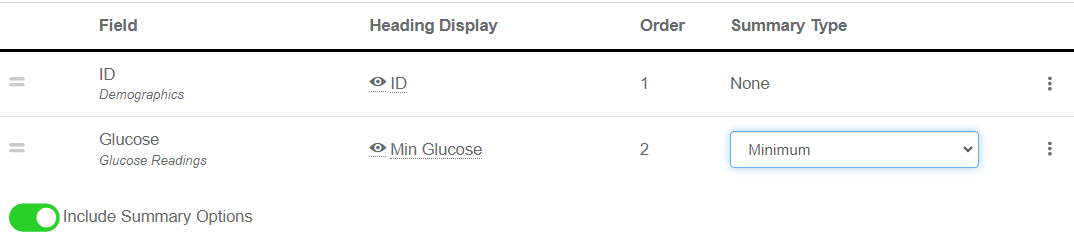
Minimum- Returns the lowest value for the selected field for records with a common field(s).
Example: The below query returns all the Glucose records for users over the last week. Without using Summary Options, there are multiple records for each user.
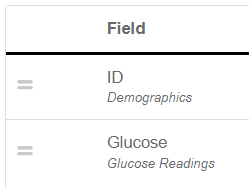
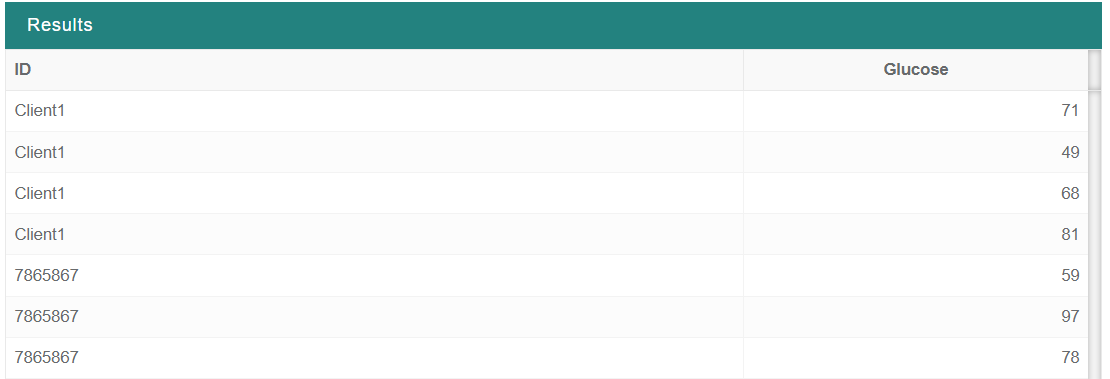
When you turn Include Summary Options on and set the Glucose summary type to Minimum, the lowest Glucose value over the last week is returned for each user.

Sum- Adds all of the field values for the applicable records and returns the sum.
Example: The below query returns exercise minutes logged over the last week. Without using Summary Options, there are multiple records per user.
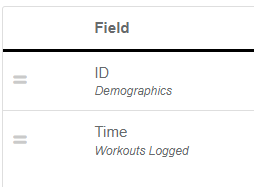
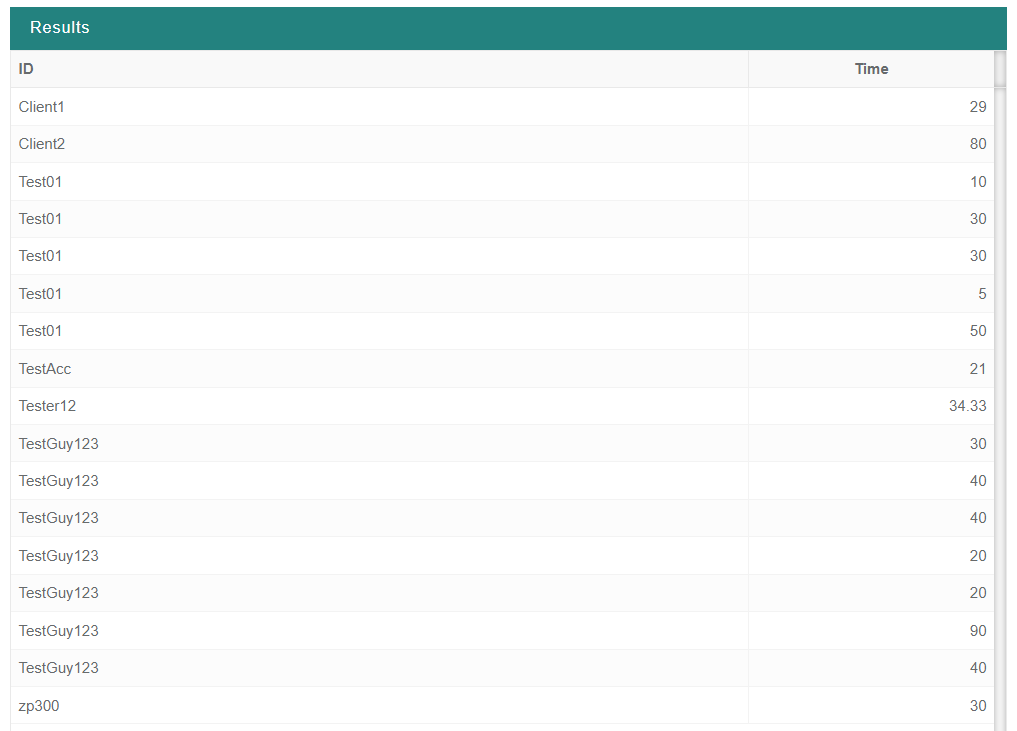
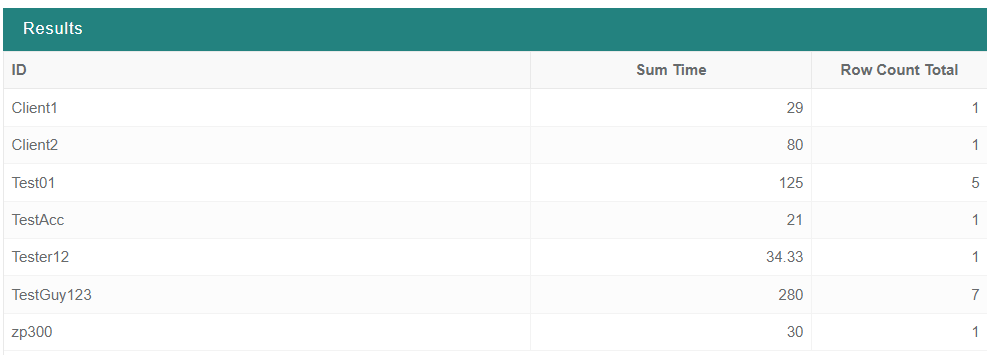
When you turn Include Summary Options on and set the Time summary type to Sum, the sum of all Time values over the last week is returned for each user.