
An Account Setting is a setting that can provide or revoke access to certain parts of the site for an individual account, either in the participant interface or in the staff interface. Account Settings are available for any member on your site, regardless of their Billable status.
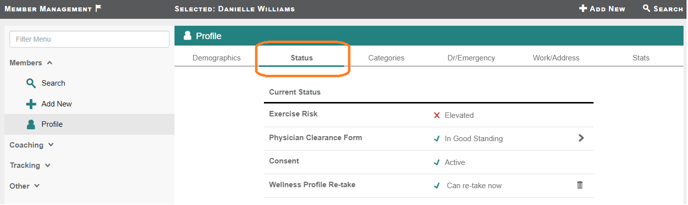
To view a member's account settings, go to their Profile in Member Management, then select the Status tab. The "Settings" section in the middle of the page houses all of the Account Settings.
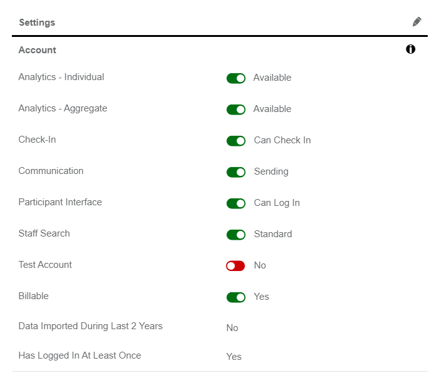
Here are descriptions of what each setting controls:
Analytics - Individual determines if valid user data appears in queries and reports that include PII or Demographics data (ex. Name, ID, Email).
When set to Available: The member's data appears in reporting that includes PII or Demographics data .
For example, if Danielle Williams has Analytics - Individual set to Available and has valid Steps data, their data appears in the Steps query.
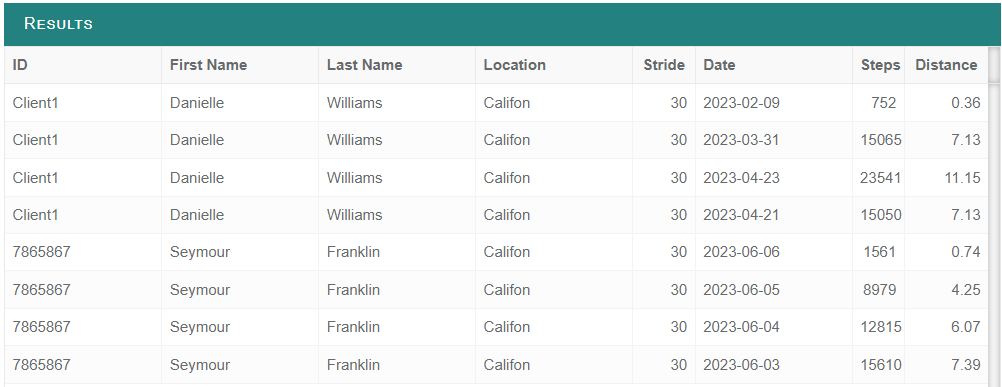
When set to Not Available: The member's data does not appear in reporting that includes PII or Demographics data.
For example, if Danielle Williams has Analytics - Individual set to Not Available and has valid Steps data, their data is hidden from the Steps query.
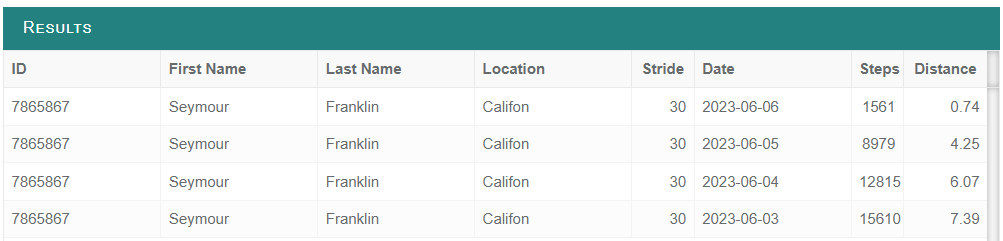
Analytics - Aggregate determines if valid user data is included in queries and reports that do not include PII or Demographics data (Aggregate reports reflect numerical data for a population rather than per individual account.).
When set to Available: The member's data is included in aggregate reporting.
For example, if a Califon member has Analytics - Aggregate set to Available and there are two total HRAs across Califon, that member's data is accounted for in the Count of Wellness Profiles report. 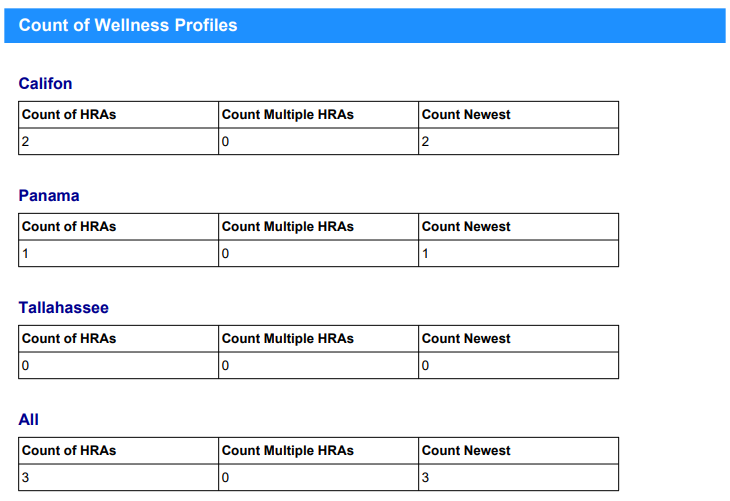
When set to Not Available: The member's data is not included in aggregate reporting.
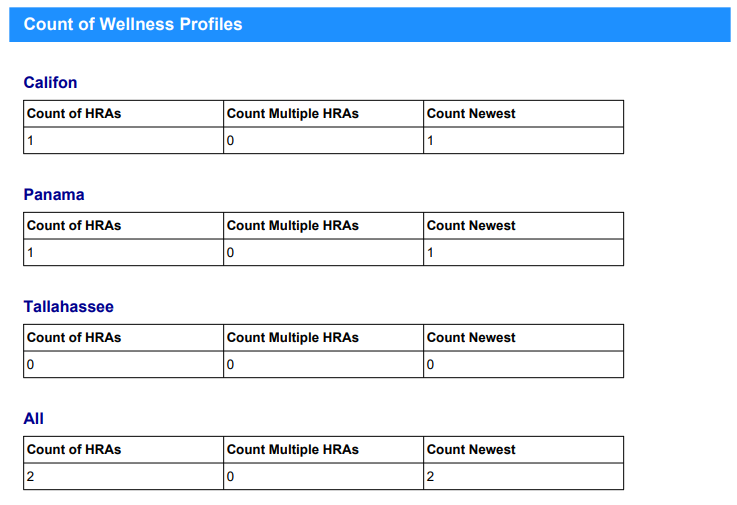
For example, if a Califon member has Analytics - Aggregate set to Available and there are two total HRAs across Califon, that member's data is not accounted for in the Count of Wellness Profiles report, so the count appears as 1.
If your site has Check-In licensed, the Check-In account setting allows members to use the check-in features.
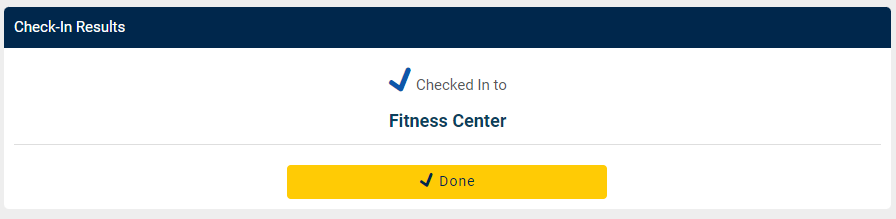
When set to Can Check In: The member can check in from the check-in kiosk on the staff interface (if licensed), or from the virtual check-in via the participant interface (if licensed). 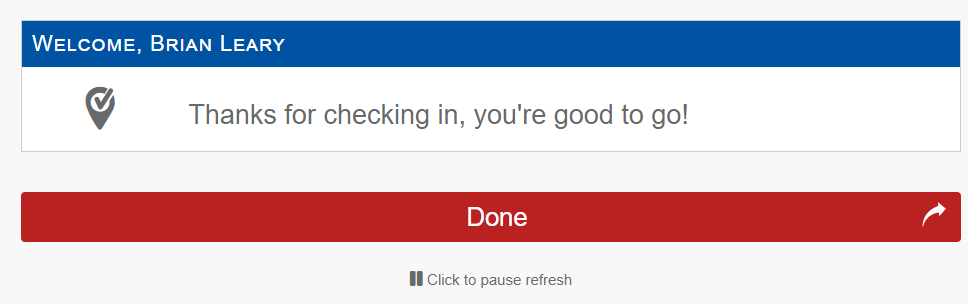
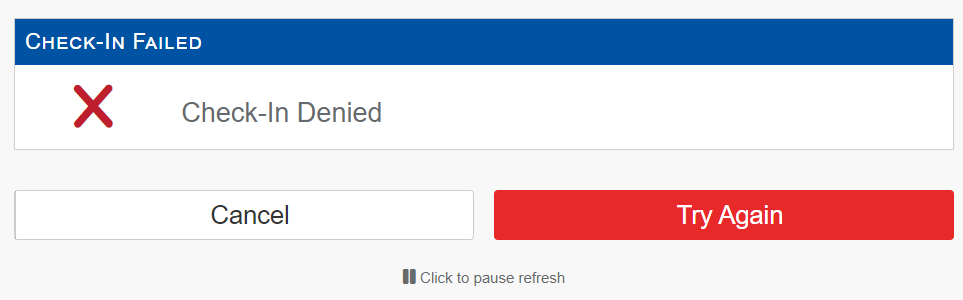
When set to Cannot Check In: The member's check-in is rejected from the kiosk check-in on the staff side, and the virtual check-in (if licensed) is hidden from their dashboard.
Communication determines if members should receive emails from Motivation Alliance, whether they be automated emails or bulk communication from a staff member.
When set to Sending: The member will receive any of the communications enabled in the Communication Types section of the page.
When set to Not Sending: The member will not receive communication from the software.