
If you have the Check-In staff permission you can modify the Check-In settings for your population from the Config page. Select Configurations under Basic Settings then select the Location Specific* tab, then click the Check-In tile.
*Location may be called something different on your site.
When you select a configuration from this page you will have access to several settings that affect how check-in and billing work on your site.
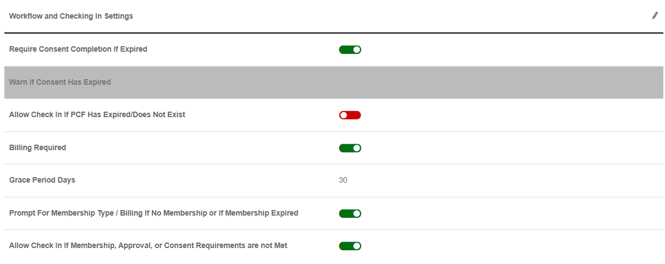
Require Consent Completion If Expired can be used to prompt members to sign the active Consent form if they have not signed it yet, or if they need to renew their consent form. They will be unable to check in until the Consent is signed.
If Enabled- Members without an active Consent form will receive the following message after attempting to log in: 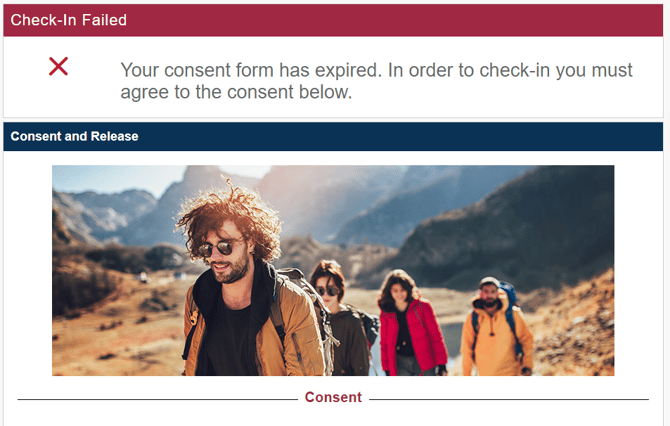
Below the message is the active Consent form, which the member can agree to by entering their password and clicking I Agree.
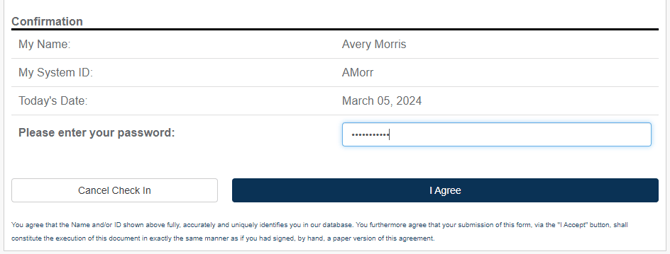
Once the member agrees to the Consent form they will be able to check in, assuming they meet the other Check-In requirements.
If Disabled- Members without an active Consent form cannot check in, and there is no mention of the Consent form on the results page.
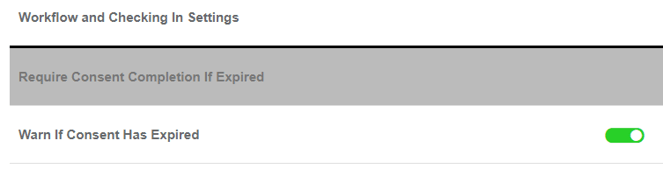
Warn If Consent Has Expired can be used to reject check-ins from members without a signed Consent form. Unlike the "Require Consent" setting, the "Warn" setting does not allow users to sign the active Consent form from the check-in screen.
If Enabled AND Allow Check In If Membership, Approval, or Consent Requirements are not Met is Enabled- Members without an active Consent form receive the following message and can choose to Check In Anyway: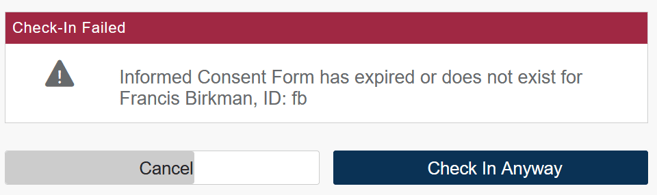
If Enabled AND Allow Check In If Membership, Approval, or Consent Requirements are not Met is Disabled- Members without an active Consent form receive the following message and cannot check in: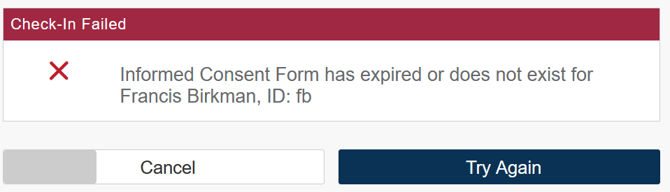
If Disabled- Members without an active Consent form cannot check in, and there is no mention of the Consent form on the results page.
Note: Only one of the two Consent-related settings can be enabled at a time. Once one is enabled, the other becomes unavailable.
Allow Check In If PCF Has Expired/Does Not Exist can be used to reject check-ins from members with an Elevated Risk status who do not have an active Physician's Consent Form (PCF). Members are considered Elevated Risk if they took the Readiness For Change questionnaire and selected one or more options that indicate they should have medical clearance before exercising.
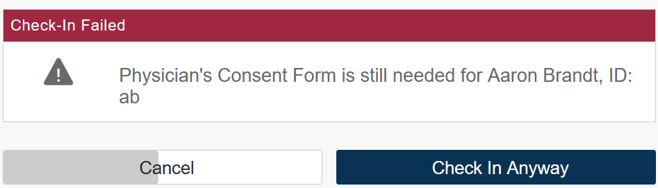
If Enabled- Elevated Risk Members without a PCF receive the following message, but they can click Check In Anyway to successfully check in.
If Disabled- Elevated Risk Members without a PCF receive the following message and cannot check in.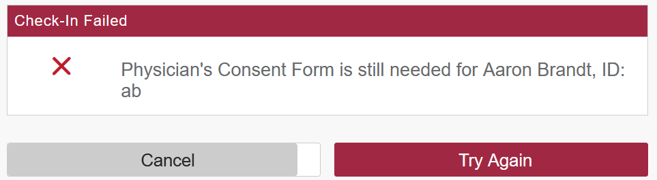
Billing Required can be used to require members to have an active Membership record in order to check in.
If Enabled AND Allow Check In If Membership, Approval, or Consent Requirements are not Met is Enabled- The following message is displayed to members without an active membership record. You can force the check-in with the Check In Anyway button,
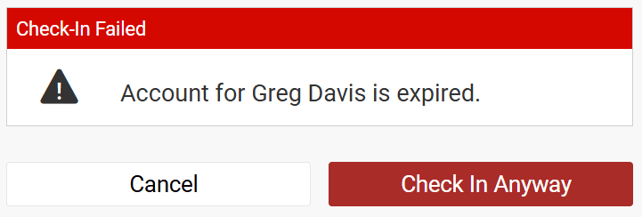
If Enabled AND Allow Check In If Membership, Approval, or Consent Requirements are not Met is Disabled- The same message is displayed and cannot be overridden.
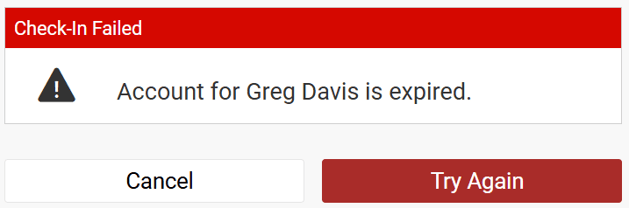
Grace Period Days is only applicable if Billing Required is used. This allows you to set how long members have after their most recent membership expires before they are unable to check in without a new membership. The default is 0, which means there is no grace period and users will not be able to check in until a new membership transaction is added.
If the Grace Period Days field is 1 or more, users will receive this message when they check in after their membership has expired, but during the grace period:
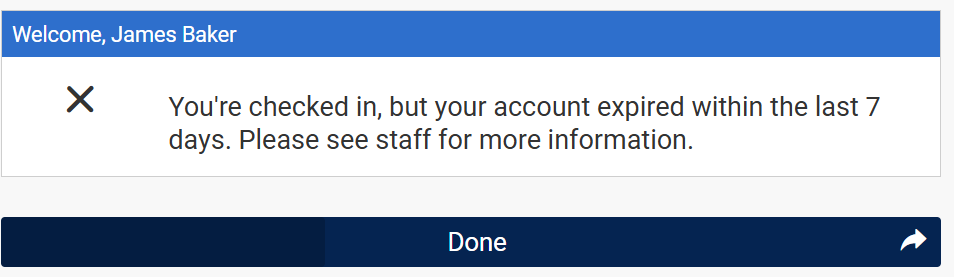
Prompt For Membership Type/Billing If No Membership or If Membership Expired can be used to require members to select a new membership type upon their next login.
When Enabled- Members are prompted to select a membership type and confirm by entering their password.
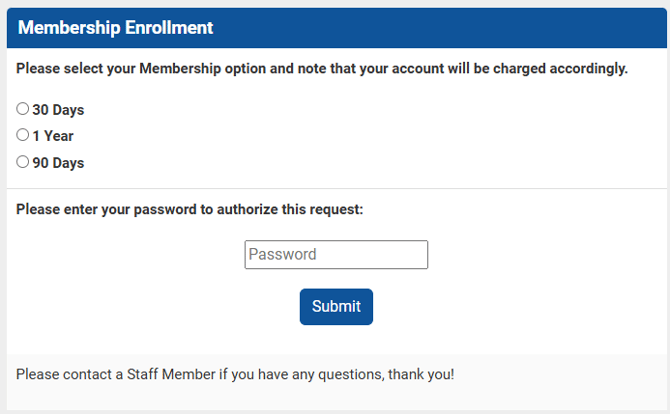
When Disabled- Members are not prompted to select a new membership type, and staff are responsible for adding the membership transactions.
Allow Check-In If Membership, Approval, or Consent Requirements are not Met- When this setting is used, any of the above settings can be overridden from the check-in terminal with the Check In Anyway button.