
Disconnect and reconnect.
From the Connections page, select the X icon next to the connected app, then log out of Motivation Alliance. Log back in, then navigate back to the Connections page and select the plus icon next to the app. You will be prompted to log in to the connected app using your credentials.
Verify the app has permission to sync the expected data.
When you are connecting to an app, some will allow you to select which data to allow Motivation Alliance to access.
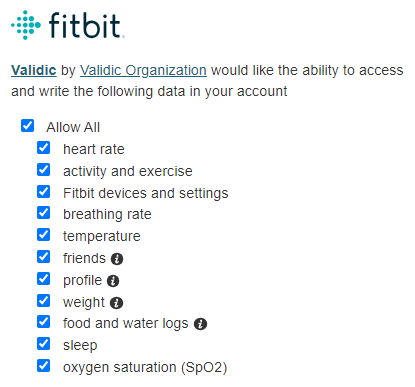
You can disconnect from the app, then reconnect and ensure that the data you are expecting to sync into Motivation Alliance is authorized.
Verify that the data you are attempting to sync is appearing in the connected app.
If you are waiting on data logged via a wearable device (Apple Watch, Samsung Galaxy Watch, etc.), it may not have been carried over to the connected app yet. Motivation Alliance does not connect directly to wearable devices, so the data needs to appear in the app before it can be synced to Motivation Alliance.
You can open the connected app, then once you verify that the data appears there, Motivation Alliance should sync this data shortly.
Note: On Android devices with Android 15 OS or higher, you do not need to launch the app to initiate a transfer- Motivation Alliance checks for data automatically every 15 minutes for these devices. All other Android devices, and all iOS devices, need to have the Motivation Alliance app to initiate the data transfer.