
-
Open the Settings app.
-
Select "Health".
-
Select "Data Access & Devices".
-
Select "Alliance".
-
Ensure that the applicable data type (Exercise Minutes, Steps, Sleep, etc.) has the toggle switched to On. You can also turn all of the toggles on at the same time with the "Turn On All" button.
- Once you save changes to the permissions, log into the Motivation Alliance app, then disconnect and reconnect the Apple Health connection.
Ensure that you are connected to Apple Health on the Connections page. When you allow Apple Health to read/write data with the Motivation Alliance app, you should be connected to Apple Health automatically. You can double-check this from the Connections page in the right menu.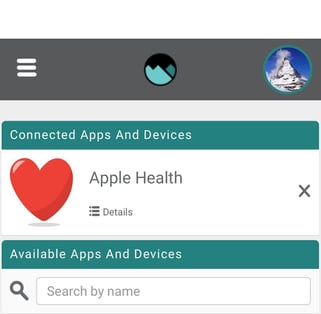
Verify that the data you are attempting to sync is appearing in Apple Health. If you use an Apple Watch or other smart device that connects with Apple Health, the activity may not get sent to Apple Health immediately. Try following these steps:
- Open Apple Health and give it a few seconds to sync with the latest data.
- Once the data has appeared in Apple Health, minimize the app, but do not close it.
- Open the Motivation Alliance app and log in. Your data should come over within a few minutes.
If none of the above methods resolved your problem, you can also try refreshing the connection. To do this, go to the Connections page and select the X icon next to Apple Health to remove it. (Note: This can only be done on an iOS device. Desktop devices do not have the capability to add/remove an Apple Health connection). Once the connection is removed, drag down to refresh the page, then click the plus icon next to Apple Health to add it back to your connections.