When a member forgets their password (or Username), there are two ways they can get back into their account. They can reset the password themselves if they know the email address assigned to their account, or they can request assistance from a staff member.
Participant Side
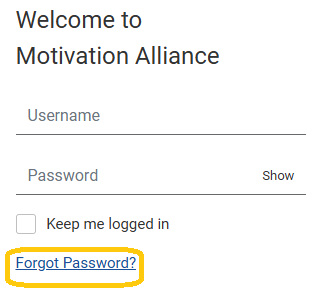
Members can utilize the Forgot Password? link on the landing page to start the process of resetting their password.
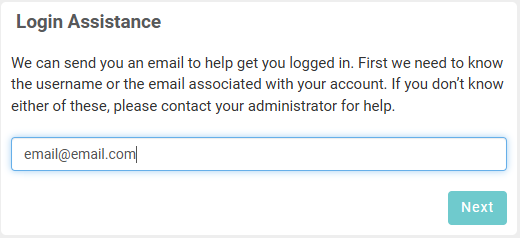
The first screen asks for the email associated with the account. This will be used to send a 6-digit code to confirm the member's identity.
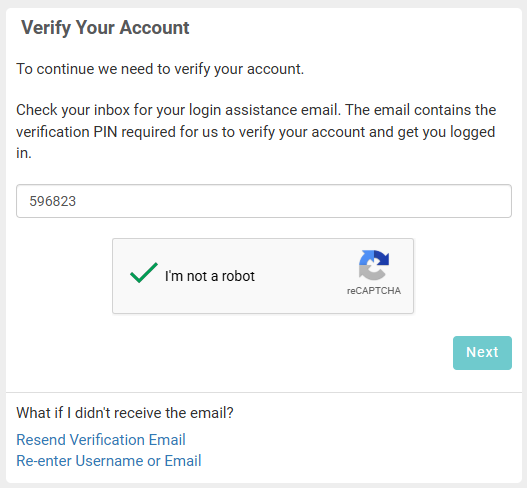
Once the member receives the email, they can enter the 6-digit code on the next page and click the check box for the reCAPTCHA tool. There are also links on this screen to resend the verification code (the code will be different), or re-enter the email address.
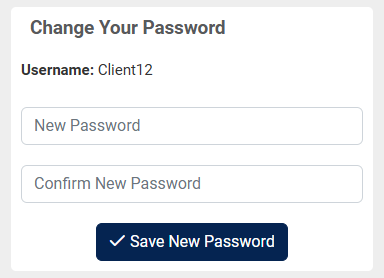
Once the 6-digit code is confirmed, the member can enter and re-enter a new password for their account. The Username is also displayed on this page in case the member forgot this.

Staff Side
Staff can assist members in resetting their passwords through Member Management. Staff can select a member's profile, then click the edit icon next to the Password field. This will show the Generate new password button.

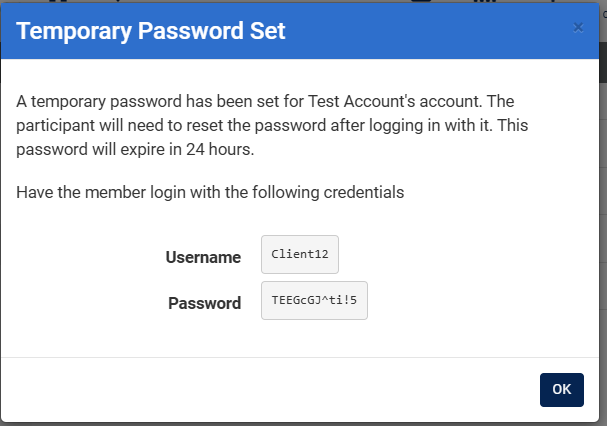
After clicking this button and confirming, a temporary password is generated. Staff can copy this and send it to the member, and the member will have 24 hours to use this to log in.
Once the user logs in with the temporary password, they will be taken to the Change Your Password page.