When you are adding an achievement type to an achievement program, there is a "Specific Dates?" setting towards the bottom of the page.
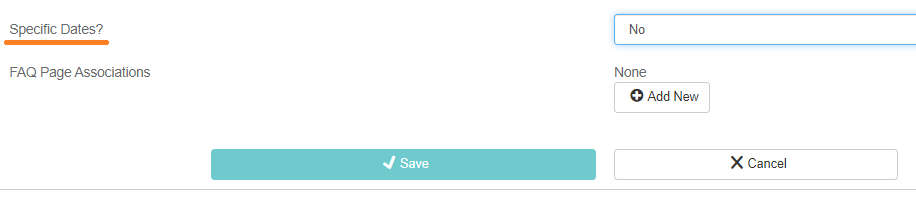
This setting is turned off by default when you add a new achievement, meaning that the achievement will be available for the entire duration of the program.
If you would like the achievement to only be available for a limited time during the program, you can set the Specific Dates menu option to Yes. Valid Dates and Grace Period settings appear under the menu when you turn Specific Dates on.
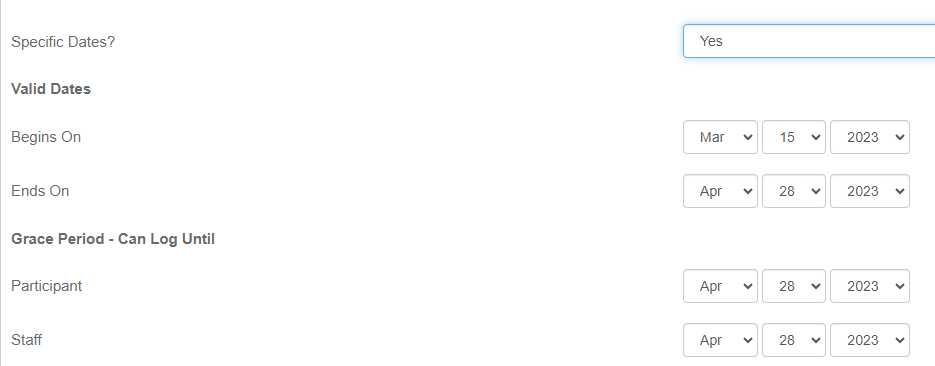
Valid Dates work the same way as the program start and end date, so the achievement becomes available at 12 am on the Begins On date, and the availability ends at 11:59 pm on the Ends On date. These dates are set to the start and end dates of the program by default.
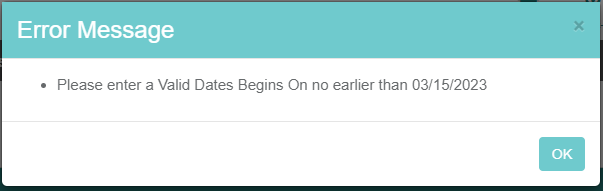
You can set a different Begins On and/or Ends On date, so long as they are inside the program dates. If you try to save with a date before or after the program's dates, you will receive an error message and changes aren't saved.
The Grace Period - Can Log Until dates allow you to set a grace period during which staff and/or participants can backlog data after the achievement availability ends.
Data logged in the grace period only counts if the record date is inside the achievement's Valid Dates. For example, if an achievement is available from 6/1 to 6/7 and the grace period ends on 6/10, you can log data with a record date between 6/1 and 6/7 until 11:59pm on 6/10. Data from before 6/1 or after 6/7 will not count towards the achievement if you log it during the grace period.
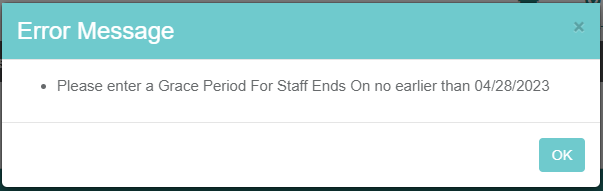
Grace Period dates have to occur between the end of the Valid Dates (including the Ends On date) and the final date of the program.
You can have the Participant and Staff dates match, or the staff grace period can be longer than the participant grace period. You cannot save with a participant grace period longer than the staff grace period.

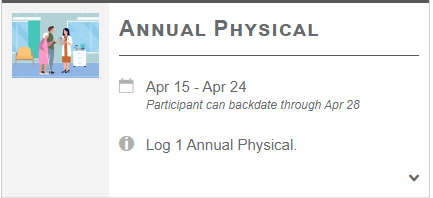
Once you set valid dates for all of the Specific Dates fields and save the achievement, you will see the specific dates reflected on the page. If the staff and participant grace period dates are the same, only "Participant can backdate" is displayed.
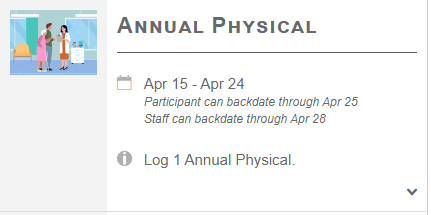
If the participant and staff grace period dates are different, they are both displayed.
If an achievement does not use Specific Dates, there are no specific dates displayed, as it is assumed that the availability lasts for the duration of the program.