
To perform the actions mentioned in this article, your staff account needs to have the Merge Participants permission. Please reach out to your site administrator if you do not have this permission.
The Merge Participant Accounts page can be accessed from the Config page under Ongoing Settings/Programming. This feature allows you to select two accounts that should be consolidated into one account.
The benefit of using this page instead of just deleting the unneeded account is that data for the deleted account will be transferred to the remaining account where applicable. For example, if the deleted account had a blood panel on a specific date that the remaining account did not have a record for, that blood panel record will be transferred to the remaining account.
The first thing you will see on the Merge Participant Accounts page is a list of questions and answers about how the page works. The main thing to highlight with this feature is that the merge is permanent and cannot be undone.
Once you click "Yes, let's merge!", you will be taken to the main page.
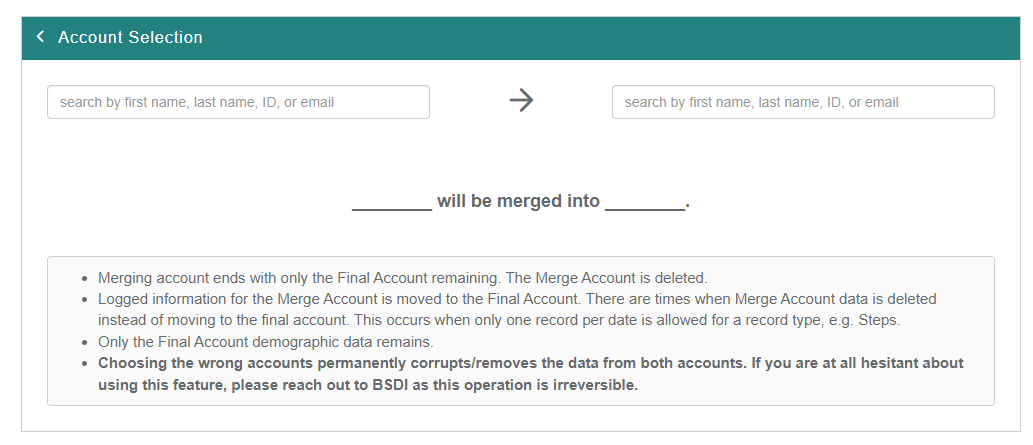
There are two search boxes for you to select the members to merge. The account used on the left side should be the one that is deleted after the merge, and the account used on the right side will be left over after the merge.
You can search for members by Name, ID, or Email.
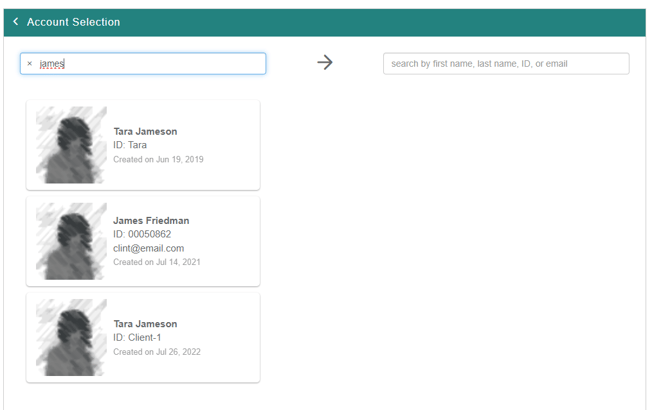
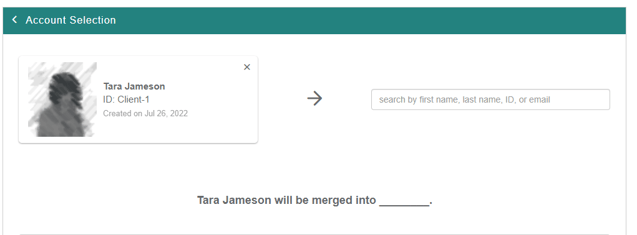
Once a user is selected for each box, the "_____ will be merged into _____." will be updated with their name.
Before the accounts are merged, you may want to review the list of changes that are made once the merge is initiated.

Once you are ready to initiate the merge, the final step is to enter the Merge Account (the one being deleted) ID in the text box. This field is case-sensitive, so be sure to type it exactly as it appears. Once an exact match is recognized the field will be locked.
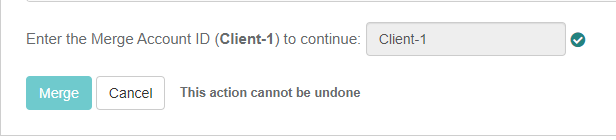
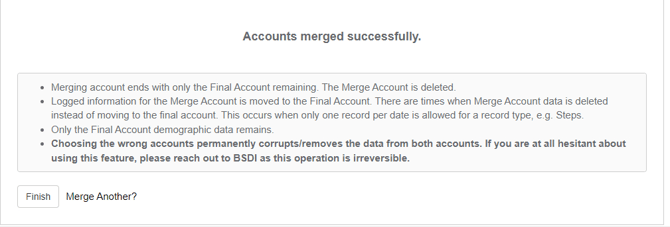
Once you click Merge the merge will be initiated. The page will feature a loading icon until the merge is completed. You will see "Accounts merged successfully" once the merge is complete.
If you have any concerns about using the Merge Accounts feature, please reach out to your BSDI account manager and we will handle the request for you!