
When you use the Member Management search page with no filters applied, you will see any existing account in your search results. This includes standard, non-standard, and test accounts.
Populations
For each population category, you can leave the boxes blank to include all of the options, or you can select one or more options to limit the search to only the selected options.
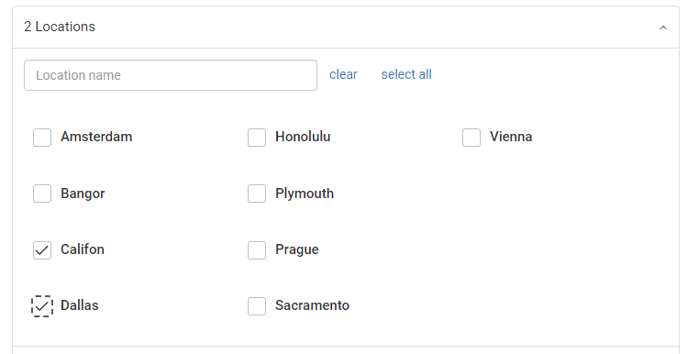
For Groups, if you do not select any groups then that filter does not apply. If you select one or more groups, only members from those groups will show up in the search results. It is important to note that leaving all groups unselected and selecting all groups will provide a different set of results if there are members who are not in at least one group.
When you use more than one Population filter, the search results are limited to members that fit all of the selections.
For example, if you select one Location and one Employee Type, a member needs to match both of those filters to appear in the results.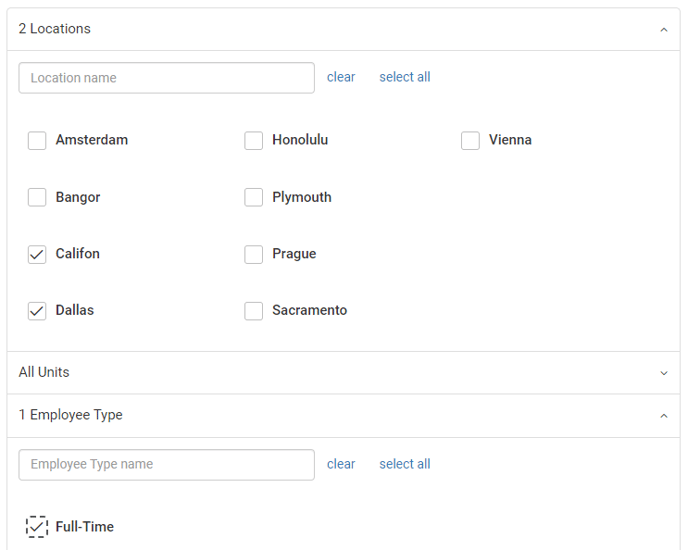
Date of birth
There are two ways to use the Date of birth filter: specific date or date range.
The default option for this filter is specific date. Enter specific date field(s) and the search results will be limited to members who match the date of birth filter.
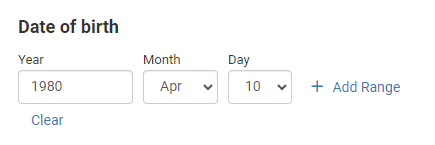
The Date of birth filter can be used in a few different ways:
- Year, no Month or Day
- Month, no Year or Day
- Month and Day, no Year
- Year and Month, no Day
- Year, Month, and Day
You can also click Add Range to use a date range. Members will appear in the search results if their date of birth occurs between the two specified date options.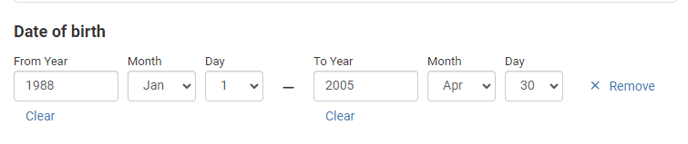
Account Types
Each Account Type filter has a Yes or No button. If you do not select either, this filter is not applied. If Yes is selected, only accounts that have this account setting turned On are included in the search results. If No is selected, only accounts that have this account setting turned Off are included in the search results.
None of the Account Settings filters are used by default.
Example
By default all accounts will appear in the search results, regardless of whether or not they have logged in.
If you select Yes for Has Logged In and apply the filter, only accounts that have logged in at least once are shown in the search results.
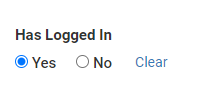
Adversely, selecting No for Has Logged In will only include accounts in the search results if they have never logged in before.
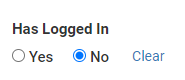
You can see whether or not a user has logged in if you go to the Status tab on their Profile page and refer to the Has Logged In At Least Once field.
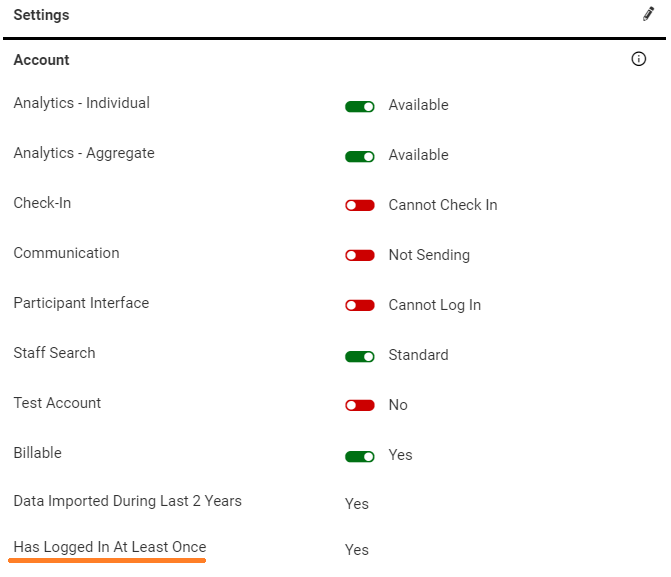
You can click Clear next to any Account Setting filter to reset the option, making it so neither Yes nor No is selected.
Additional Options
Clear all will reset all of your filters to the default state, so that no filters are in use.
The Save for next time check box can be used to preserve your filter settings when you leave the page, or when you log out. Every time you access the Member Management search page the preserved filters will be applied by default.
You can change the filters at any time, but if you want the previous filters to be used again the next time you use the page, you will have to select the filter settings again and click the Save for next time box before leaving the page.