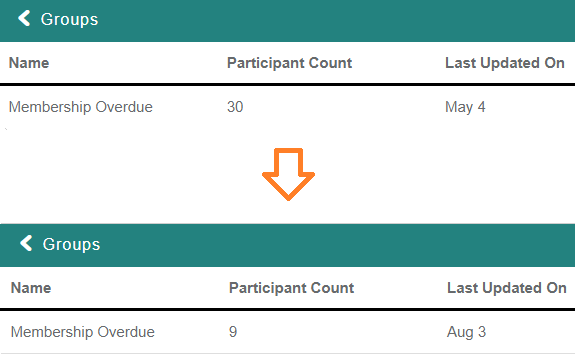
After you run a query in Analytics, there is a section of the Results page called Group Management.
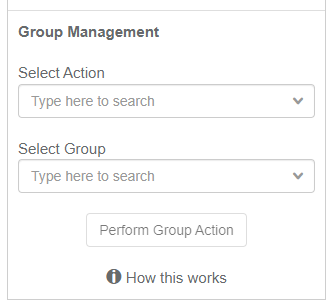
Group Management can be used to create a new group with all of the members in the results, or to add/remove the members from an existing group.
There are a few Selection Action options available. Here is how each of them works.
Create Group
This option allows you to create a new group and populate it with all of the users who appear in the query results. There is a Group Name field below the menu where you can name the group.
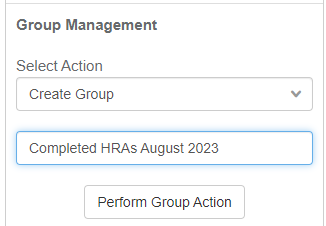
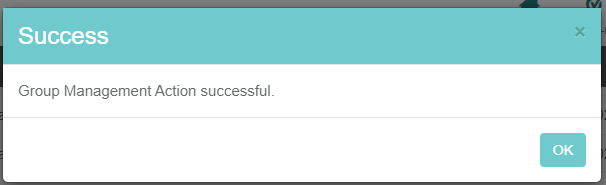
Once you click Perform Group Action you will receive a Success message, meaning the group has been created and all of the members in the query results were added to it.
You can find this group on the Groups page in Configurations.

Overwrite Group
This option allows you to clear an existing group and insert the members from the query to the group. There is a Select Group menu where you select an existing group.
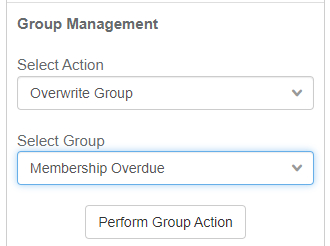
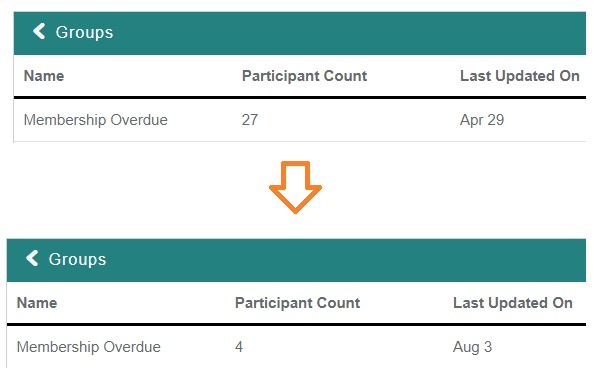
Once you click Perform Group Action, all current group members are removed, and the members in the query results are added to the group.
For example, if a group has 27 members and the query results has 4 members, the 27 existing members are removed and the 4 query members are added, resulting in 4 group members.
Append To Group
This option preserves an existing group's current population and adds the members from the query results to the group. If a query member is already in the selected group, no change is made for that member.
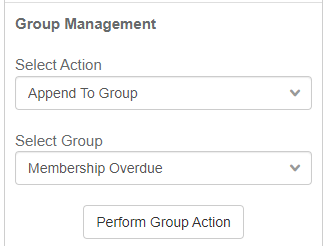
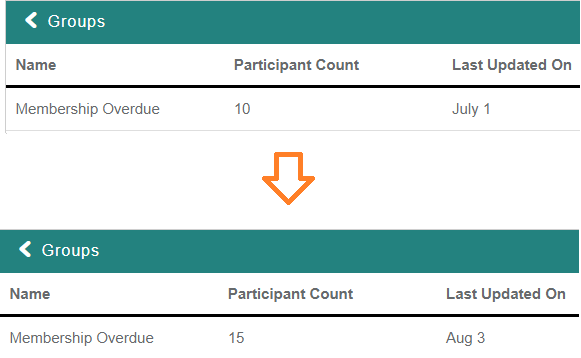
Once you click Perform Group Action, the members in the query results are added to the group if they are not already in it.
For example, if a group has 10 members and the query results has 5 members, none of which are currently in the group, the 5 query members are added to the group, resulting in 15 group members.
Remove From Group
This option removes the members in the query results from an existing group. If a member is not in the group, no change is made for that member.
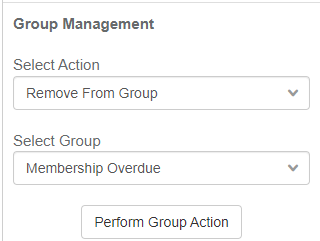
Once you click Perform Group Action, the members in the query results are removed from the group if they are in it.
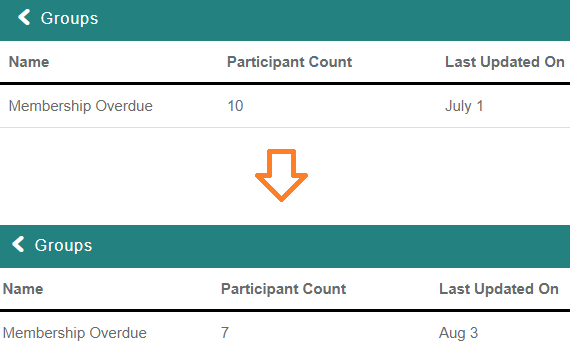
For example, if a group has 10 members and the query results has 3 members, all of which are currently in the group, the 3 query members are removed from the group, resulting in 7 group members.
Intersect With Group
This option compares an existing group's population with the query members, then removes anyone in the existing group who is not also in the query results. If a query member is not in the group, no changes are made for that member.
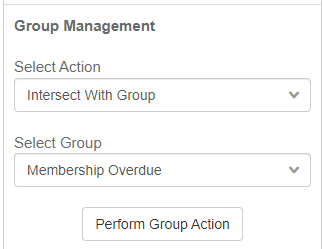
Once you click Perform Group Action, the members in the existing report that are not in the query results are removed from the group.
For example, if a group has 30 members and the query results has 12 members, 9 of which are currently in the group, the 21 group members who are not also query members are removed from the group, leaving a group with 9 members. The 3 members in the query results who were not in the existing group are not added to the group.