Note
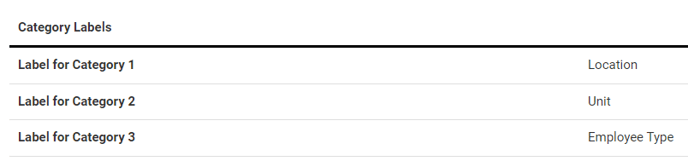
This article refers to Location and Employee Type for two of the population categories. Depending on your site's Category settings, your category labels may differ from the article.
You can see the category labels on your site if you go to Config, select Configurations, then select the Categories tile and view the active configuration.
Category 1 and Category 3 are the options that are relevant to Quick Link populations.
When you create a new Quick Link, by default the population is set to all Locations and Employee Types you have access to, and groups are not accounted for in the population.

Each of these three category options can be leveraged to limit visibility on a Quick Link to a specific population.
Anyone in these Locations
When you select specific Locations to display the Quick Link to, users outside of your selection will not be able to view it.
Example
A Quick Link is only available to the following locations:
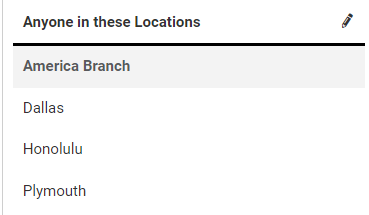
The Employee Type population is set to "Any current and future Employee Types" and Groups are not used.
When a member in the "Califon" Location logs in, they will not see the quick link because Califon is not one of the permitted locations.
When a member in the "Dallas" Location the logs in, they will see the quick link.
Anyone in these Employee Types
When you select specific Employee Types, members outside if the permitted Employee Type population will not see the Quick Link. Even if the member is in a permitted Location, they will not see the Quick Link unless they are also in a permitted Employee Type.
Example
A Quick Link is only available to the following categories:
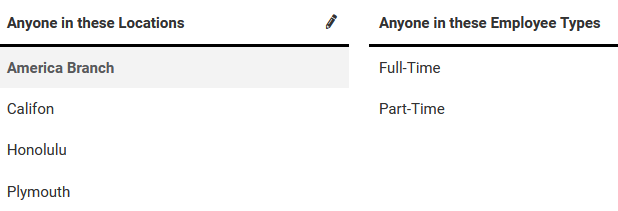
When a member at the "Dallas" Location with the "Contractor" Employee Type logs in, they will not see the Quick Link. This is because neither their Location nor their Employee Type matches the required population.
When a member at the "Califon" Location with the "Contractor" Employee Type logs in, they will not see the quick link. Although they are in a permitted Location, their Employee Type does not match the required population.
When a member at the "Califon" Location with the "Full-Time" Employee Type logs in, they will see the quick link.
Anyone in these Groups
The Groups setting is always set to "Groups Do Not Apply" unless you choose to select one or more groups.
When you select groups to use for the population, members need to match with the Location, Employee Type, and Group settings, so adding groups to the population makes it more granular.
Example
The "Healthy Eating" Quick Link has the following population settings:
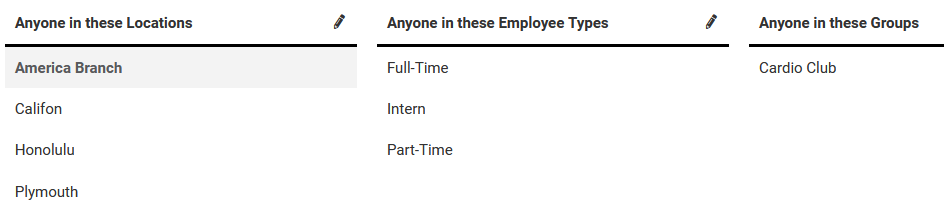
When a member in the "Cardio Club" Group logs in, they will see the Quick Link only if they are in a permitted Location and Employee Type.
When a member in the "Califon" Location with the "Full-Time" Employee Type logs in, they will see the Quick Link only if they are a part of the "Cardio Club" Group.