To perform the actions mentioned in this article, your staff account needs to have the Appointments permission. Please reach out to your site administrator if you do not have this permission.
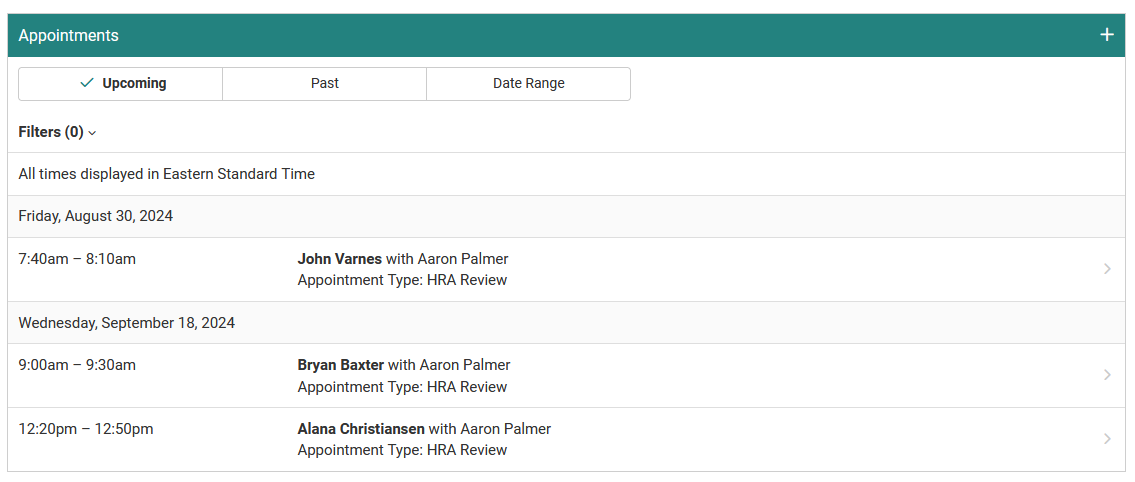
If you have a user's account selected in Member Management, you can go to the Appointments page to view their appointment history and add appointments on behalf of the user.
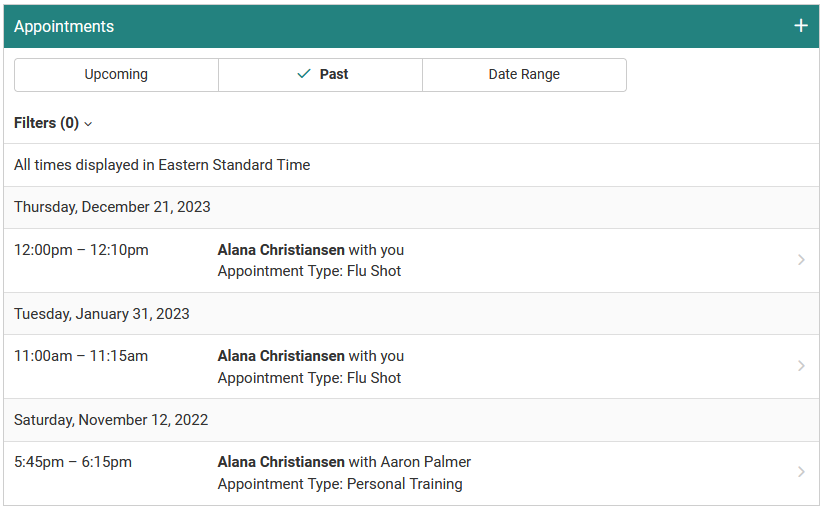
To create an appointment for the selected user, start by clicking the plus icon. The first screen that will be prompted is the Select Appointment Type screen.
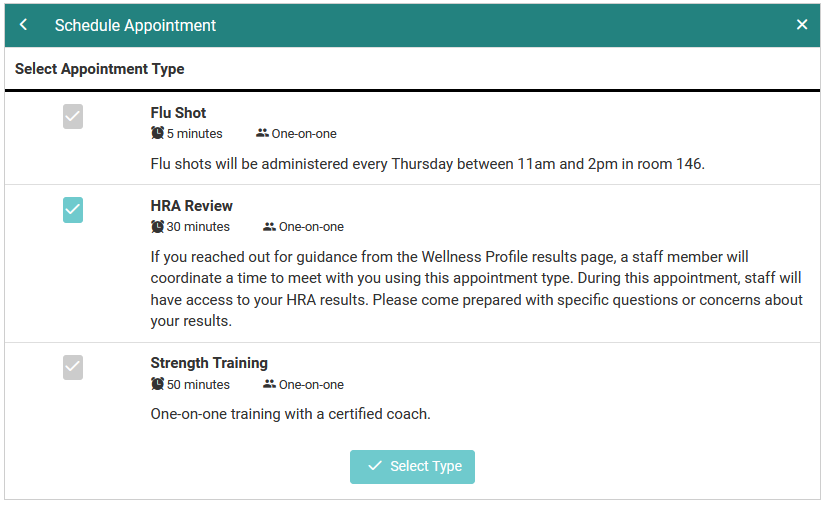
Once you choose an appointment type and continue to the next screen, you will choose the date/time and which appointment staff will be associated with the appointment.
There are two ways you can set the appointment details:
1) Select a staff profile from the Select Profile menu, then select a date and time. The date and time offerings are limited to the selected staff's schedule availability.
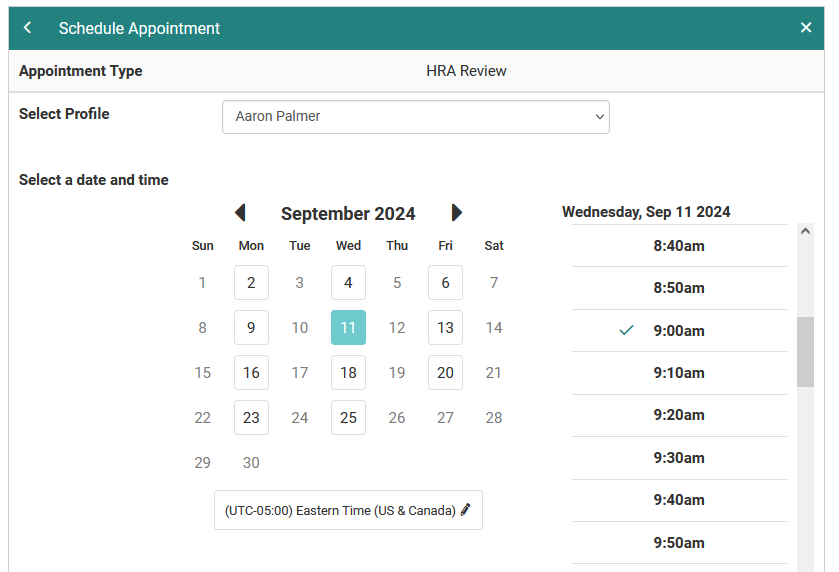
2) Select a date and time. Any staff who has schedule availability during the selected date and time appears under the selected time slot, and you select the staff name from there.
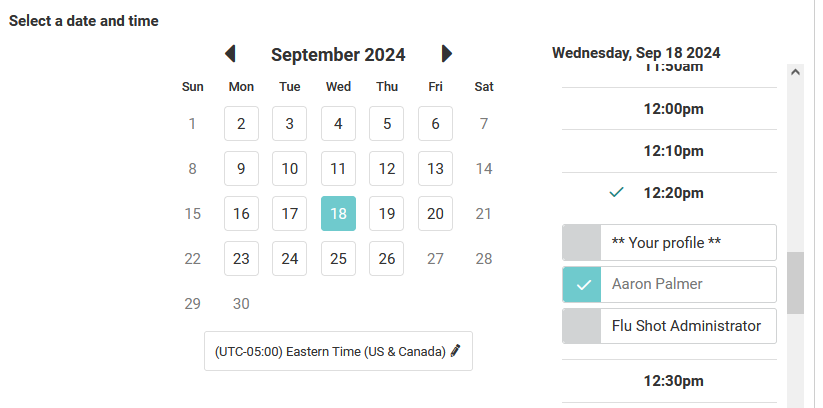
Once the date, time, and staff are selected, you can continue to the review screen. On this screen you can add a message that appears in the confirmation email sent to the user.
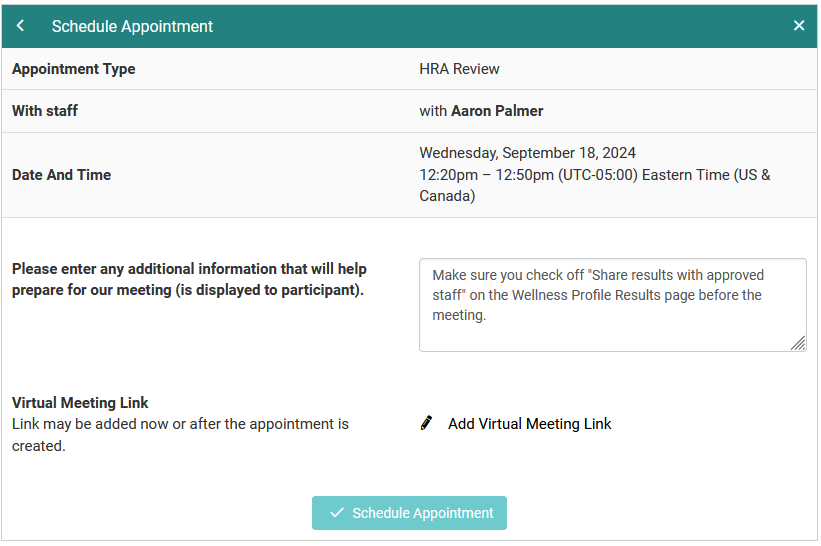
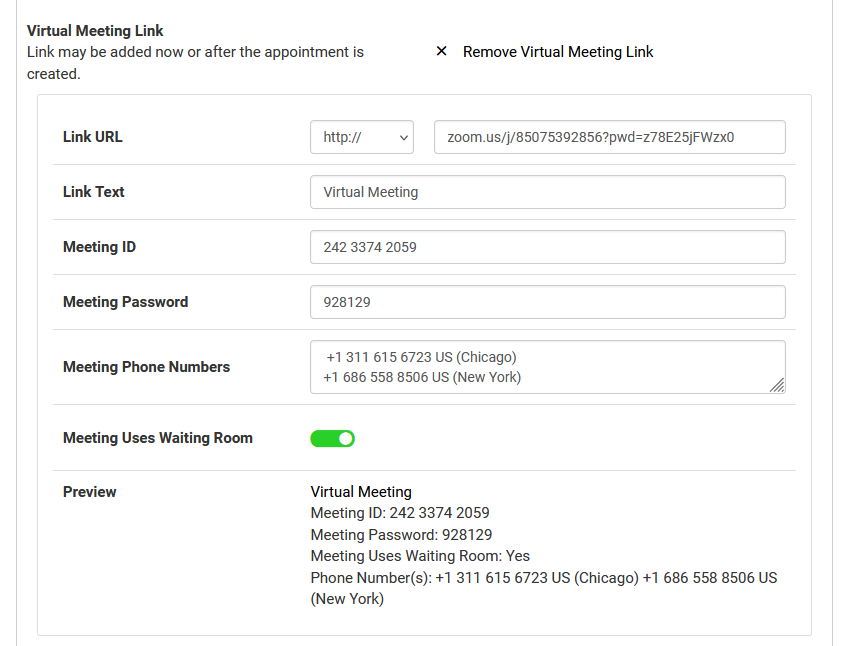
If the appointment is a virtual meeting, you can add Virtual Meeting information by clicking Add Virtual Meeting Link.
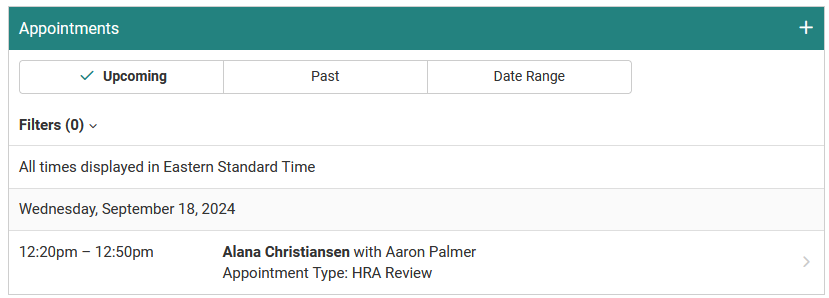
Once you click Schedule Appointment, the member and appointment staff will receive a confirmation email. The appointment is now visible on the Upcoming tab in Member Management.
You can also view and create appointments from the Appointments page (found on the Config page). If you go to the Scheduled Appointments tab, you will see appointment information for all members in your permitted locations.
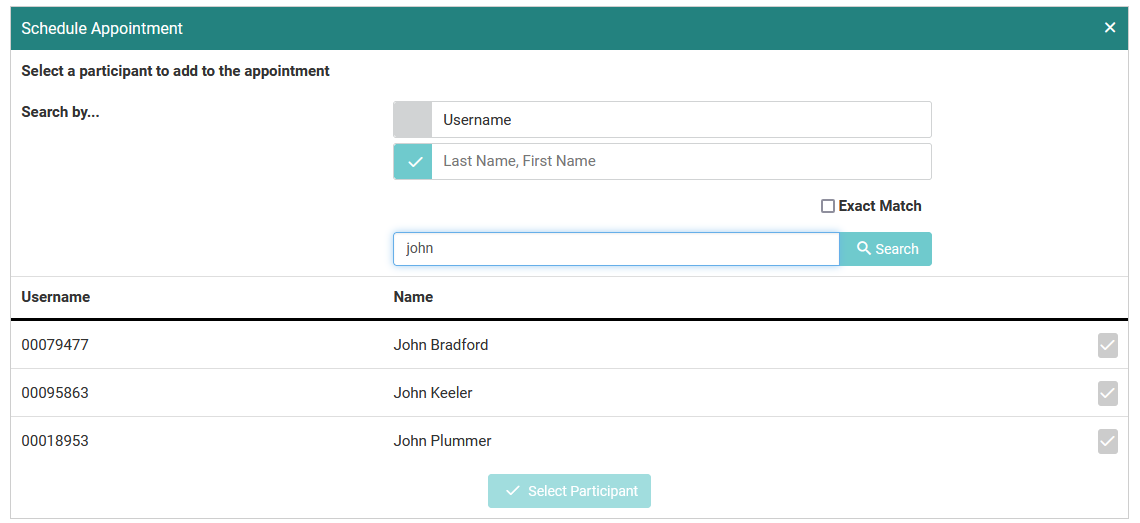
The appointment creation workflow is the same as in Member Management, except that the first screen is used to select which user you are scheduling an appointment for. You can search by Username, or by First/Last Name.