
When you select the Exercise/Workouts menu option in Member Management, the first page you will see is the Activity page. This page is used to view the most recent workout activity entered or updated by members.
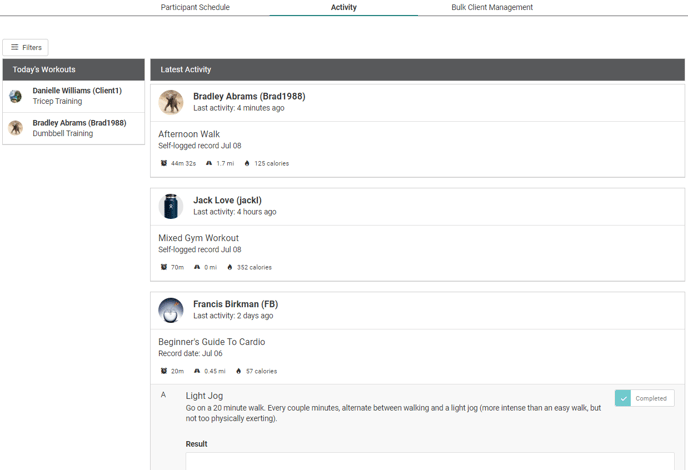
Latest Activity is the main section of this page. This is a timeline that shows you all of the most recent workouts, as well as workouts that may have been updated recently. Starting from the top, workouts with the most recent activity are displayed chronologically.
You may notice that the Last Activity date does not directly correlate with the date the workout was logged. For example, you may see a workout was logged on January 1, but the Last Activity date is 25 days ago even though today is March 1.
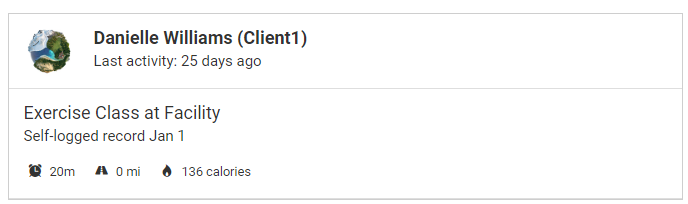
This is because the Last Activity date denotes the last time the workout was edited, so if the user went back after January 1 and edited that specific workout (to add a note, update the distance, etc.) that date will become the Last Activity date.
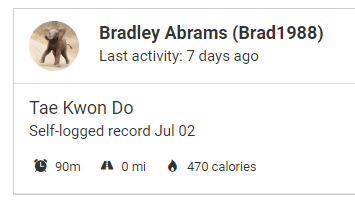
If the record was self-logged (it was not selected from the Library tab), you will see a summary of the workout time, distance, and calories.
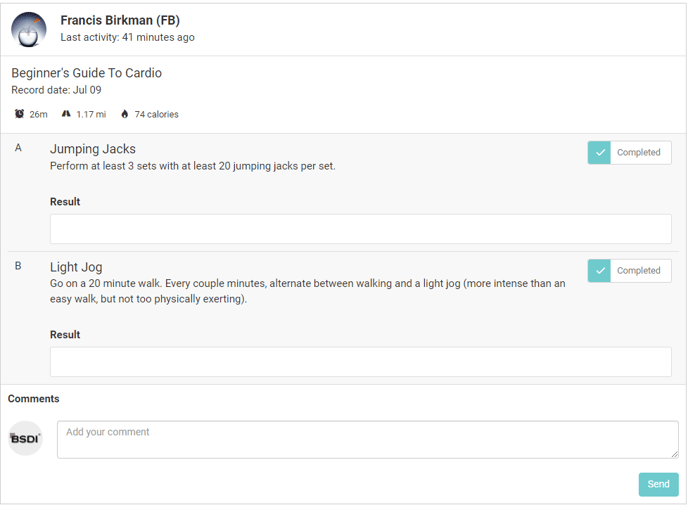
If the record used a workout created in the Workout Builder, the exercise information will be displayed, and there is an option to leave a comment for the user under the exercises.
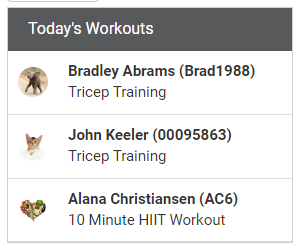
Also on the Activity page is the Today's Workouts section that displays the workouts scheduled for your "subscribed" members for today. Read about how to add members to your subscriptions in this article.
Only uncompleted workouts will appear in this section, as completed workouts will be displayed in Latest Activity.
By default you will see workout information for all members at your permitted locations. You can use filters to narrow the results down to specific populations, workout or program types, or to only view members you are subscribed to (more on that later!).
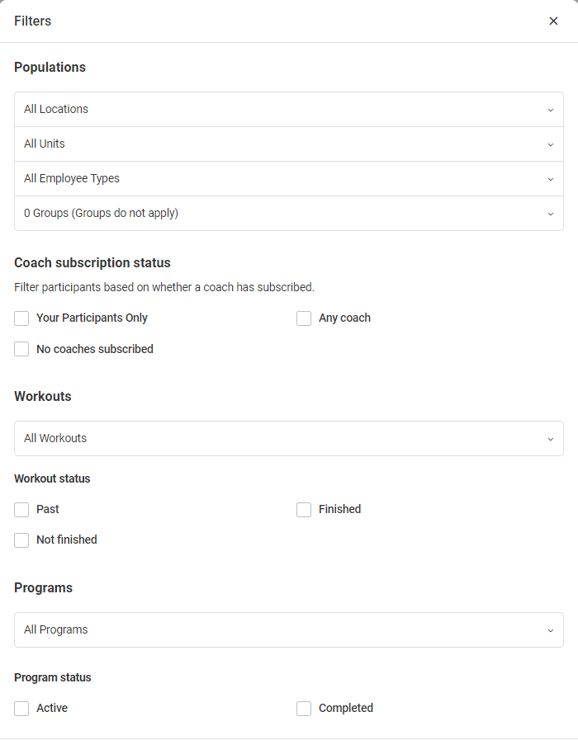
You can set your custom filter settings to load automatically the next time you use the page by selecting Save for next time before applying the filters.
If you click the name of a user from one of the Latest Activity records, you will be taken to the Participant Schedule page. Here you will see this member's workout calendar that contains previously assigned/completed workouts, as well as upcoming scheduled workouts.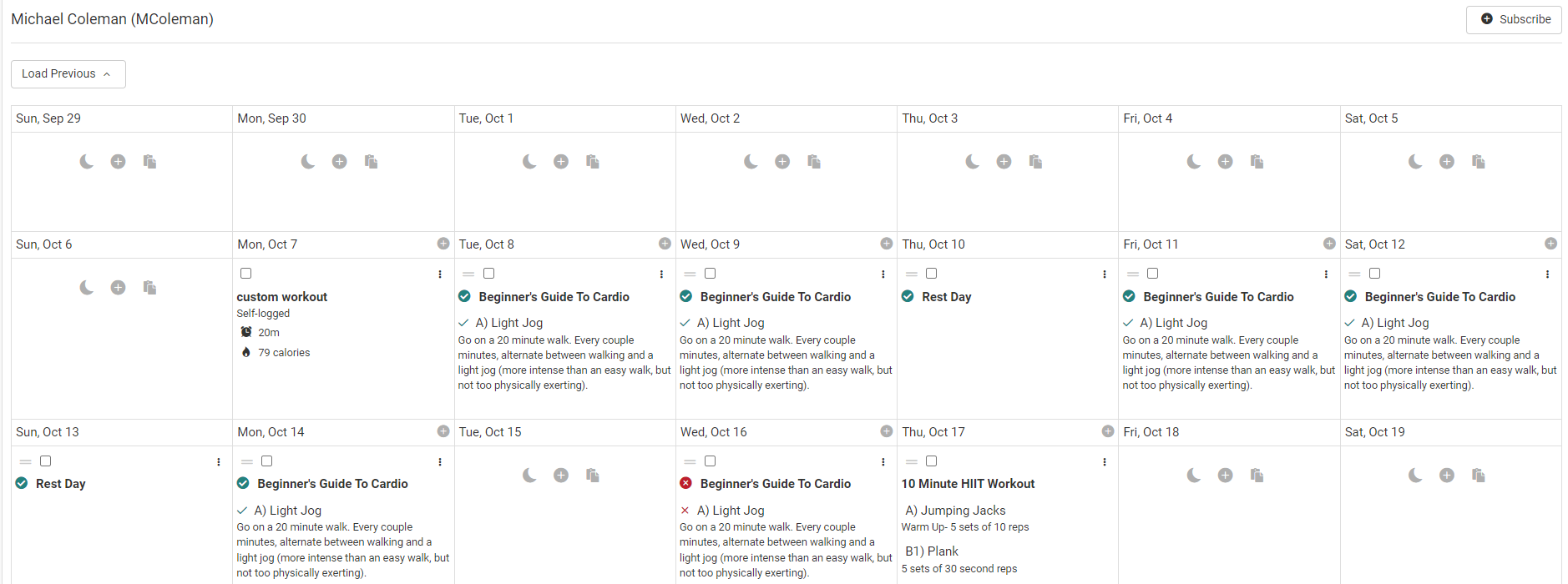
*Right click and select "Open image in new tab" to view the above image in more detail.