
What is a "featured rule"?
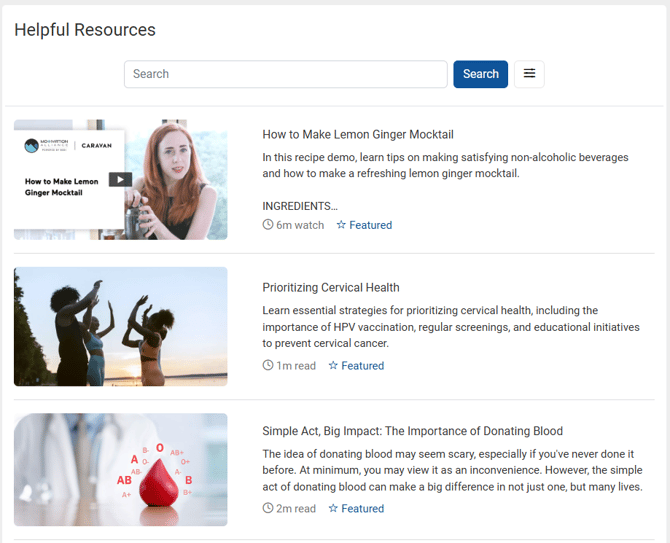
When you access the Helpful Resources page, there are articles or videos that appear at the top of the list with a Featured label.

This is because the resource has a featured rule. This is either set manually by a staff member, or is part of BSDI's monthly rotation of featured resources.
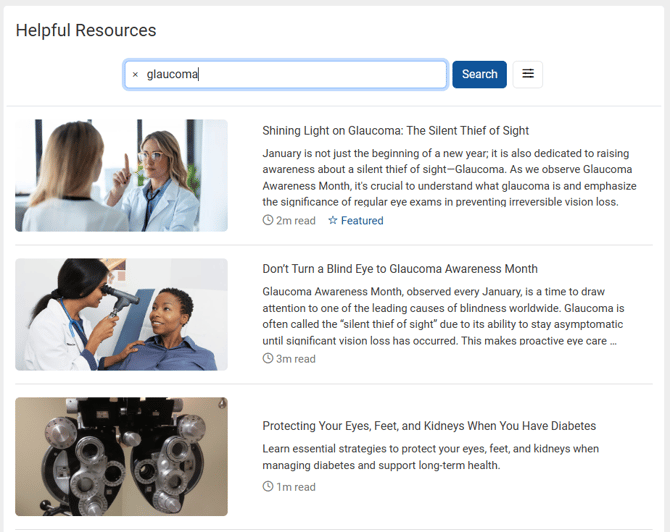
Featured resources always appear at the top of the list on the Helpful Resources page if no filters are used, and they will also appear on top if they are applicable to a search term.
No search term:
With search term:
You can manage which resources are featured from the Content page under Helpful Resources.
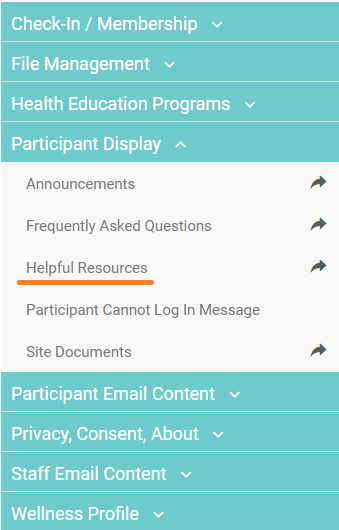
Note: Your staff account needs the Content and Helpful Resources permissions to access this page. Reach out to your site administrator if you need additional permissions .
How to add a featured rule to a resource
Once you have selected a resource you want to feature, scroll to the bottom of the page and select Add featured rules.
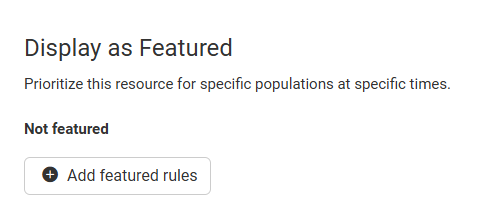
By default this featured rule will apply to all categories you have access to. You can update the categories to feature the resource to only a specified population.
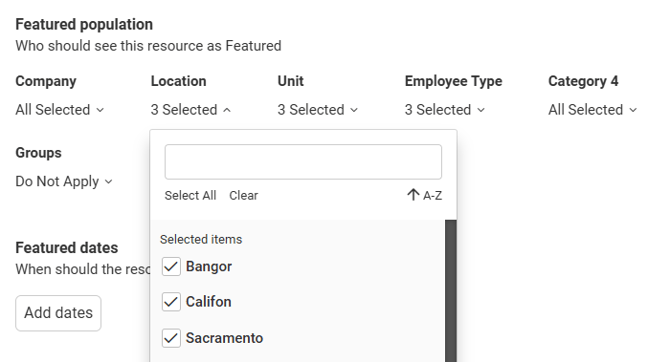
You can have multiple featured rules at the same time for different populations, regardless of if their featured dates overlap.
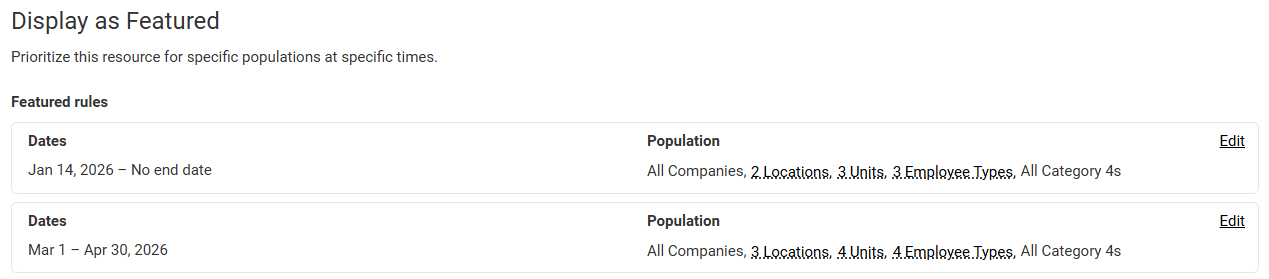
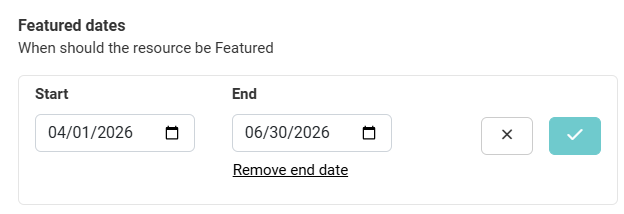
Click Add dates to expand the date tools. You can either set a start and end date for the feature rule, or set a rule that does not expire by clicking Remove end date.
Start and End dates
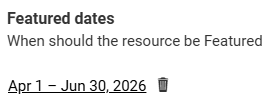
Start date only
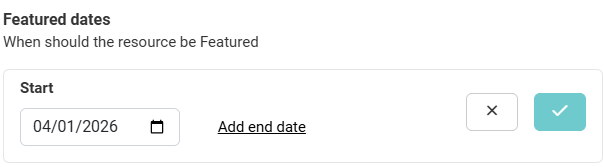
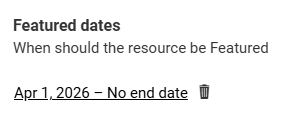
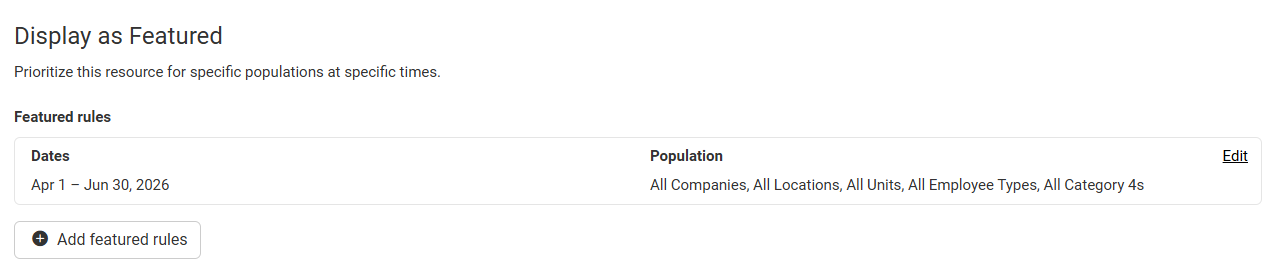
Once you confirm the date(s) by selecting the checkmark, you can save the rule with the Apply settings button. Once saved you will see a summary of the Dates and the Population for the featured rule. You can select Edit to make any changes to the rule.
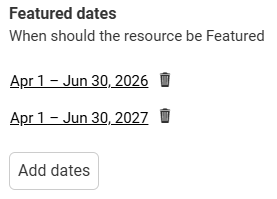
In addition to having multiple featured rules for different populations, you can also have different sets of dates for the same population in one rule.
Note: Be sure to click Save for the resource in the top right before leaving the page, or the rule(s) will not be successfully saved.
How to remove a featured rule from a resource
You can remove a featured rule entirely from a resource by selecting Edit, then clicking Delete at the bottom of the screen. You can also remove just the set of featured dates by clicking the trash icon next to it, but you will need to add a new set of dates to save the rule.