
To perform the actions mentioned in this article, your staff account needs to have the Appointments permission. Please reach out to your site administrator if you do not have these permissions.
The Appointments feature allows site staff to set up availability schedules that members can view when setting up an appointment. You can create one schedule and use it for multiple appointment types, or you can establish multiple schedules for different appointment types.
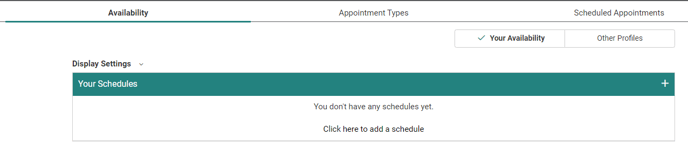
To start, go to the Appointments page, then click the plus icon (or select "Click here to add a schedule").
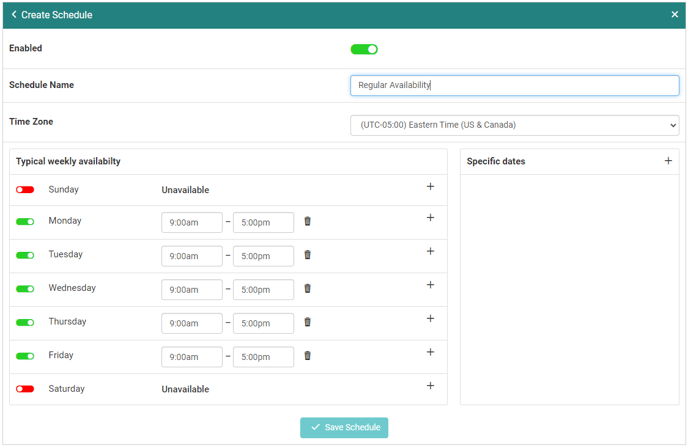
Newly created schedules will default to your primary Location's time zone. The Typical weekly availability is set to Unavailable on weekends with 9:00am - 5:00pm on all weekdays.
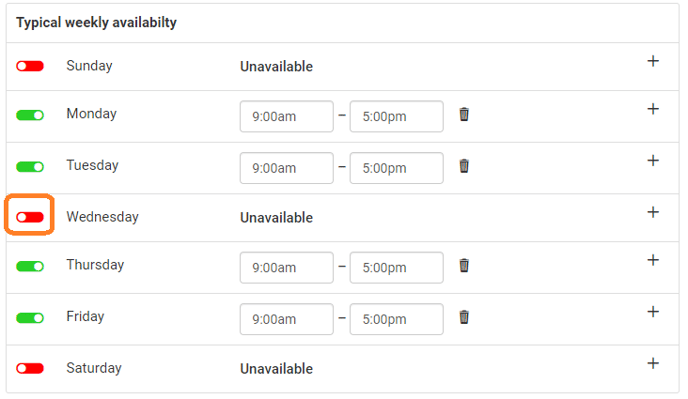
If you are not available on a day, you can click the toggle to set that day to Unavailable.
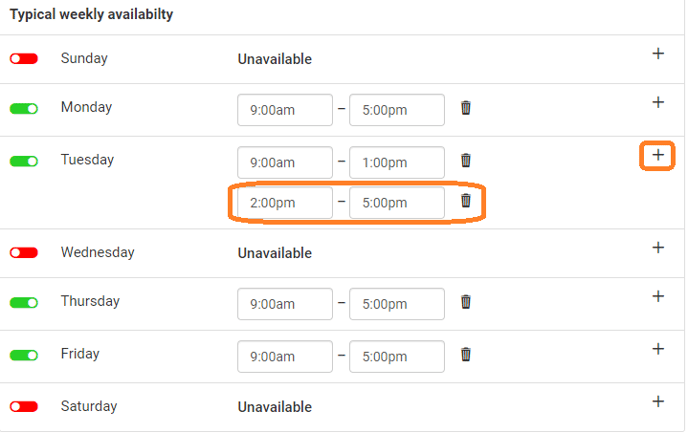
You can add multiple time slots on the same day if you click the plus icon for that day. Time slots cannot overlap if they are on the same day.
If you have upcoming dates where your availability will be different than usual, you can adjust these dates in the Specific dates section.
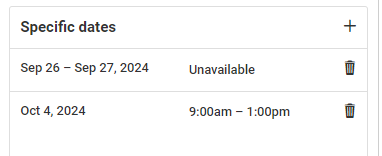
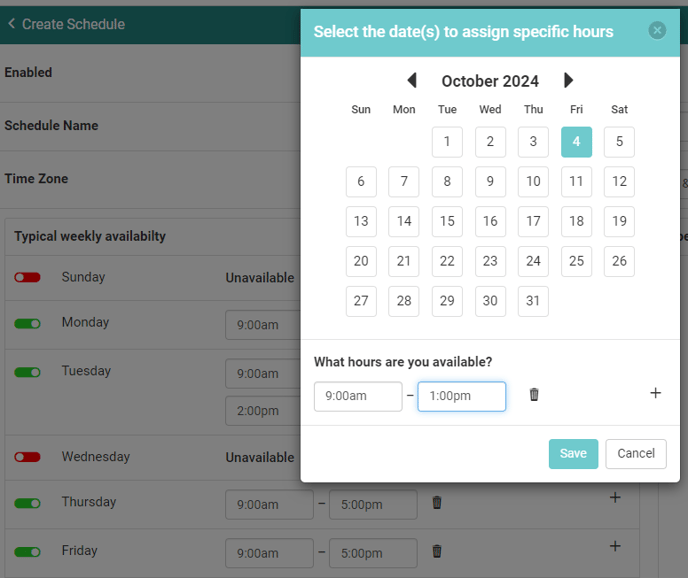
After clicking the plus icon next to Specific dates, you select dates from a calendar, then adjust the available hours for those dates. If you are not available at all on the selected dates, you can select the trash icon next to the time fields to set the dates as Unavailable.
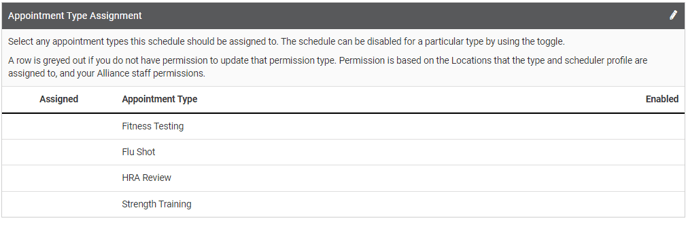
After the schedule is saved for the first time, the Appointment Type Assignment section appears at the bottom of the page. This section contains all appointment types available to you.
Note: If an Appointment Type is greyed out, this is because your Display Settings do not match the Population requirements for that Appointment Type.
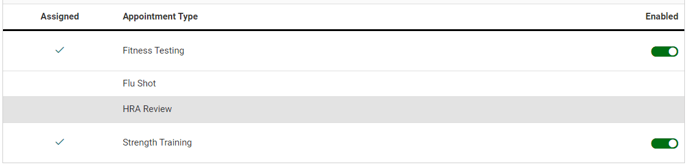
To make a greyed out appointment type available with the schedule, select that option from the Appointment Types tab and go to Population to view which Locations can access that type. 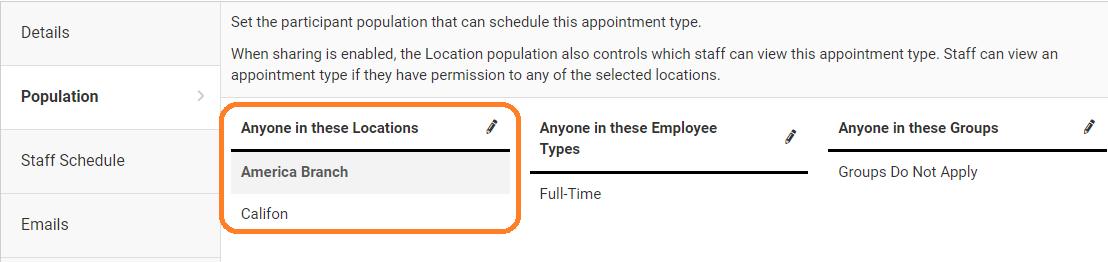
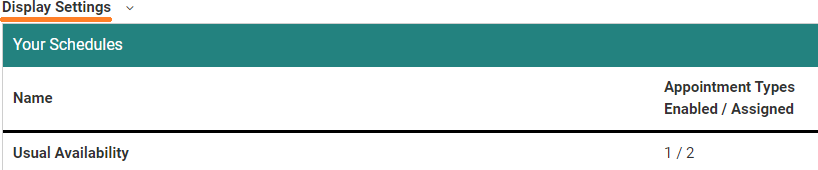
On the Availability tab, you can view and edit which Locations your schedules are displayed to by expanding Display Settings.
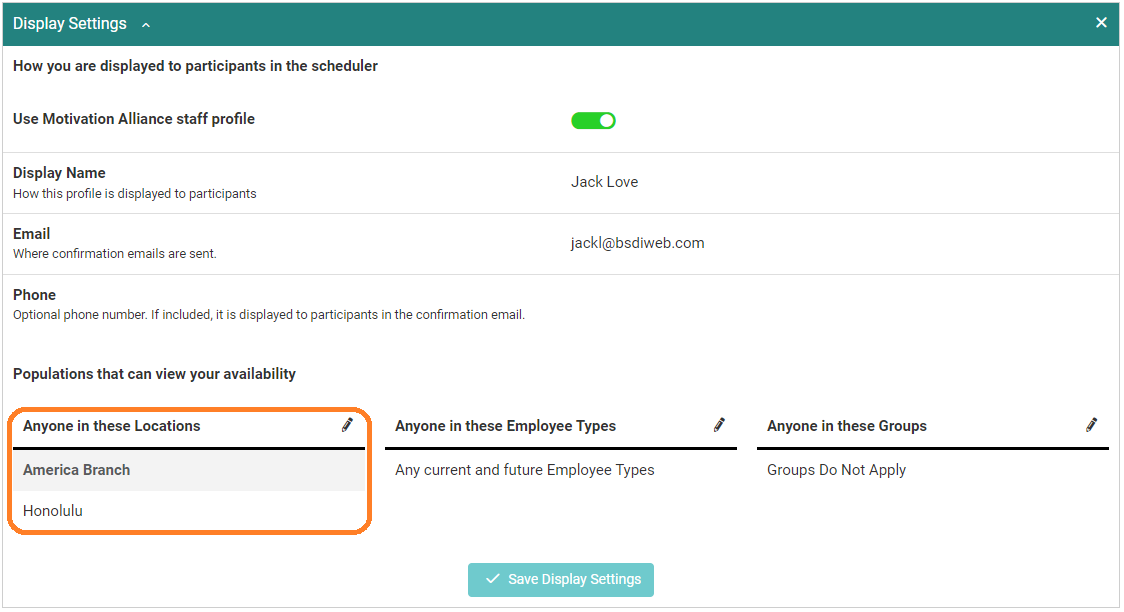
The Location setting in your Display Settings needs to share at least one location with the Appointment Type before it can be associated with your appointment schedules.
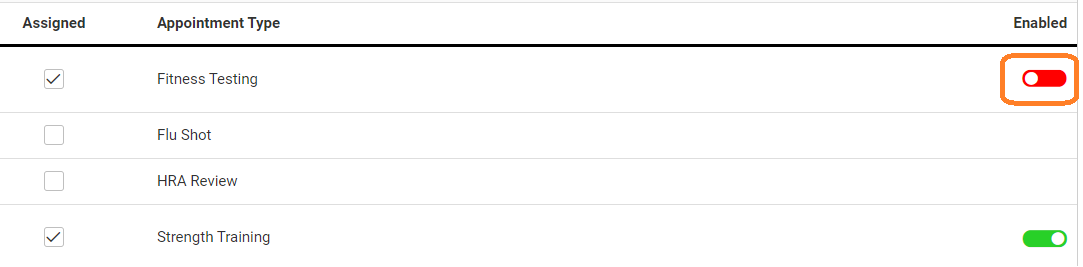
You can assign appointment types to this schedule by selecting the edit icon, then selecting the check box for any applicable appointment types.
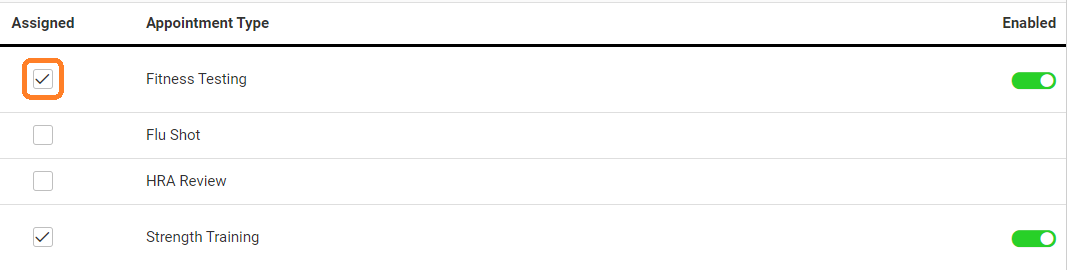
Once an appointment type is assigned, you can leave it Enabled to allow users to schedule appointments with you for that type, or set it to Disabled if you are not currently offering that appointment type, but will be at another time.
Once saved, your schedule will be available to users for appointment scheduling when they are using one of the appointment types assigned to the schedule.
Note: Appointment Types can only be assigned to one schedule per staff member. If you assign the appointment type to another schedule, it will remove the type association from the current schedule.