
Note: It is recommended that your phone runs Android OS 14 or later to properly support the Health Connect and Samsung Health apps.
Samsung Health is a frequently requested application for syncing data to Motivation Alliance. Samsung Health no longer supports direct partnerships with other applications, but Motivation Alliance can be paired with Health Connect to transfer data from Samsung Health.
Health Connect is an app that stores data from various apps so you can view all of your data in the same place if you use multiple apps (ex. Samsung Health, Google Fit, Peloton). Health Connect serves as a "hub" for health apps, and the only way to add data to Health Connect is to sync it from a supported app. Motivation Alliance can connect to Health Connect, which means any data that appears in the Health Connect app can be synced to Motivation Alliance.
Samsung Health sharing settings
Samsung Health is unique in that there are app settings that are required to transfer data, and these settings are not all included when you allow permission with other apps. Before connecting with Health Connect, you should go into the phone's Settings app and select Apps. From here, select Samsung Health, then select Samsung Health settings.
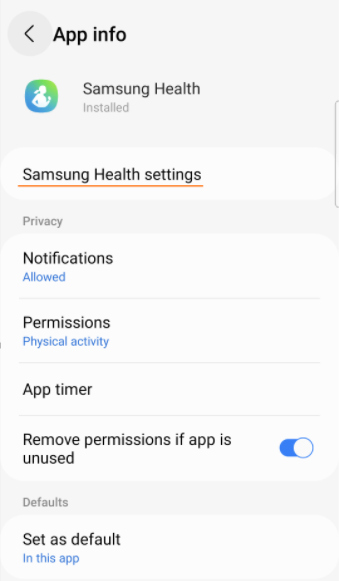
From the app settings page, scroll to the Privacy section and make sure Consent to the processing of health and wellness data is turned on. If you plan to log cycling data, you should also enable Consent to the processing of cycle tracking data.
-png.png?width=310&height=672&name=screenshot-Samsung%20Galaxy%20S22-12-0%20(18)-png.png)
Once these settings are enabled, restart your phone. This ensures that the phone will be able to recognize the app setting changes.
Connecting Samsung Health to Health Connect
Download and open the Health Connect app. There should be a screen that pops up with the available health apps that you can connect. Samsung Health access will be turned off by default (as will every other health app).
.png?width=229&height=496&name=screenshot-Samsung%20Galaxy%20S22-12.0%20(21).png)
Tap the Samsung Health button, then select Allow all to establish the connection between Samsung Health and Health Connect. You can also choose only specific data types to share, but app connections are more successful if all permissions are shared.
.png?width=254&height=550&name=screenshot-Samsung%20Galaxy%20S22-12.0%20(22).png)
Connecting Health Connect to Motivation Alliance
Health Connect can only be connected to (and disconnected from) Motivation Alliance on a device that supports the Health Connect app. Once you log into the Motivation Alliance app on your device, go to the Connections page and click the plus icon next to Health Connect.'
There will be two prompts: one allows you to select which data can be shared, and the other asks you to allow Motivation Alliance access to Health Connect when you are not using the app.
.png?width=307&height=666&name=screenshot-Samsung%20Galaxy%20S22-12.0%20(23).png)
.png?width=306&height=661&name=screenshot-Samsung%20Galaxy%20S22-12.0%20(24).png)
Once clicking Allow on the second screen, you may be prompted to open the phone settings and toggle Health Connect access on.
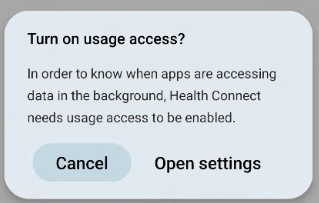
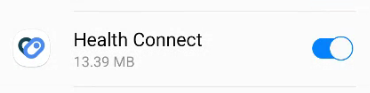
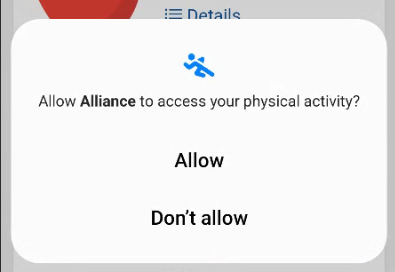
Finally, you may be prompted to allow Motivation Alliance to access workout data from Health Connect.
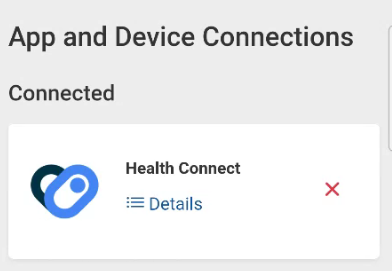
Once all of these steps are completed, Health Connect should appear in your list of connected apps.
Additional Information
Health data is synced between Samsung Health and Health Connect approximately every 15 minutes. Once the data is present in Health Connect, it will be brought over to Motivation Alliance the next time you open the Motivation Alliance app, even if you do not log in.