When you load the Member Management page for the first time after logging in, you will see the following options:
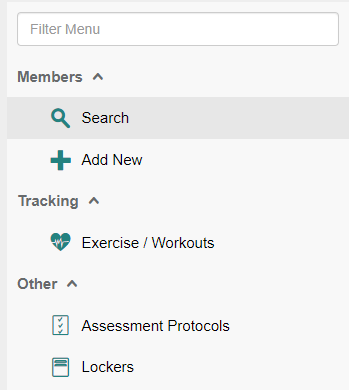
Once you select a member profile, the menu will expand to include many more options. It can be tricky to find a specific option, so we offer a few different ways to filter the menu, as well as create a menu category with the options you use the most for quick access.
Expand/Collapse a menu category
When you select a member profile, all of the standard menu categories (Members, Coaching, Tracking, Other) are expanded by default. If you know the specific category that your desired option is in, you can click the up arrow next to a menu category to collapse it and reduce the number of options on the page.
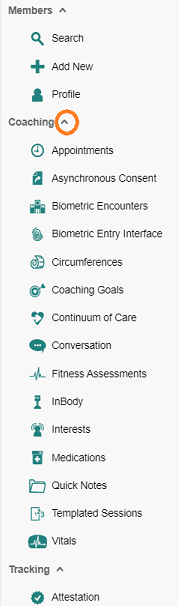
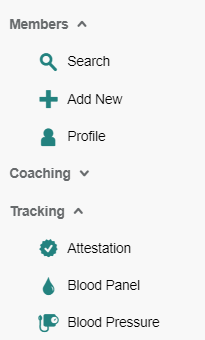
You can click the down arrow to expand the menu category again.
Use the Filter Menu search bar
There is a search bar at the top of the menu that allows you to filter for options that match a keyword. The options are filtered to show only pages that contain the exact keyword/phrase you enter. 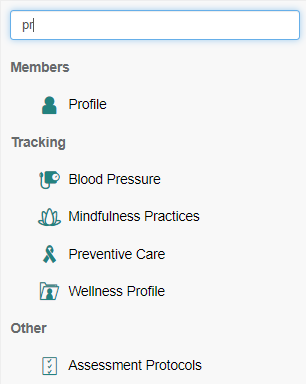
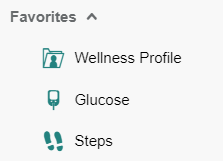
Create a Favorites category
If you hover over a menu option, a heart icon appears to the right of it.

Clicking this heart will add it to your Favorites menu category. If you do not have a Favorites category yet, this will be created for you automatically and the menu option will be added. This category appears near the top of the menu.
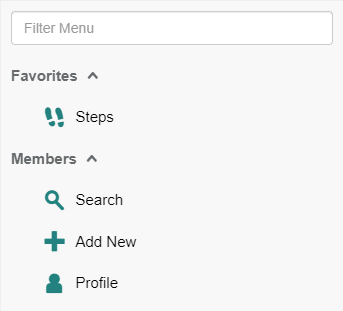
In addition to the option appearing under Favorites, the heart icon is colored red in the menu category it came from.
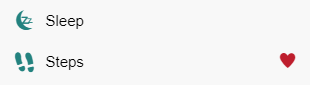
You can remove an item from your Favorites by selecting the heart icon again, either from the Favorites menu (you have to hover over the option for the heart to appear), or from the menu the option came from.
When you hover over a menu option in your Favorites, an = icon appears to the left of it.
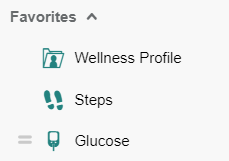
By default, the options are displayed top-to-bottom in the order they were added to your favorites. You can click the = icon and drag the option up or down in the menu to change the order in which the options appear.