There may be times when you find yourself needing to submit a check-in on behalf of a member. There are a few spots in the staff interface where you can do so.
From the Check-In Terminal
If you have a check-in screen open on the specific Facility the member needs to be checked into, you can manually type their Username or Scancode and submit a check-in record for the member.
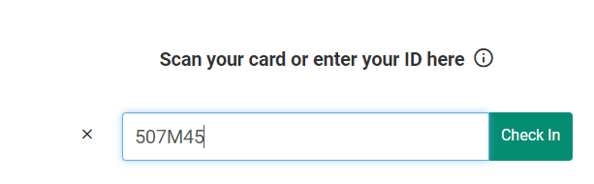

The upside to this approach is that you don't need to leave the check-in terminal to check the member in, or pull Motivation Alliance up on a separate device to complete this action.
One downside to this approach is it is limited to the specific facility that is receiving check-ins on the device. Another is that you need to know the member's exact Username or Scancode, otherwise the check-in will not work, and you may end up submitting a record for another user with a similar Username or Scancode by accident.
From the Check-In Page
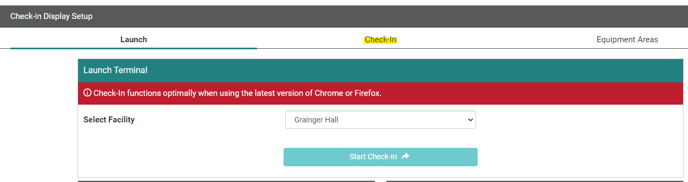
When you log in to the staff interface and go to the Check-In page, select the Check-In tab.
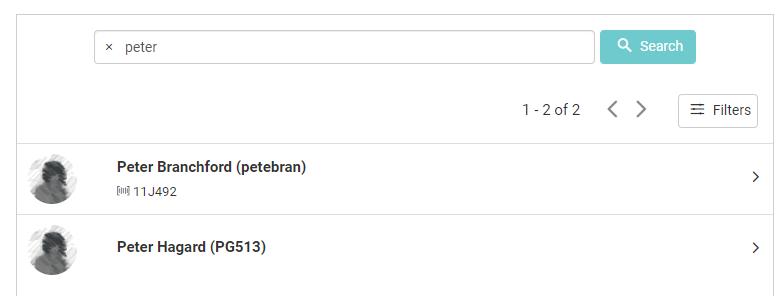
This page has a search bar similar to Member Management where you can search for a specific member by Name, Username, or Scancode. Once you see the member in the results, click their row to select them for your check-in record.
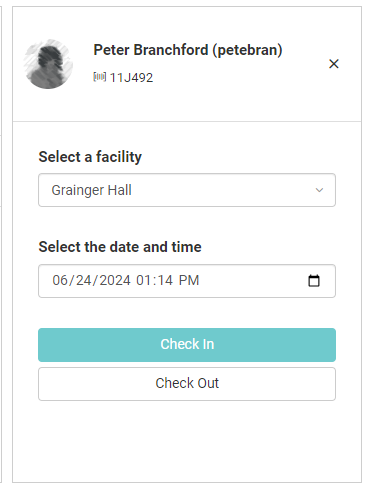
Once you select the facility and date/time for the check-in record, clicking Check In will create the record for that member.
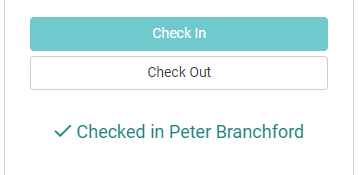
If the facility you selected allows check-ins and check-outs, you can also click Check Out to create a record for that user.
From the Member Management Check-In Page
If you are in Member Management and have the member's profile selected, you can go to the Check-In page in the Tracking menu and create a record for the member there.
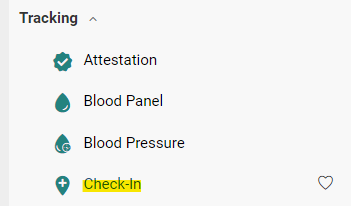
From this page, click the plus icon.

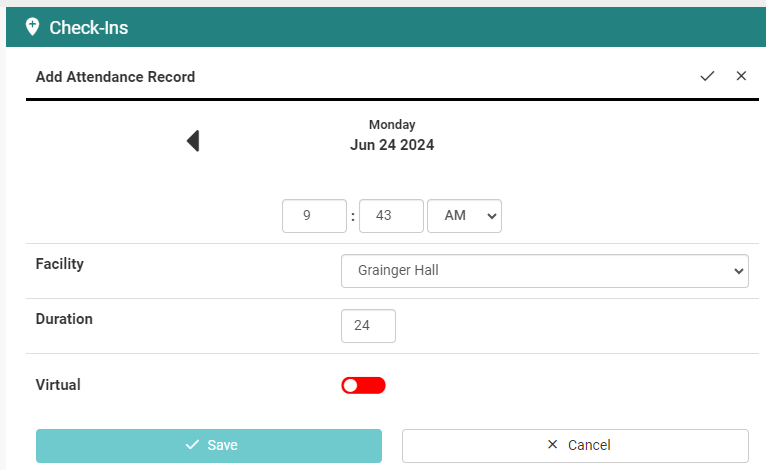
On this screen you can select a date, set the time, select a facility, and enter the duration (this is applicable for facilities that allow Check-In and Check-Out).
If the selected facility allows in-person check ins (from the staff terminal) and virtual check-in (from the participant Home page), you can specify whether this record is a virtual check-in or not using the toggle.