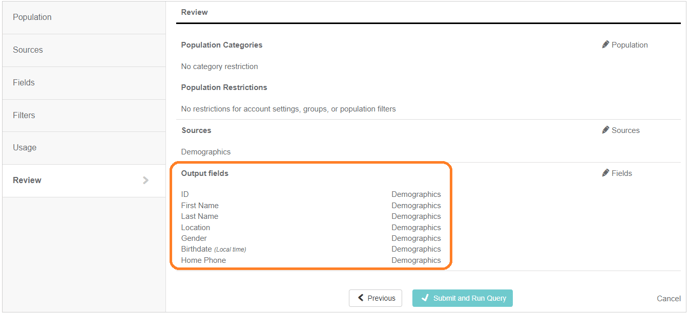
When you select a template, you are taken to the Review page. All of the templates have sources and fields preselected by Motivation Alliance to return the most common data types. You can see the fields that will be returned on this Review page.
 Templates may not always match your specific needs. Luckily, you can make changes to the query before you run it.
Does editing a template change it for everyone else?
If you are concerned about accidentally updating the template for other staff members, don't worry! Changes you make to a template only apply to the query you are running and they do not affect the settings saved for the template.
If anything, you may end up creating a new template instead of changing the current one, but this isn't very likely if you selected it from the Templates page instead of building a query from the beginning. You can double-check that you aren't accidentally creating a new template if you select Usage from the left menu and make sure Save as New Template is turned off.

Here are some common reasons you may want to edit a template before running it.
I need to make changes to the population filters.
Motivation Alliance templates do not have population filters, so you will need to add those manually if you need them. Alternatively, a custom template may have been saved with a population filter that you do not need. Either way, you are able to edit the population before running your query.
You can Select the Population pencil icon on the Review page or the Population tab from the left menu to jump to the Population Filters page.

From here, you can add or remove the necessary filters, then select Review from the left menu to navigate back to the Review screen if that is the only change you needed to make.
I need to make changes to the sources.
Templates are a good starting point for a query, though sometimes you may want to add another type of data or remove one that is configured with the template. You can select the Sources pencil icon on the Review page or the Sources tab from the left menu to jump to the Sources page.

Note: You will need to manually go through the rest of the pages to get back to Review because making changes to Sources removes the ability to select Review from the left menu.
I need to add/remove Fields (without changing the Sources).
If you want to edit the fields used in the query, but do not need to do anything with the Sources, you can select the Fields pencil icon on the Review page or the Fields tab from the left menu to jump to the Fields page.

From here, add or remove the desired fields, then you can select Review from the left menu to navigate back to the Review screen if that is the only change you needed to make.
I need to use a different date range.
If you are using a Motivation Alliance template, the default date setting is the last 180 days. If you are using a custom template, it may set the same date range every time you run it. Either way, you can change the date range before running the query.
You can select the Filters pencil icon on the Review page or the Filters tab from the left menu to jump to the Filters page.

You can update the Start Date and End Date from here, as well as add a Last Updated range if desired. Once you modify the date range, you can select Review from the left menu to go back to the Review screen if that is the only change you needed to make.
I need to add/remove field filters.
If you are using a Motivation Alliance template, there will not be any field filters applied. If you are using a custom template, there may be field filters that you do not need. You are able to make changes to the filters before running the template.
Jump to the Filters page with the Filters tab in the left menu. You can make changes to the filters from here, then select Review from the left menu to go back to the Review page.
I need to download the query instead of viewing it in the browser.
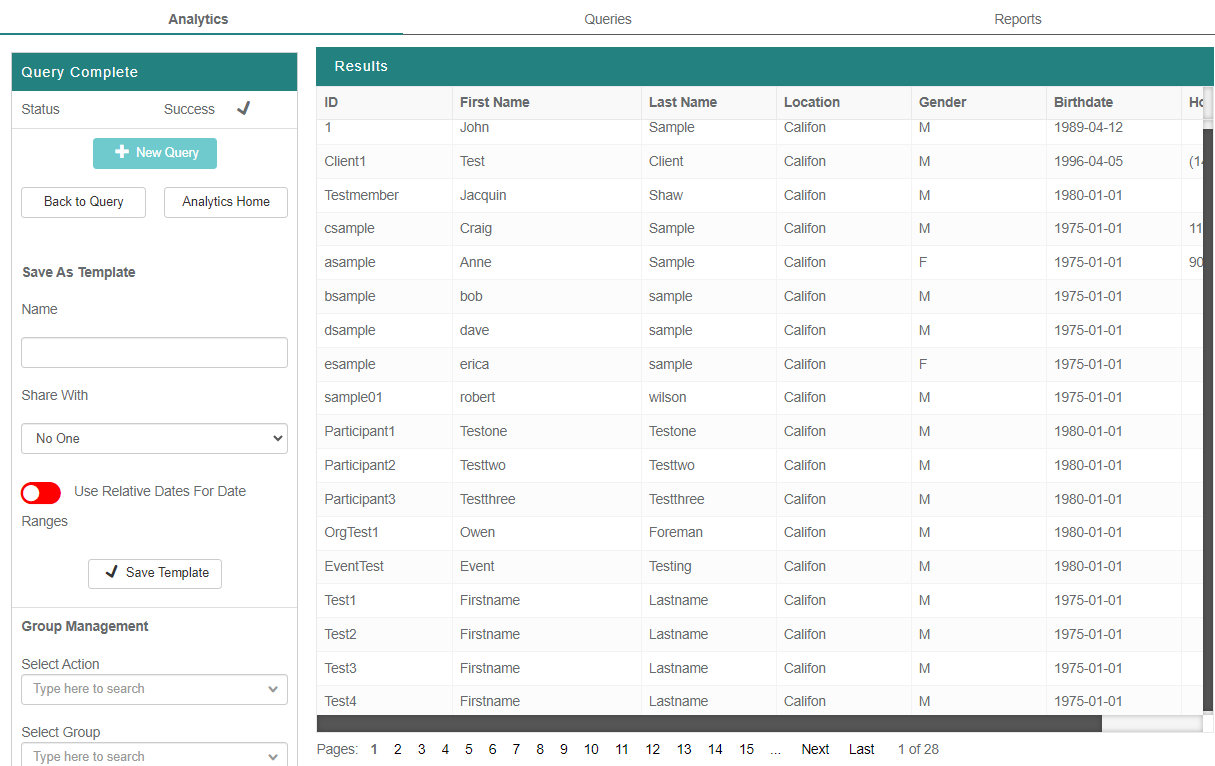
When you select a Motivation Alliance template, the first 500 results (ordered by oldest record to newest) will be returned in the browser by default.
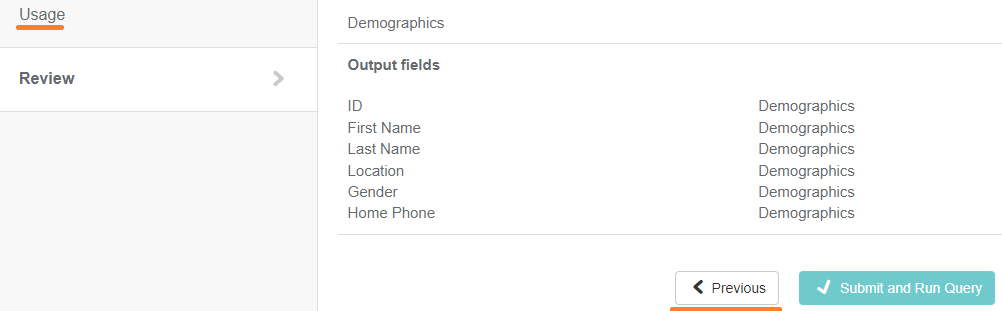
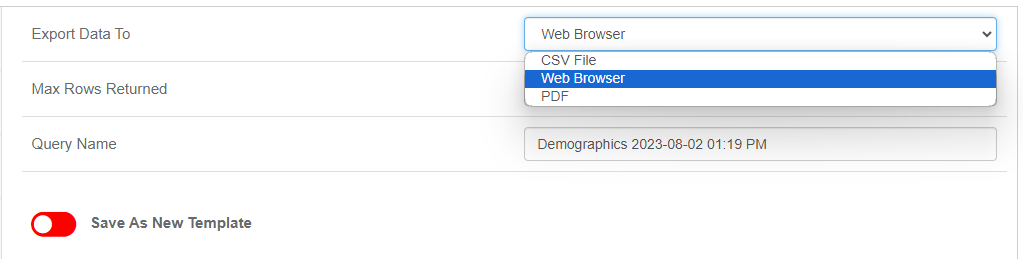
If you need more results or need to download a file, you can select the Usage tab in the left menu or the Previous button to get to the Usage screen.
You can select CSV File (an Excel spreadsheet) or PDF from the Export Data To menu on this screen, then click Next to get back to the Review page.
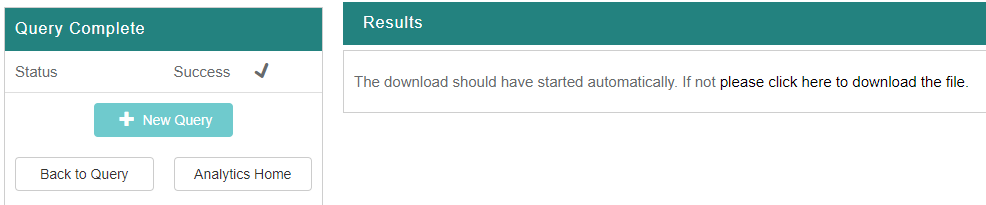
Once you run the query, you will get a success message on the screen and the file will be downloaded.